
When a blog gets many comments, the moderation queue grows quickly, and approving or marking comments as spam one at a time on the Comments screen is slow. With Import Export by RockStarLab you can export the pending comments to a spreadsheet, read them and write a decision for each, and import the decisions back in one go. In the example, seven comments on a coffee roastery’s blog are moderated.
Free: comment export and import, version 2.1.48 or later.
Short Answer
- Export Comments with the filter Status Equals
0(pending) and the columns Comment ID, Post Title, Author Name, Comment Content and Status. - In the
comment_approvedcolumn, writeapproved,spamortrashfor each comment, then keep onlycomment_IDandcomment_approved. - Import the file into Comments with Check for Existing Items by Field set to
comment_ID, Update for matches and Skip for new items.
1. Export the pending comments
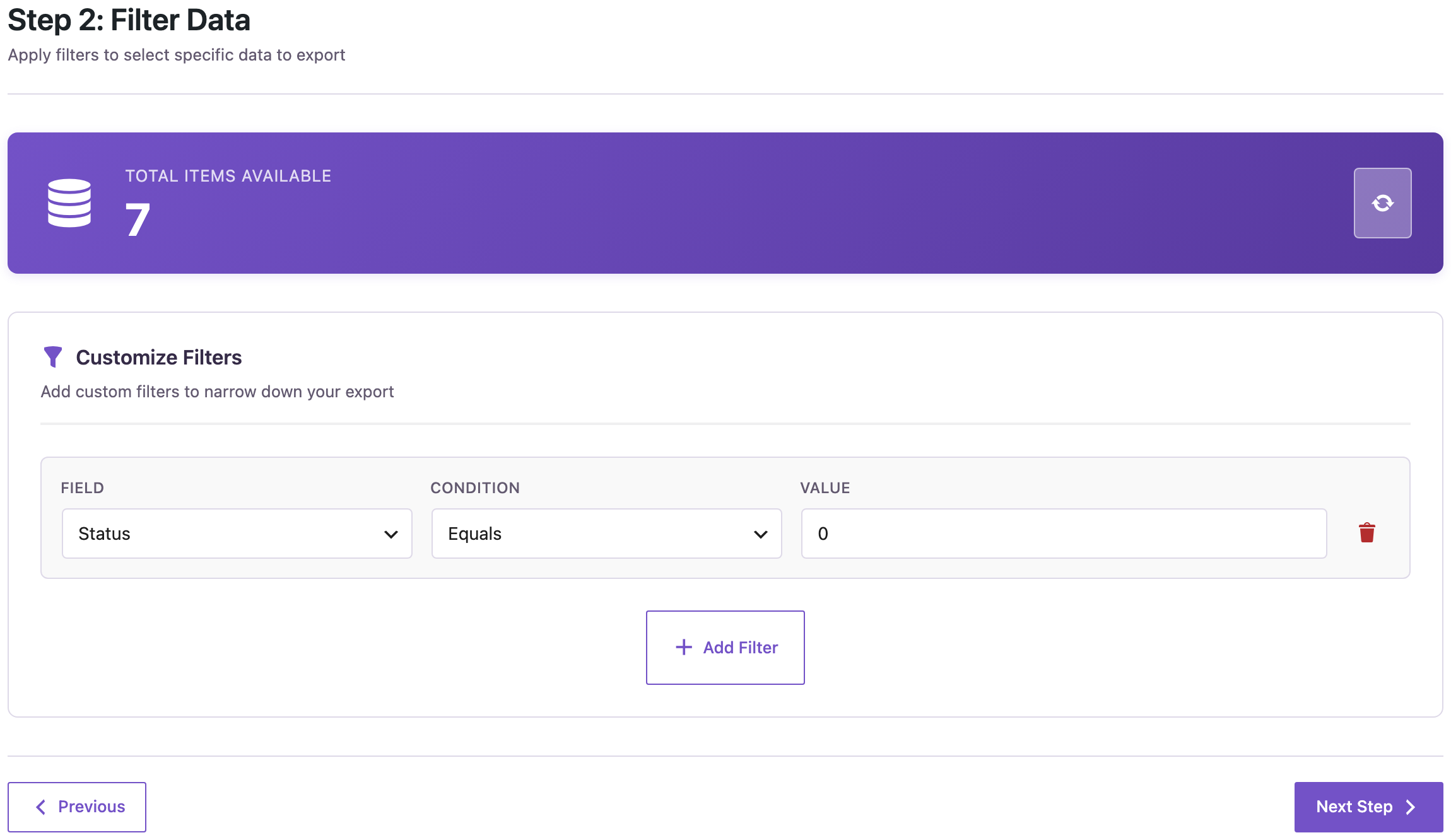
Go to Export, choose Comments and add the filter Status, Equals, 0. Pending comments have the status 0 and approved ones 1. The counter showed 7 comments waiting for moderation:
On the field step we chose Comment ID, Post Title, Author Name, Comment Content and Status, and exported a CSV. The post title and the text are there so you can decide; only the ID and the status go back into WordPress.
2. Decide in the spreadsheet
Read each comment and replace the 0 in the comment_approved column with the decision:
| comment_ID | Post | Author | Comment | comment_approved |
|---|---|---|---|---|
| 83 | Our New Roastery Opens in March | Sam | test | trash |
| 82 | Our New Roastery Opens in March | Priya Shah | Congratulations on the new roastery! Will there be cupping events? | approved |
| 81 | How We Source Green Coffee | SEO Expert | I can get your site to page one, contact me | spam |
| 80 | How We Source Green Coffee | Leo Martin | Do you work directly with the farms in Huila? | approved |
| 79 | Five Single-Origin Coffees to Try This Winter | Anna Kim | Great list, the Kenya was my favourite this year. | approved |
| 78 | Five Single-Origin Coffees to Try This Winter | Best Deals | Cheap watches here, click now!!! | spam |
| 77 | Five Single-Origin Coffees to Try This Winter | Tom Becker | Medium-fine works for me, about 18 on a Baratza Encore. | approved |
The status accepts 1 or approved, 0 or pending, spam and trash. Before the import, delete the Post, Author and Comment columns so the file has only comment_ID and comment_approved. Then nothing else in the comments can change.
3. Import the decisions
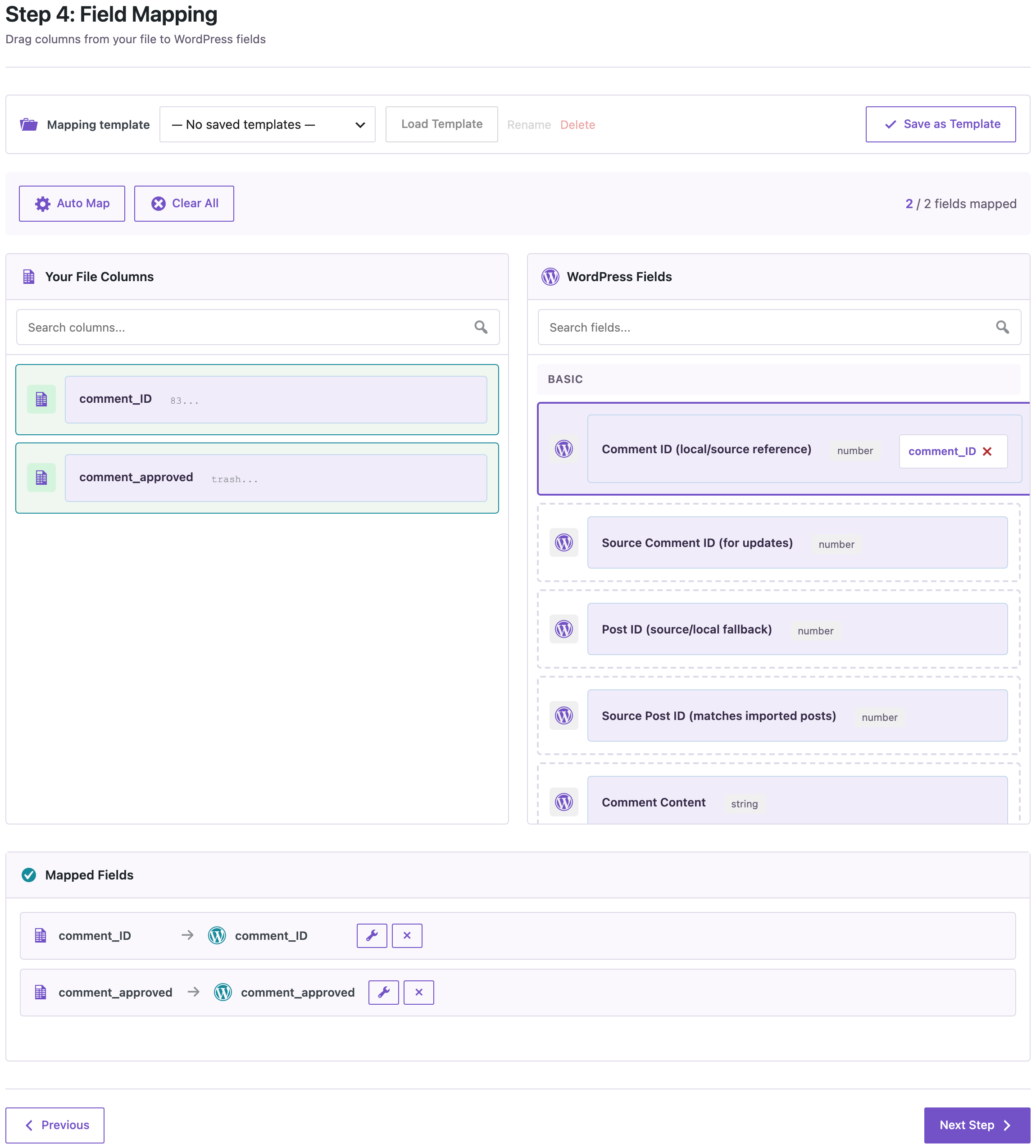
Go to Import, choose Comments, upload the file and click Auto Map. The two columns were mapped to comment_ID and comment_approved:
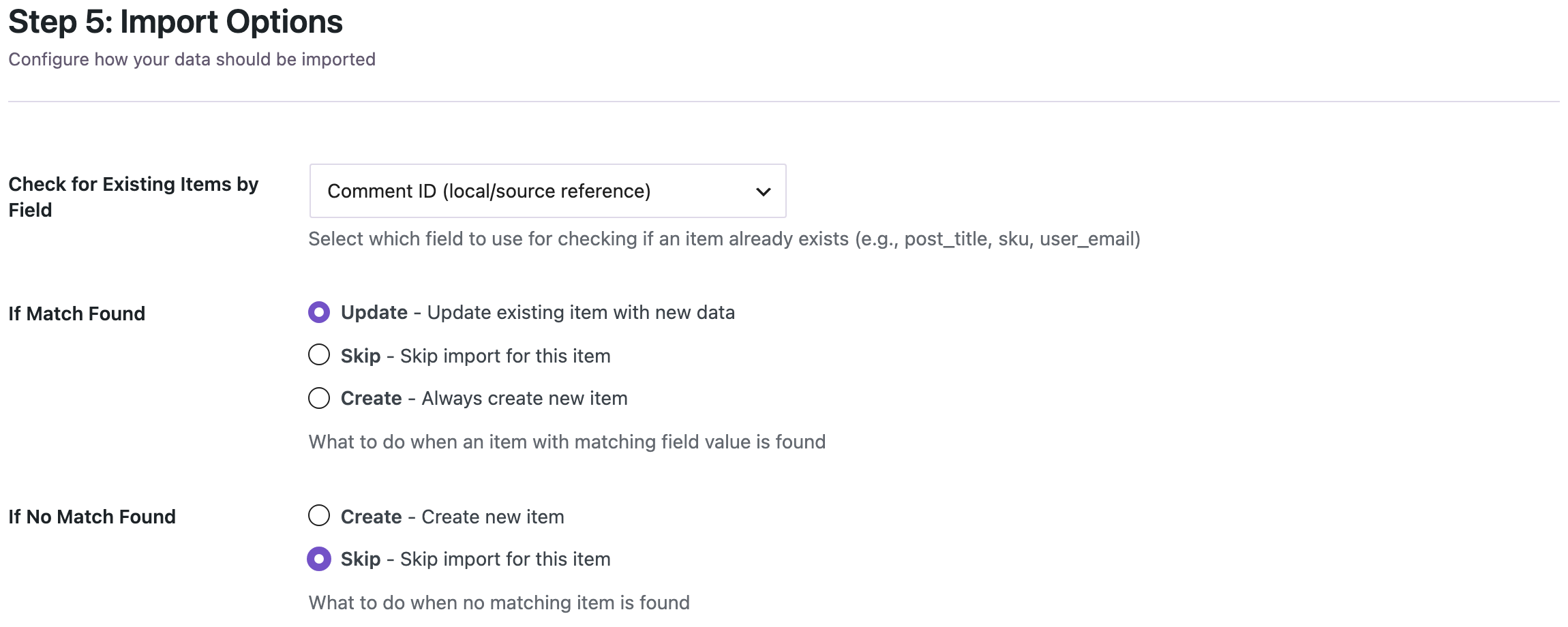
On the options step, set Check for Existing Items by Field to comment_ID, If Match Found to Update and If No Match Found to Skip:
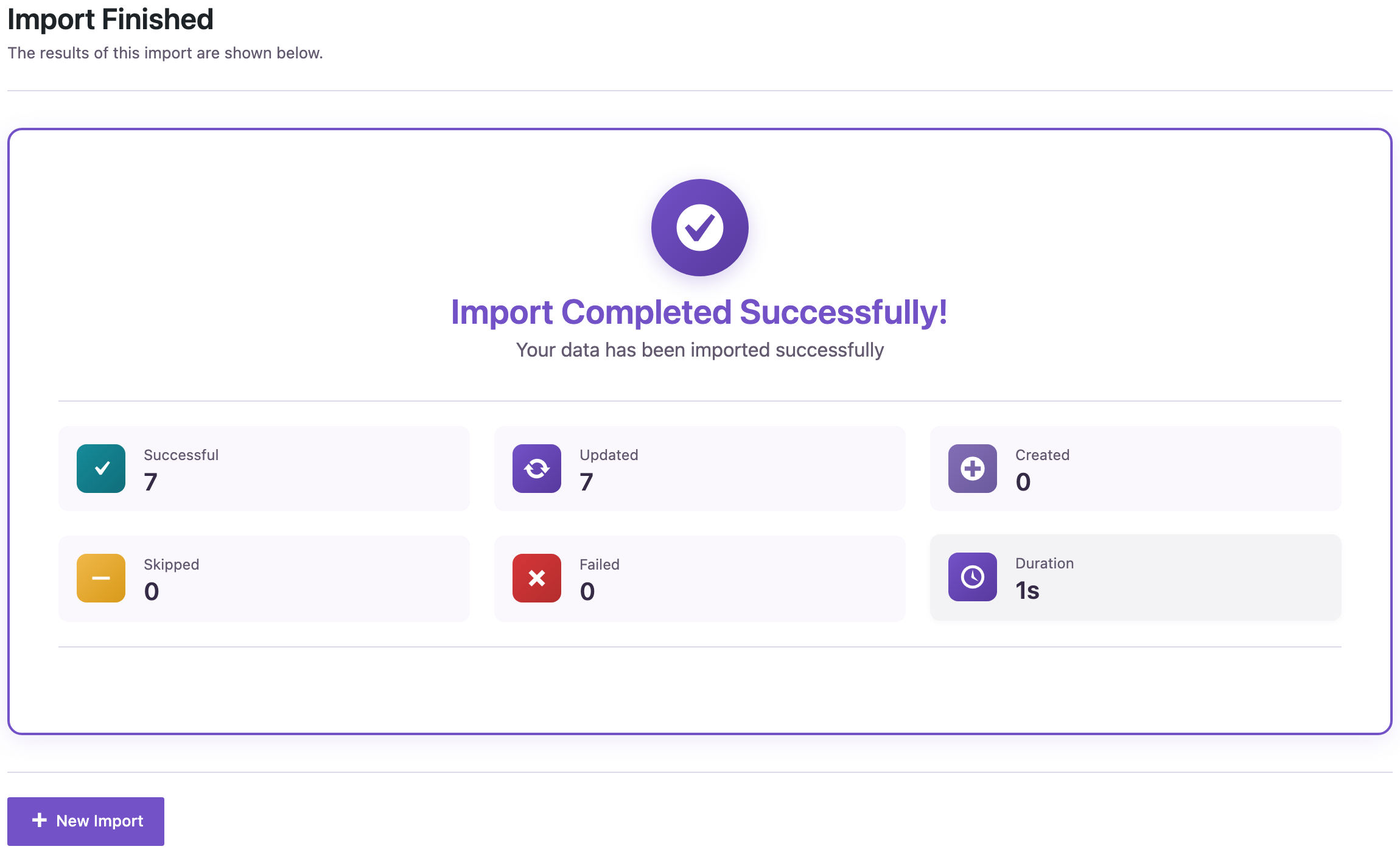
The import updated all seven comments in one second:
4. Check the result
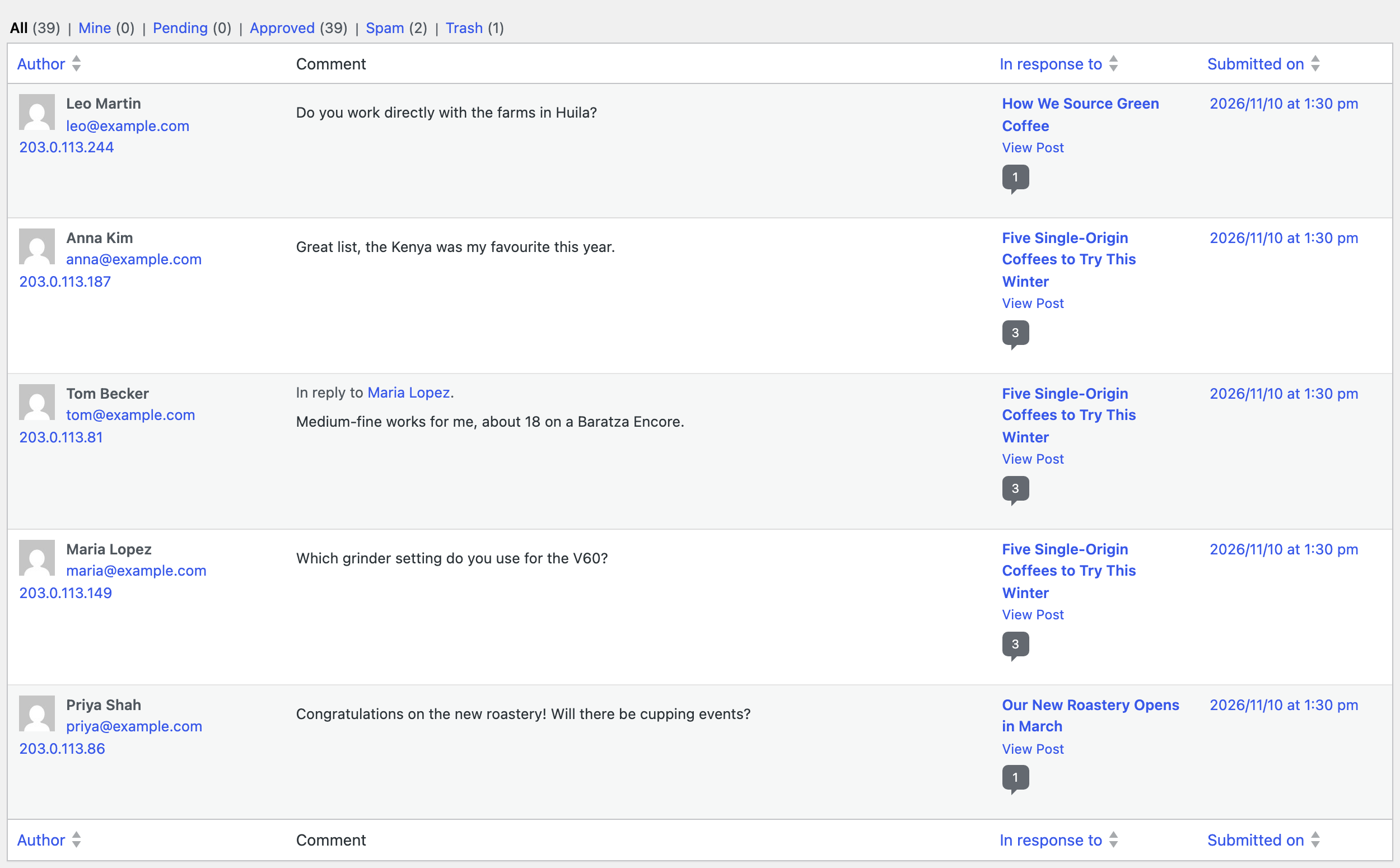
The Comments screen showed 0 pending comments, 2 in Spam and 1 in Trash. The approved comments kept their author, email and IP, and Tom Becker’s comment is still a reply to Maria Lopez:
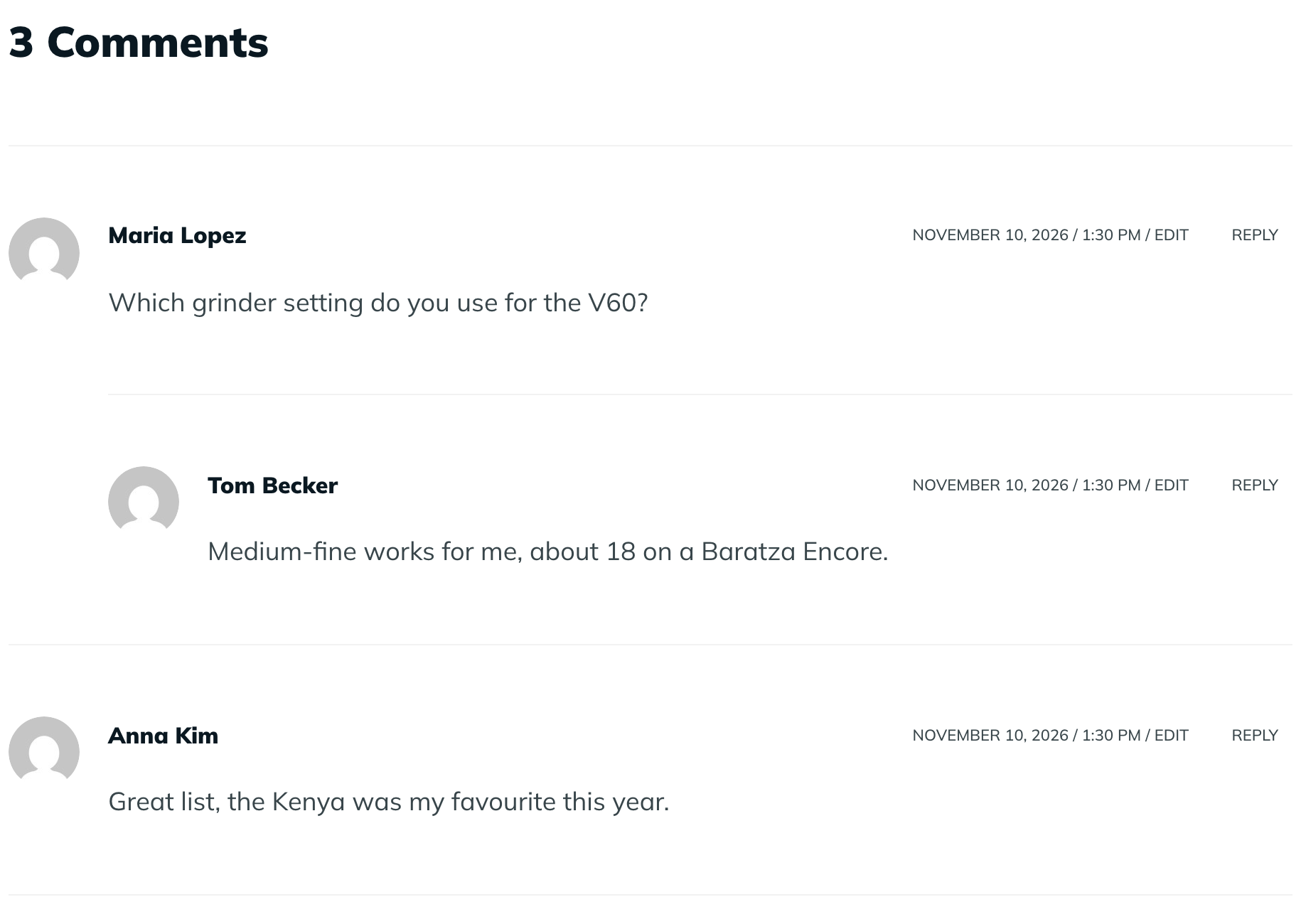
On the post, the approved comments appear with the reply nested under the question:
Before you import
Check the IDs and the decisions, because approved comments appear on the site right away. Trash is safer than deleting: comments in Trash can be restored from the Comments screen. For a large import, back up the site first. Use version 2.1.48 or later for the two-column file.
With an AI agent
An AI agent connected through the WordPress MCP Adapter (see connecting Claude Code to WordPress) can check the queue after the import:
How many comments are still pending, and which ones are in spam?In our run, the agent called rsl-ie/export-count for comment with the status hold and got 0. Then it called rsl-ie/export-preview with the status spam, which returned the two spam comments: “SEO Expert” on “How We Source Green Coffee” and “Best Deals” on “Five Single-Origin Coffees to Try This Winter”.
FAQ
What does the Status column mean?
1 is approved, 0 is pending, and spam and trash are the Spam and Trash lists. The import also accepts the words approved and pending.
Will the import change the comment text or author?
No. With only the ID and the status in the file, only the status changes. In our test the author, email, IP and reply thread stayed the same.
Can I moderate comments on one post only?
Yes. Add a second export filter for the post, or delete the rows of other posts in the spreadsheet.
Related Guides
- How to Export WordPress Comments to CSV or Excel
- How to Import WordPress Comments from CSV (with Replies and Dates)
- Bulk Change Post Status in WordPress with a Spreadsheet
- Bulk Comment Moderation from a Spreadsheet (What’s New in 2.1.48)
Get the free plugin on WordPress.org.

Comments 0
Have a question or a tip to share? Leave it below.