
Your code goes from staging to production through a pipeline: commit, build, deploy. Content usually doesn’t. Someone still has to open the staging site and push the new posts by hand after each release. With Import Export by RockStarLab and WP-CLI, the pipeline can push the content too: a list of slugs in the repository, one script, and an exit code that stops the pipeline if the push fails.
Free: Content Sync and the wp rsl-ie commands are in the free plugin. Use version 2.1.59 or newer on staging and production.
How it works
- The release lists the slugs of the posts to publish in a file,
content-release.txt. - A script on the staging server finds those posts and matches them with production by title.
- It starts a Content Sync push with
wp rsl-ie ability sync-push-startand waits for it withwp rsl-ie job wait. - The exit code is 0 when the push is done and 1 when it fails, so the pipeline knows the result.
A push replaces the matched posts on production. Back up production before the first run, or ask your AI agent to start the backup.
Before you start
- Connect staging to production in Import Export → Content Sync (see how Content Sync works). Note the ID of the production site:
wp rsl-ie ability connection-list --user=adminshows it. In our test it is 2. - WP-CLI must run on the staging server as an administrator (
--user=admin).jqis used to read the JSON results.
The release file
On staging, we changed the opening date in the post “Our New Roastery Opens in March” and wrote a new post, “Holiday Opening Hours”. The release file lists both slugs, one per line:
our-new-roastery-opens-in-march
holiday-opening-hours
The script
Save it as push-content.sh next to the release file and make it executable (chmod +x push-content.sh). Set SITE_ID to the production site ID:
#!/usr/bin/env bash
# Push the posts listed in content-release.txt from staging to production.
set -euo pipefail

WP="${WP:-wp} --user=admin"
SITE_ID=2   # the production site in Import Export -> Content Sync
RUN_ID="${CI_RUN_ID:-$(date +%Y%m%d%H%M%S)}"   # one push per pipeline run

# 1. Slugs from the release file -> post IDs on staging
IDS=$(grep -v '^\s*$' content-release.txt | while read -r slug; do
  $WP post list --post_type=post --name="$slug" --field=ID
done | paste -sd, -)
if [ -z "$IDS" ]; then echo "No posts found for content-release.txt"; exit 1; fi
echo "Posts to push: $IDS"

# 2. Match them with production by title (null = create a new post)
AUTOMAP=$($WP rsl-ie ability sync-auto-map \
  "{\"site_id\":$SITE_ID,\"post_type\":\"post\",\"post_ids\":[$IDS]}")
if [ "$(echo "$AUTOMAP" | jq '.ambiguous | length')" != "0" ]; then
  echo "Several production posts have the same title:"; echo "$AUTOMAP" | jq .ambiguous
  exit 1
fi
MAPPING=$(echo "$AUTOMAP" | jq -c .mapping)
echo "Mapping: $MAPPING"

# 3. Start the push and wait for it
JOB=$($WP rsl-ie ability sync-push-start \
  "{\"site_id\":$SITE_ID,\"post_type\":\"post\",\"post_ids\":[$IDS],\"post_mapping\":$MAPPING,\"request_id\":\"content-$RUN_ID\"}" \
  | jq -r .job_id)
echo "Job: $JOB"
$WP rsl-ie job wait "$JOB"
What each step does:
- Slugs to IDs.
wp post list --namefinds each post on staging. - Matching.
sync-auto-maplooks for posts with the same title on production. A post that is not there yet getsnulland is created. If two production posts have the same title, the script stops, so nothing is overwritten by mistake. - Push.
sync-push-startqueues the push. Therequest_idcomes from the pipeline run, so a repeated step of the same run does not push twice. - Wait.
wp rsl-ie job waitruns the push in the same process, without waiting for WP-Cron, prints the result and sets the exit code.
Run it
In the pipeline, run the script on the staging server after the code deploy, with the run number of your CI tool in CI_RUN_ID. Our run:
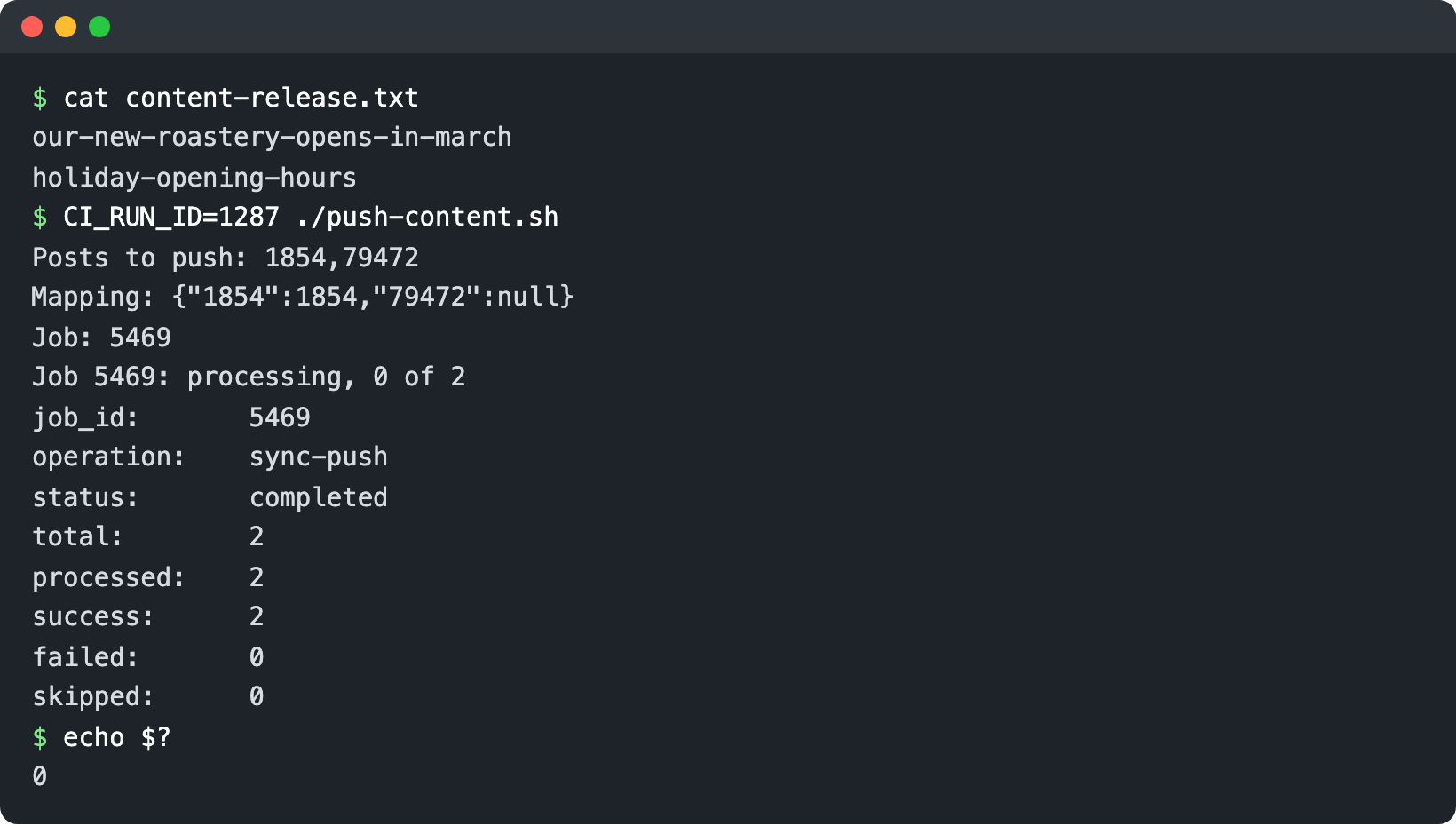
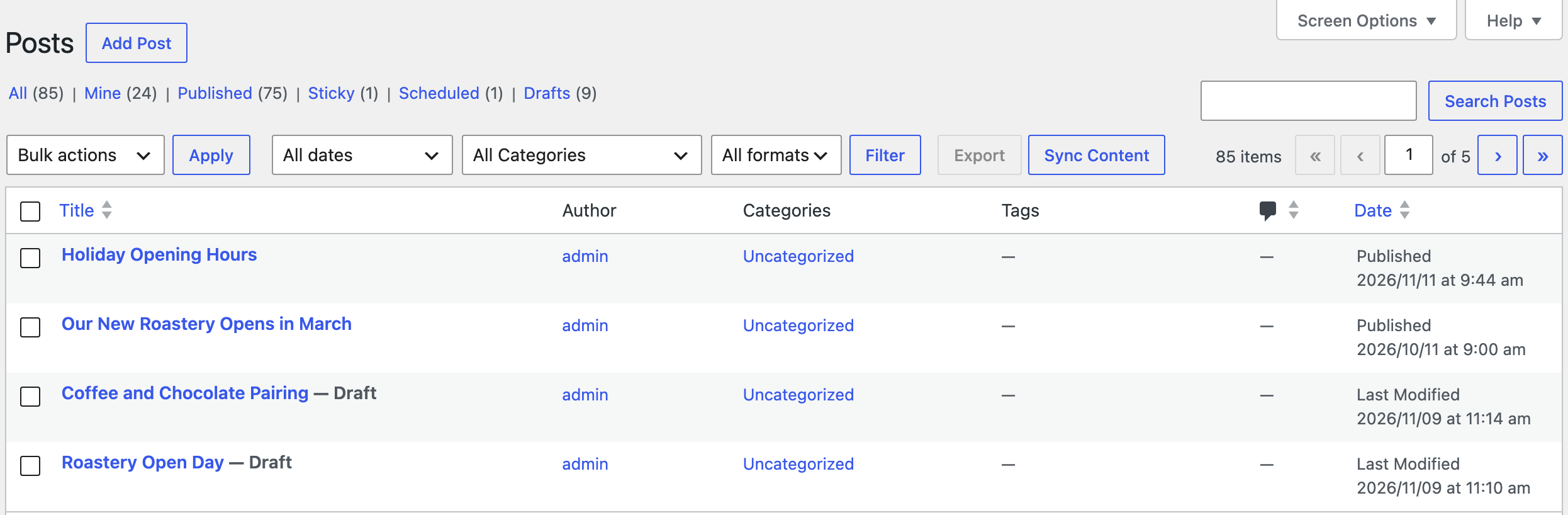
The push took about 20 seconds. Production now has the new post, and the updated one moved to the top of the list sorted by last change:
We ran the script again with the next run number. This time sync-auto-map found both posts on production, so the job updated 2 posts and created none.
Limits
- One script run pushes one post type,
postorpage. Run it twice for both. - One push takes up to 50 posts.
- Posts are matched by exact title. Rename a post on both sites before the push, or pass the production ID in the mapping yourself.
With an AI agent
An AI agent connected to staging through the WordPress MCP Adapter (see connecting Claude Code to WordPress) can tell you what the last release pushed:
What did the last content push from CI send to production?In our run, the agent called rsl-ie/job-list to find the job, then rsl-ie/sync-job-status. The status shows that the push updated 2 posts, “Our New Roastery Opens in March” and “Holiday Opening Hours”, and synced 1 image.
FAQ
Does the pipeline need WP-Cron?
No. wp rsl-ie job wait runs the push in the WP-CLI process until it finishes.
What happens if the push fails?
The command prints the error and exits with 1, so the pipeline step fails.
Are the images in the posts copied?
Yes. A push copies the images of the posts, the same as a push from the Posts screen.
Can I push pages?
Yes. In the script, replace post with page in the --post_type option and in both post_type values, and list page slugs in the release file.
Related Guides
- WP-CLI Import and Export for WordPress: CSV, Excel and Cron Scripts
- Dev, Staging, Production: A Content Workflow for Three WordPress Sites
- Auto-Match by Title: Match Posts Between WordPress Sites
Get the free plugin on WordPress.org.

Comments 0
Have a question or a tip to share? Leave it below.