
Many teams run three copies of a WordPress site: dev, where new pages are built, staging, where the client or editor reviews them, and production, the live site. Moving new content through these three sites by copying databases is risky: a database copy overwrites everything, including orders, comments and users on the live site. With Content Sync in Import Export by RockStarLab, you move only the pages and posts you choose, one step at a time.
Free: push and pull of pages and posts between any connected sites. PRO: the same for WooCommerce products and other content types. Use version 2.1.57 or newer on all three sites.
The workflow
- Dev → staging: when a page is ready for review, push it from dev to staging.
- Staging → production: when it is approved, push the same page from staging to production.
- Each site pushes only to the next one. Content never jumps from dev to production without review.
- Links between the pages and images are rewritten for each site, so nothing points back to dev or staging.
Step 1: Connect the sites in a chain
Each site needs one connection, to the next site in the chain. On staging, open Import Export → Content Sync, click Show Details and copy the URL and API key; on dev, click Add New Site and enter them as “Staging”. Do the same between production and staging: on staging, add production as “Production”. See how Content Sync works for details. If dev runs on your computer, see connecting a local site.
Step 2: Build on dev and push to staging
In our test, the dev site has a new Gift Cards page and a post Holiday Shipping Deadlines. Each has an image, and they link to each other. On dev, open Pages, tick the page, click Sync Content, choose Staging and click Push to Site:
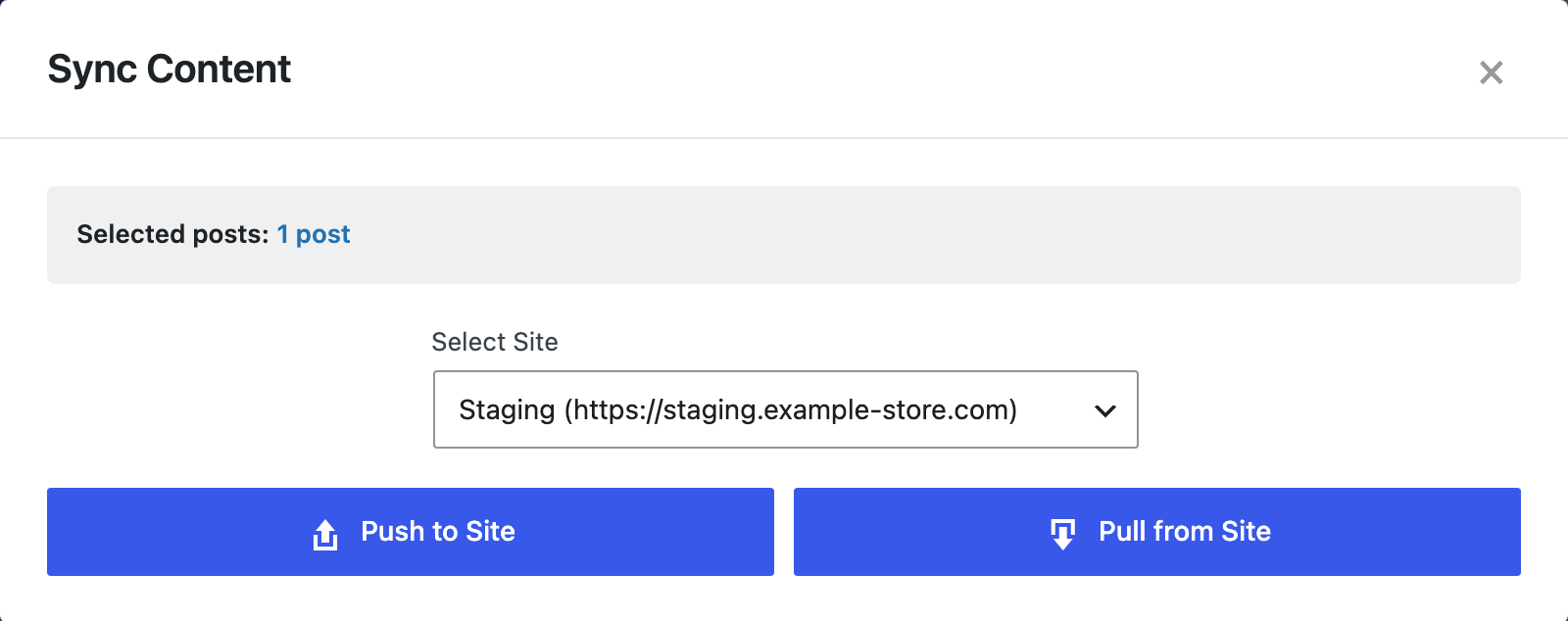
Confirm the mapping (Create New Post the first time):
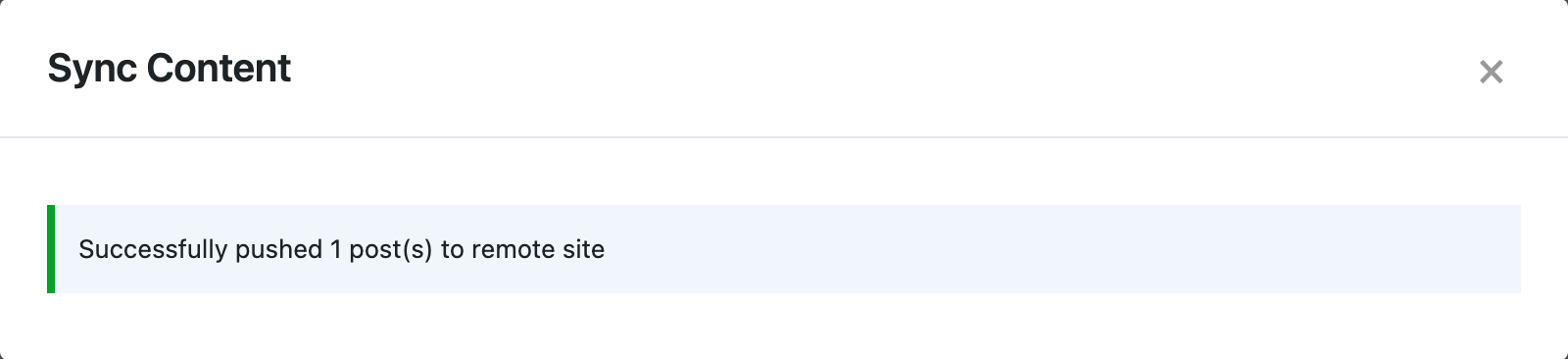
Push the post the same way from Posts. On staging, the page and the post had their images in the staging media library, and the links between them pointed to the staging site.
Step 3: Review on staging, then push to production
After the review, open Pages on staging, tick the page, click Sync Content and choose Production:
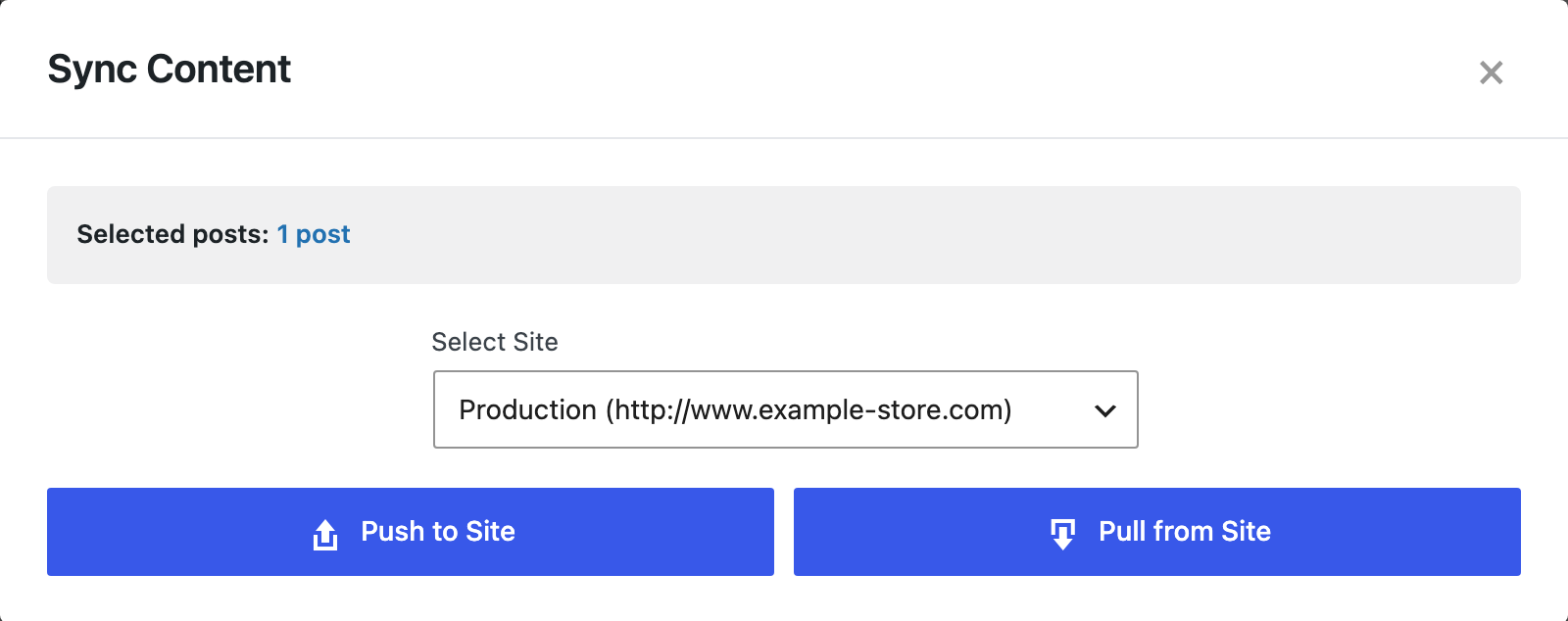
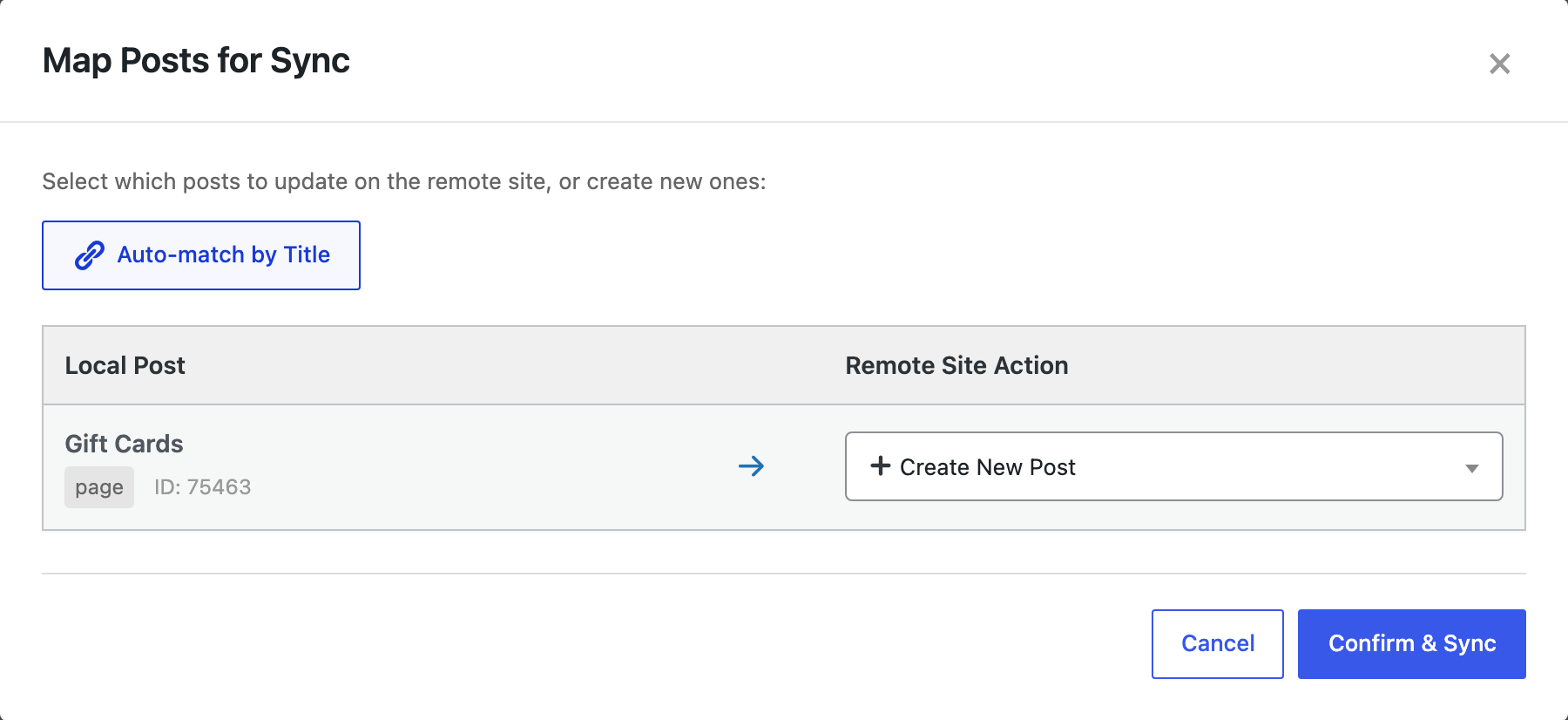
The page is new on production, so the row says Create New Post. Click Confirm & Sync, then push the post as well:
On production, the page and the post had their images in the production media library, and the link to the shipping deadlines pointed to the production site:

Before the first push to production, back up the live site.
Step 4: Changes take the same path
When the text changes, edit it on dev (or on staging for small fixes) and push it up the chain again. The next push updates the same page on the next site instead of creating a copy.
New content written on production, such as news posts, goes the other way: pull it down to staging with Pull from Site, so staging stays close to live. See pulling single posts from live to staging.
With an AI agent
An AI agent connected to staging through the WordPress MCP Adapter (see connecting Claude Code to WordPress) can publish an approved change:
Push the approved Holiday Shipping Deadlines post from staging to production.In our run, we changed the deadline on staging from December 18 to December 17. The agent called rsl-ie/sync-push-start with the post and its production ID, then rsl-ie/sync-job-status until the job was completed: 1 post updated, 1 image synced. Production showed December 17, still with one copy of the post.
FAQ
Does dev need a connection to production?
No. Each site connects only to the next one, so production receives content only from staging.
Do links between the pages still work on production?
Yes. In our test, the links between the page and the post pointed to the production site after the push.
Are images copied?
Yes. Images used by the page are uploaded to the media library of each site they reach.
What happens to orders, users and comments on production?
Nothing. A push changes only the pages and posts you selected.
Is this in the free plugin?
Yes, for pages and posts. Products and other content types need PRO.
Related Guides
- WordPress Staging to Production Checklist for Client Sites
- How Content Sync Works: API Keys, Push and Pull
- Connect a Local WordPress Site (LocalWP) to Your Live Site and Sync Content
Get the free plugin on WordPress.org.

Comments 0
Have a question or a tip to share? Leave it below.