
You are moving to a new WordPress site, and the old one has a Media Library with hundreds of images, logos and documents. Downloading the uploads folder and uploading it again is slow, and the files would not show up in the new Media Library without extra steps. With Import Export by RockStarLab, you can pull the files from the old site’s Media Library into the new one, in batches of 50, with their titles and alt text.
Free: Media Library sync and the Content Sync connection are in the free plugin. Use version 2.1.58 or newer on both sites.
What gets copied
- Each selected file, added to the new Media Library as a normal attachment.
- The title and the alt text of the file.
- Files that are already in the new library are skipped, so you can run the sync again without duplicates.
The new entries get the date of the sync and go into the current month’s uploads folder. They are not attached to posts; when you sync posts, their images come with them.
The pull adds files to the new site and does not change the old one. Still, back up the new site first, or ask your AI agent to start the backup.
Before you start
Connect the sites in Import Export → Content Sync: copy the URL and API key of the old site and add it as a site on the new one (see how Content Sync works). In our test, the old site is called Old site.
Pull the Media Library from the old site
On the new site, open Media → Library and click Sync. Choose the old site:
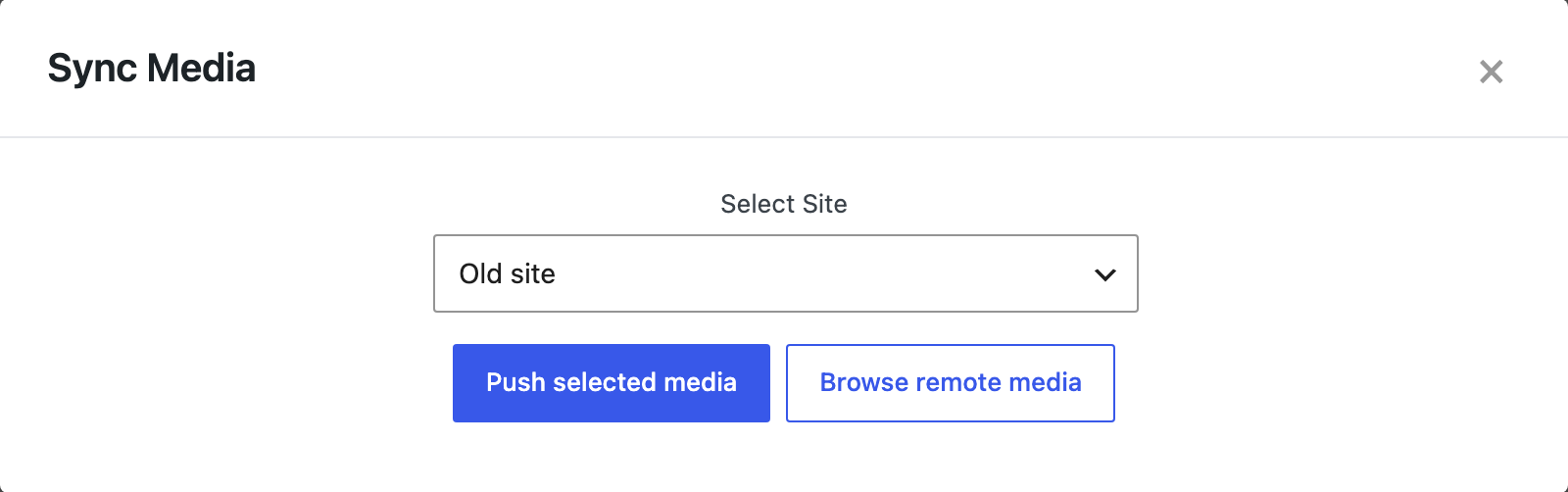
Click Browse remote media. The files of the old site are listed with their ID, type and file name. The list loads more files as you scroll. Click Select all; in our test, all 109 files of the old site were loaded and selected. Click Pull selected media:
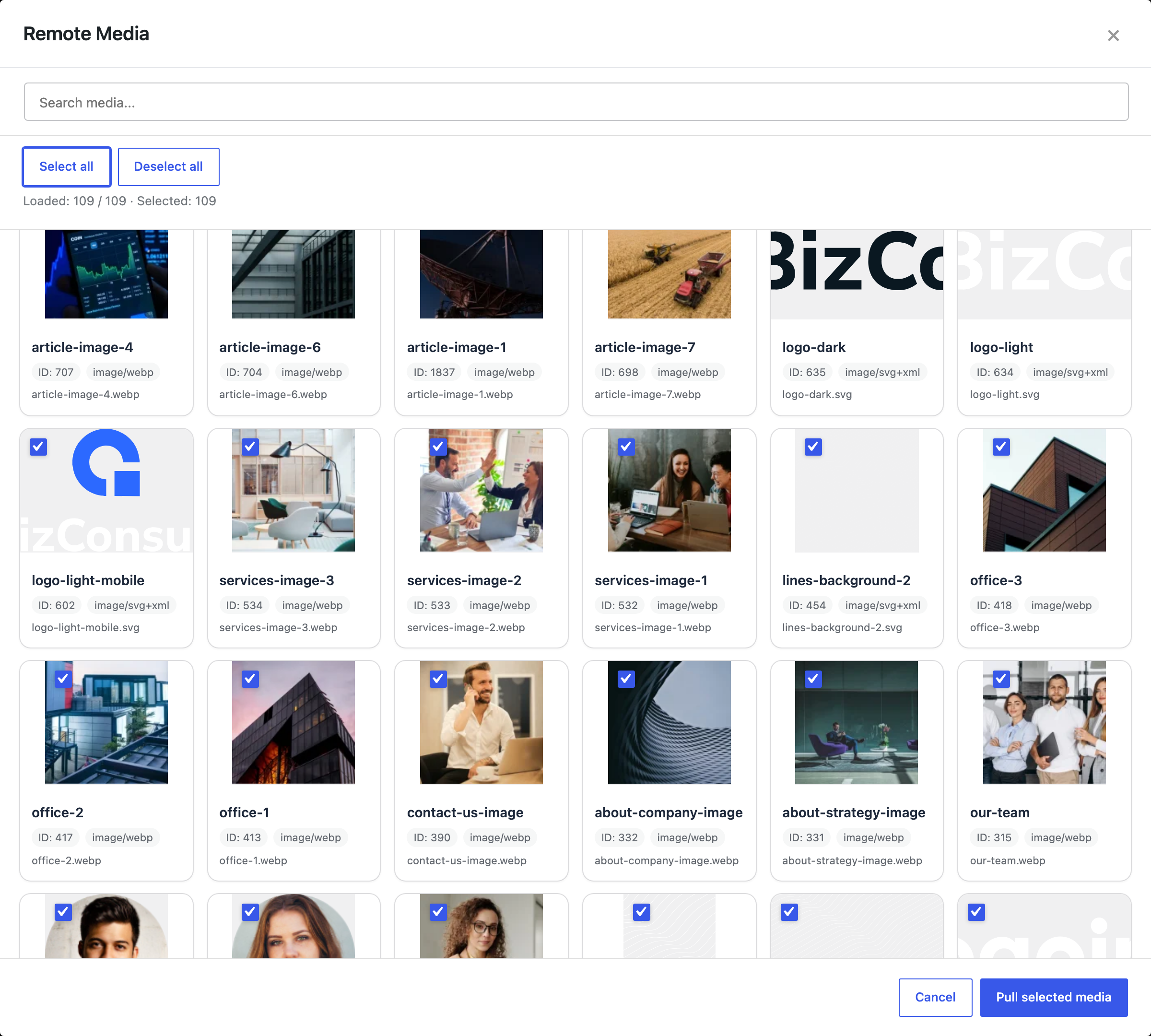
The plugin splits the selection into batches of 50 and runs them one after another. For 109 files, that is 3 batches:
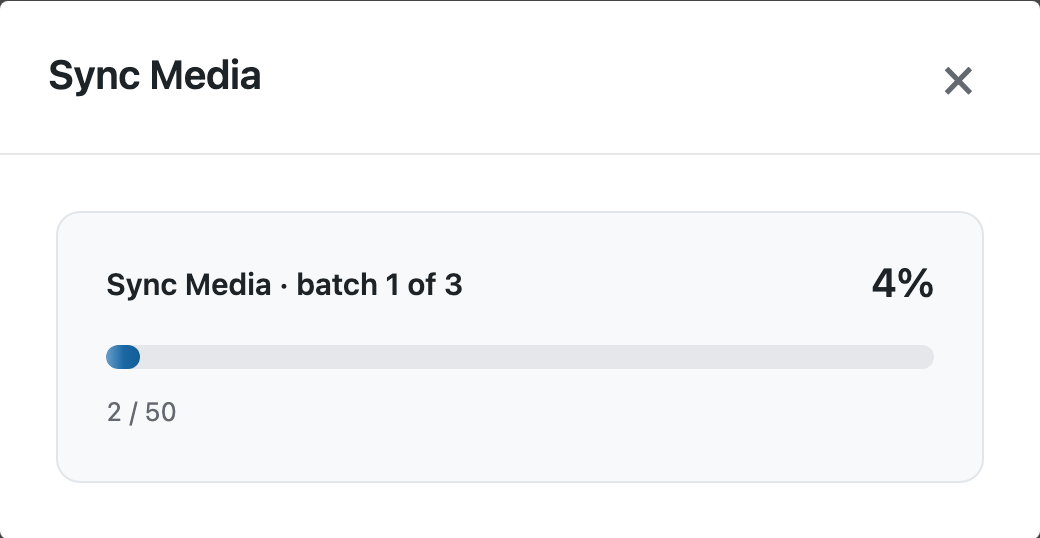
You can leave the window open while it runs. Our 109 files took about 19 minutes between two test sites on one computer; the time depends on the file sizes and your hosting.
Check the result
When the last batch finishes, the plugin shows a summary. On our old site, one Media Library entry, team-photo.jpg, had no file on the server, so it could not be copied. The plugin reports it and finishes the other files:
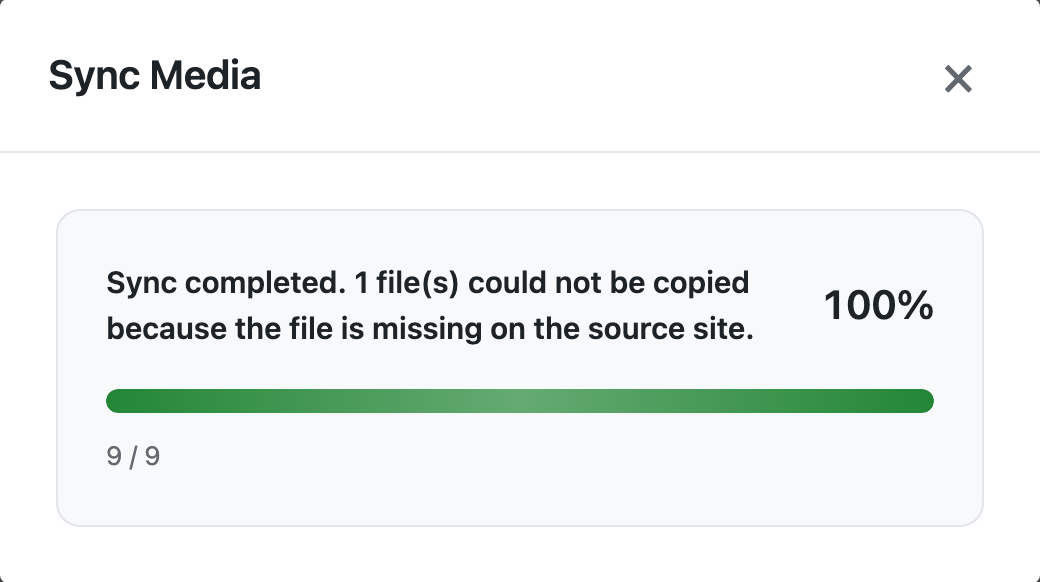
The result of our run:
| Files selected | Copied | Already on the new site | Missing on the old site |
|---|---|---|---|
| 109 | 50 | 58 | 1 |
The Media Library of the new site went from 126 to 176 files:
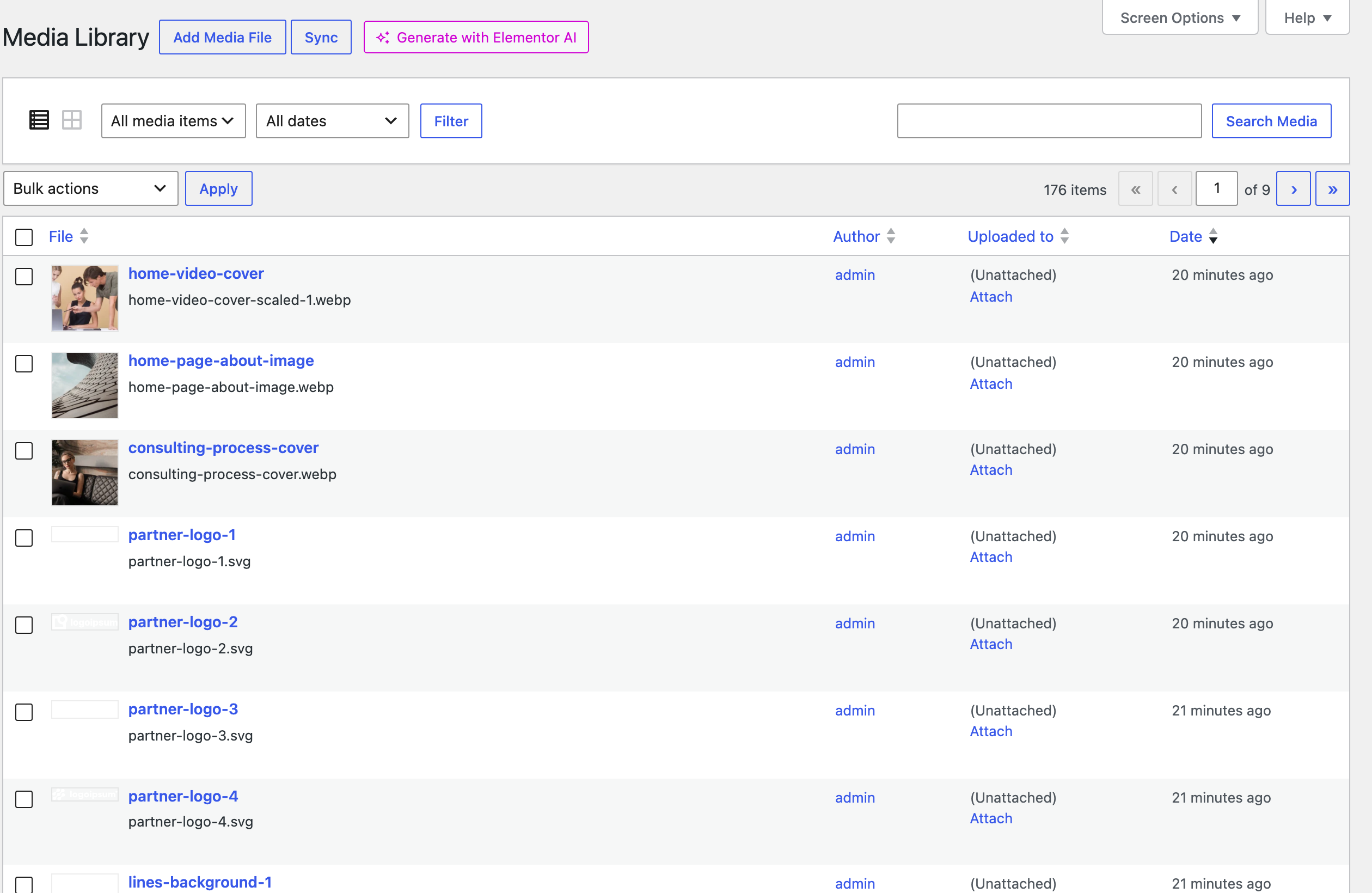
To fix a file that could not be copied, upload it again on the old site, or delete the broken entry there. Then run the sync again: the files that are already copied are skipped.
Tips
- Only some files. Search the list or tick the files you need instead of Select all.
- The other direction. On the old site, select files in Media → Library, click Sync and choose Push selected media.
- Featured images. To copy posts with their images, see syncing featured images between sites.
- No connection between the sites. Use a file instead: export and import media files without duplicates.
With an AI agent
An AI agent connected to the site through the WordPress MCP Adapter (see connecting Claude Code to WordPress) can pull selected files for you:
Pull the media files 1853, 1855 and 1856 from production to staging.In our run on staging, the agent called rsl-ie/sync-media-pull-start with the three IDs, then checked the job. Two files were already on staging and were skipped. One file was reported as failed because its file was missing on production. The job finished instead of waiting.
FAQ
Is there a limit on how many files I can pull?
No fixed limit. The plugin sends 50 files per batch and runs the batches one by one.
Will I get duplicates if I run the sync twice?
No. Files that are already in the new Media Library are skipped.
Are the original upload dates kept?
No. The new entries get the date of the sync and are stored in the current month’s folder.
Is this in the free plugin?
Yes. Media Library sync between connected sites is free.
Related Guides
- Media Library Sync in Batches (What’s New in 2.1.58)
- Sync Featured Images and Media Between WordPress Sites
- How to Export and Import WordPress Media Without Duplicates
Get the free plugin on WordPress.org.

Comments 0
Have a question or a tip to share? Leave it below.