
When you switch from Yoast SEO to Rank Math, the SEO titles, meta descriptions and focus keyphrases you wrote are stored in Yoast’s own custom fields, and Rank Math reads its own. Rank Math has an import tool for this, but if you want to see and check the data first, change only some posts, or move it from a backup or another site, a spreadsheet gives you full control. In the example, the SEO data of four posts moves from Yoast to Rank Math with Import Export by RockStarLab: export, rename the columns, import.
Free: export and import of posts and pages with Yoast SEO and Rank Math fields. PRO: the same for custom post types and WooCommerce products.
Short Answer
- Export the posts with
IDand the Yoast fields SEO Title, Meta Description and Focus Keyword. - In the spreadsheet, rename the headers to
rank_math_title,rank_math_descriptionandrank_math_focus_keyword, and change Yoast variables like%%sitename%%to Rank Math’s%sitename%. - With Rank Math active, import the file into Blog Posts, matching by ID and updating matches.
1. Export the Yoast data
With Yoast SEO active, go to Export and choose Blog Posts. To export only posts that have Yoast data, add the filter Custom Field (Meta) with the name _yoast_wpseo_metadesc and Is Not Empty; on our site that matched 4 posts. On the field step, add ID and Title, then open the Yoast SEO group and add SEO Title, Meta Description and Focus Keyword:
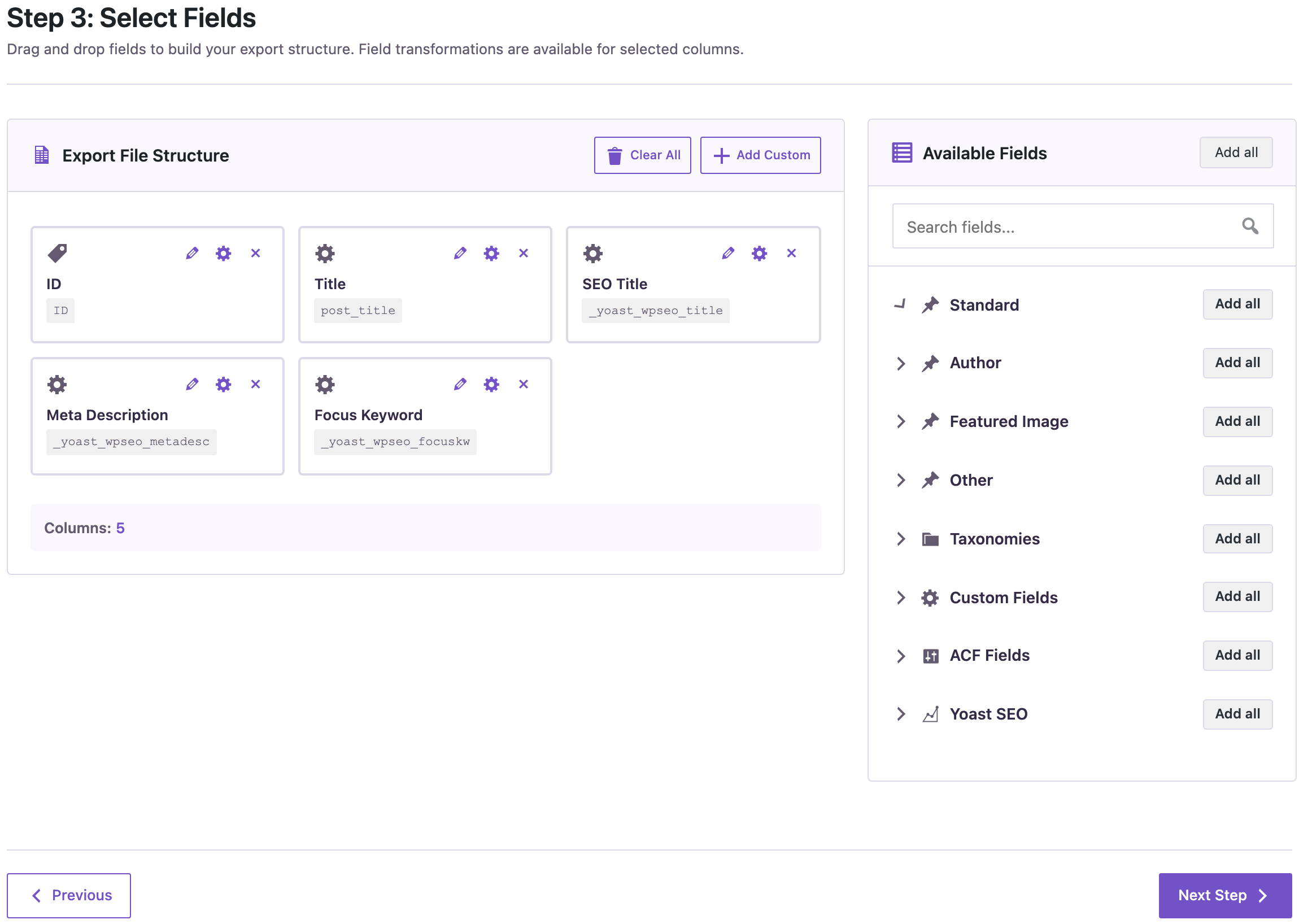
The export has the Yoast field keys as headers: _yoast_wpseo_title, _yoast_wpseo_metadesc and _yoast_wpseo_focuskw. See exporting Yoast titles and descriptions if you want to review them first.
2. Prepare the file for Rank Math
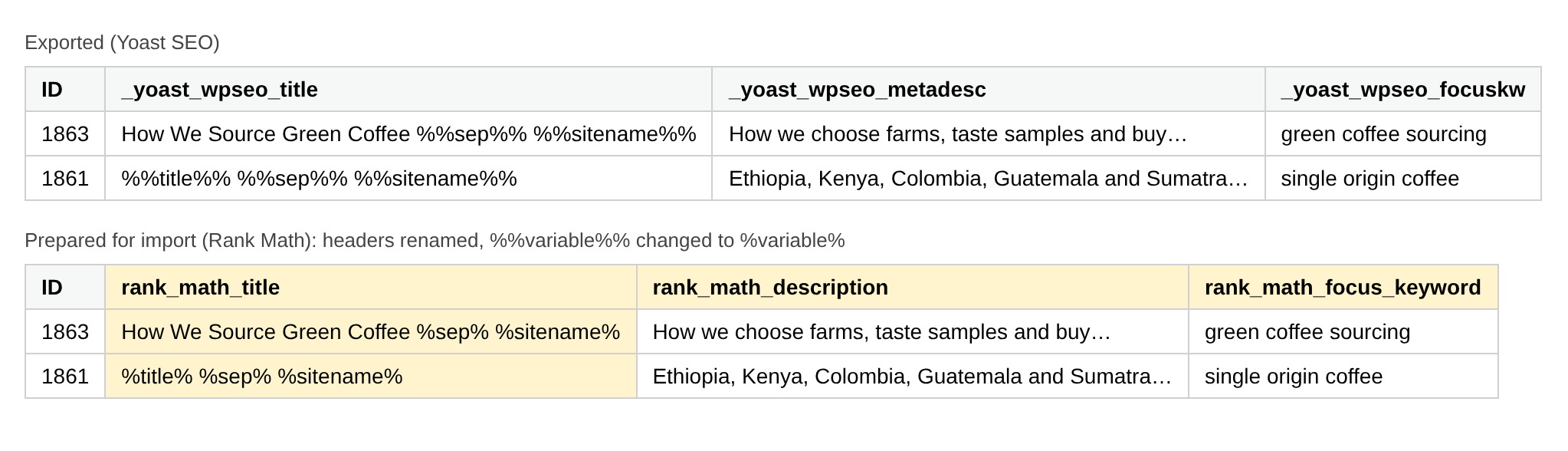
Rename the three columns to the Rank Math field keys and replace the variables. Yoast writes variables with two percent signs on each side (%%title%%, %%sep%%, %%sitename%%); Rank Math uses one (%title%, %sep%, %sitename%). A find-and-replace of %% with % in the title column does it. Delete the post title column; only ID and the three SEO columns are needed:
3. Import into Rank Math
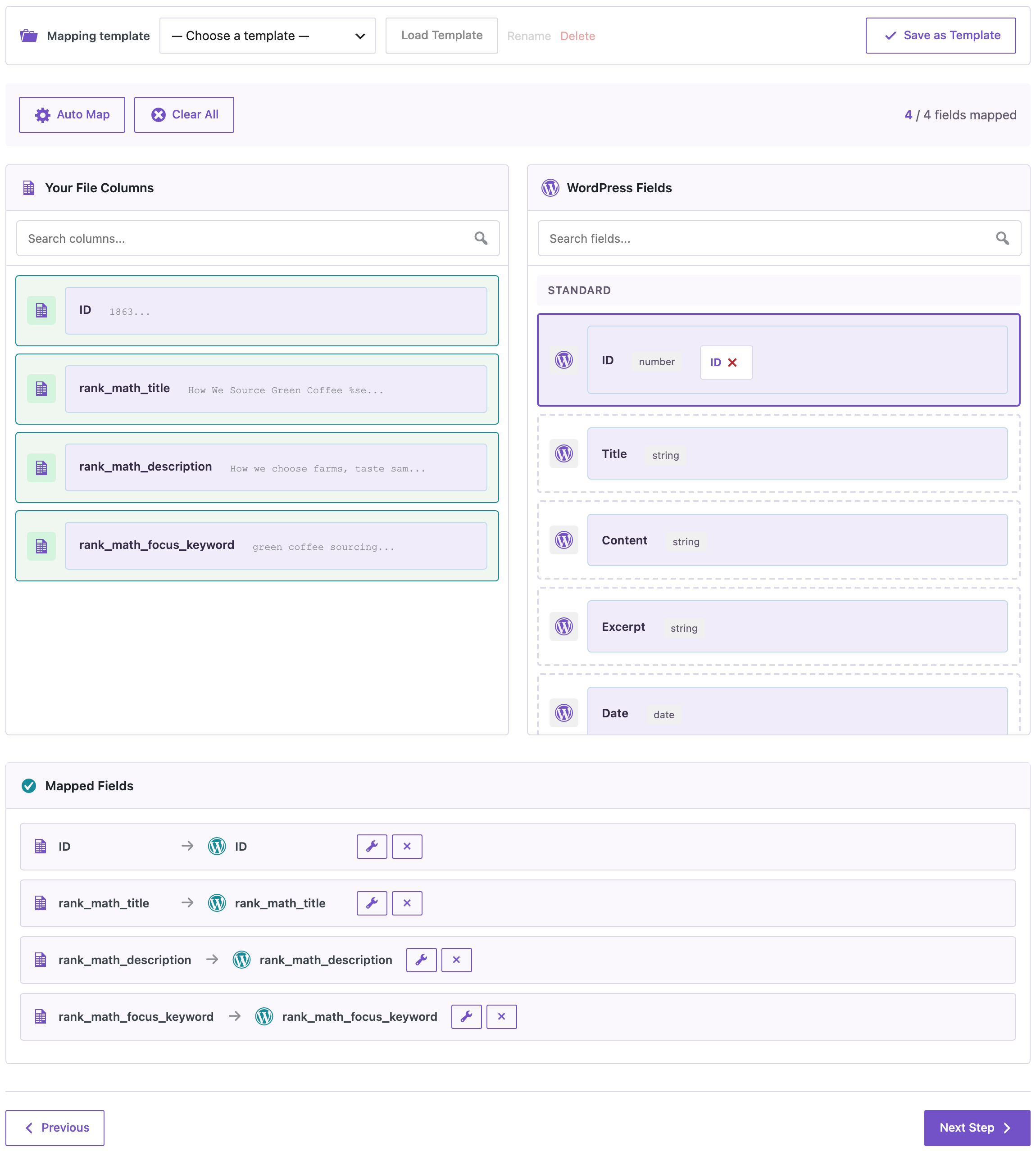
Activate Rank Math and finish or skip its setup wizard; on our test site Rank Math didn’t output any SEO tags until the wizard was done. Then go to Import, choose Blog Posts, upload the file and click Auto Map. All four columns were mapped, the three SEO columns to the Rank Math fields:
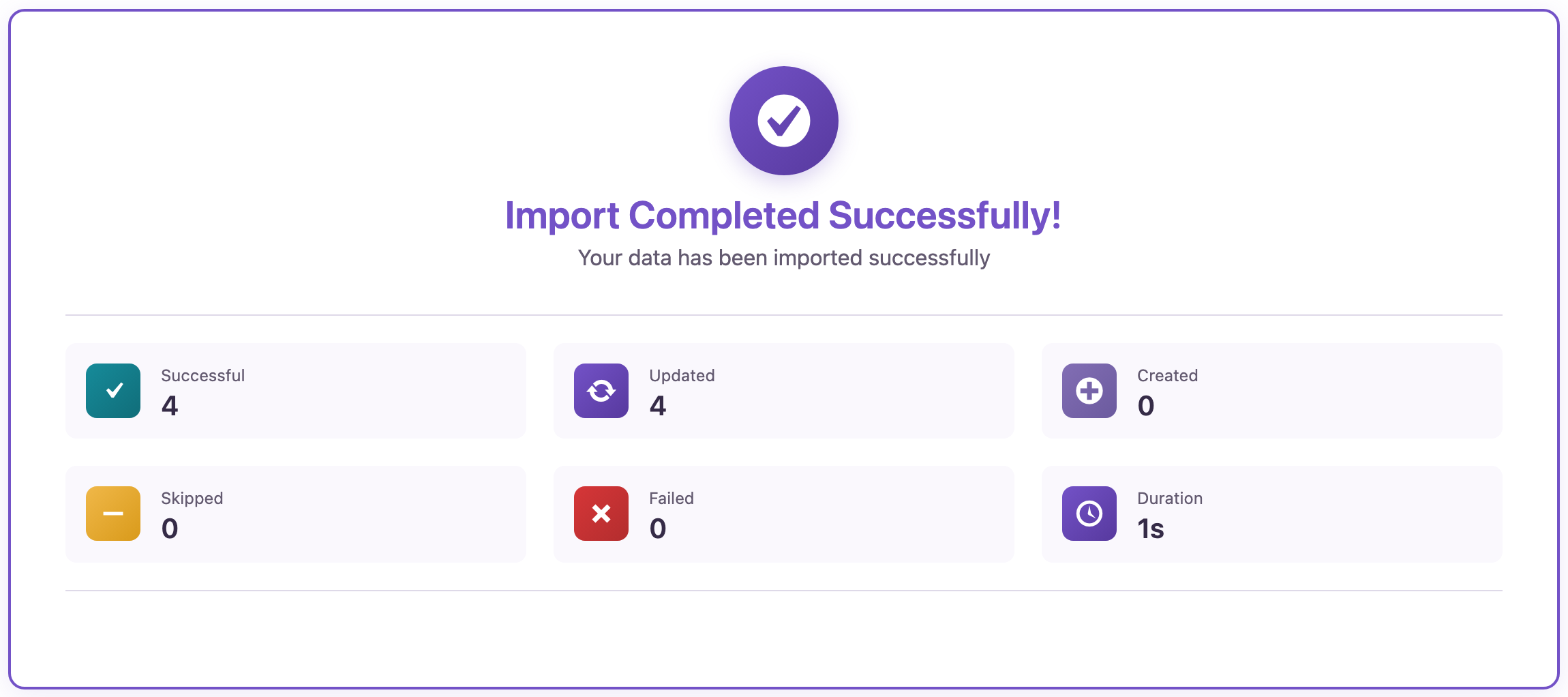
On the options step, set Check for Existing Items by Field to ID, If Match Found to Update and If No Match Found to Skip. The import updated the 4 posts:
On the front end, Rank Math now produced the titles and descriptions. For example, “How We Source Green Coffee” had the title How We Source Green Coffee - Example Store and the meta description from Yoast, and the post with %title% %sep% %sitename% showed its own title followed by the site name. The Yoast fields were left in the database, so you can go back if needed.
Before you import
Try the import on a few posts first and check the page source. Back up the site before you update all posts. Check titles that use less common Yoast variables after the import.
With an AI agent
An AI agent connected through the WordPress MCP Adapter (see connecting Claude Code to WordPress) can check that the Rank Math fields are filled:
Show the Rank Math SEO title and focus keyword of the four posts we migrated.In our run, the agent called rsl-ie/export-preview for posts with the IDs of the four posts and the fields rank_math_title and rank_math_focus_keyword. It returned the four posts with their Rank Math titles, such as %title% %sep% %sitename%, and focus keywords such as “green coffee sourcing”.
FAQ
Which Yoast fields map to which Rank Math fields?
SEO title _yoast_wpseo_title → rank_math_title, meta description _yoast_wpseo_metadesc → rank_math_description, focus keyphrase _yoast_wpseo_focuskw → rank_math_focus_keyword.
Do I need to change the variables?
Yes. Yoast uses %%sitename%%, Rank Math %sitename%. Replace %% with % before importing.
Is the Yoast data deleted?
No. The import only writes the Rank Math fields; the Yoast fields stayed in the database in our test.
Can I move only some posts?
Yes. Export or keep only the rows you want; posts that aren’t in the file are not changed.
Related Guides
- How to Export Yoast SEO Titles and Meta Descriptions to CSV for an SEO Audit
- How to Export Rank Math SEO Titles and Meta Descriptions to CSV
- How to Bulk Update Yoast SEO Titles and Meta Descriptions from CSV
- Bulk Change Post Status in WordPress with a Spreadsheet
Get the free plugin on WordPress.org.

Comments 0
Have a question or a tip to share? Leave it below.