
Six new hoodie photos in a shop, and none of them has alt text. Screen readers announce them as file names, and an accessibility check flags every one. Typing descriptions into the Media Library one image at a time is slow. With Import Export by RockStarLab you export the images that have no alt text, write the descriptions in a spreadsheet and import them back in one go. The example below does exactly that for those six photos.
Free: Media export and import, including alt text.
Short Answer
- Export Media with the filter Alt Text Is Empty and the columns ID, File Name, Attached Post Title and Alt Text.
- Write the alt text in the spreadsheet, then keep only the
IDandalt_textcolumns. - Import the file into Media with Check for Existing Items by Field set to ID and Update for matches.
1. Export the images without alt text
Go to Export, choose Media and add the filter Alt Text, Is Empty. On our test shop that matched 78 images, so we added a second filter, File Name Contains hoodie, to work on one product group at a time. The counter showed 6:

On the field step, we chose ID, File Name, Attached Post Title (the product or post the image belongs to) and Alt Text, and exported a CSV. The headers are the field keys, such as alt_text, so the import can map them by itself. To see thumbnails while you write, add File URL and open the links, or keep the Media Library open next to the spreadsheet.
2. Write the alt text
Describe what the image shows, in a short sentence. We looked at each hoodie and filled the alt_text column:
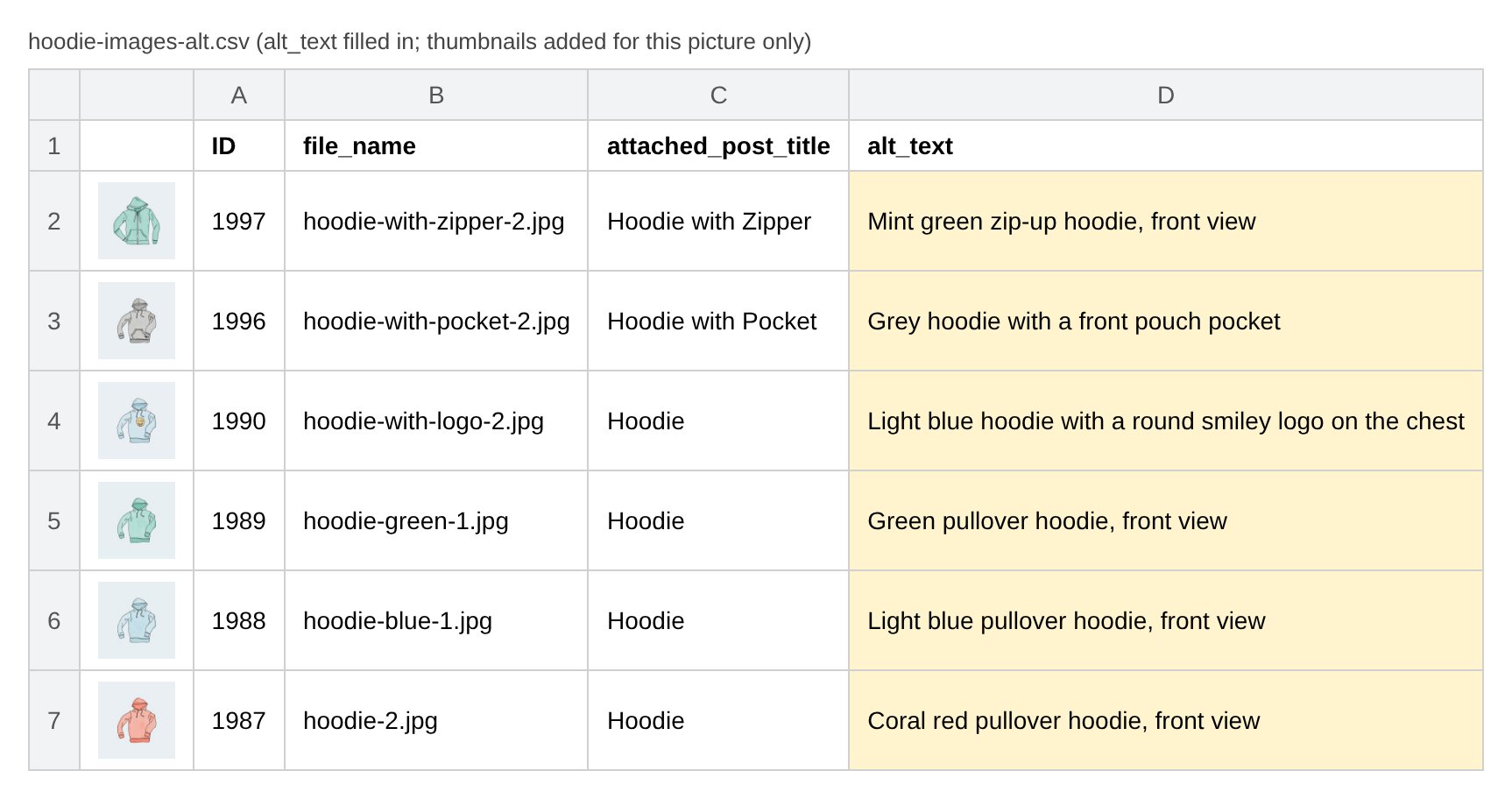
Before the import, delete the helper columns and keep ID and alt_text. Then only the alt text is changed.
3. Import the alt text
Go to Import, choose Media, upload the CSV and click Auto Map. Both columns were mapped: ID to ID and alt_text to Alt Text:
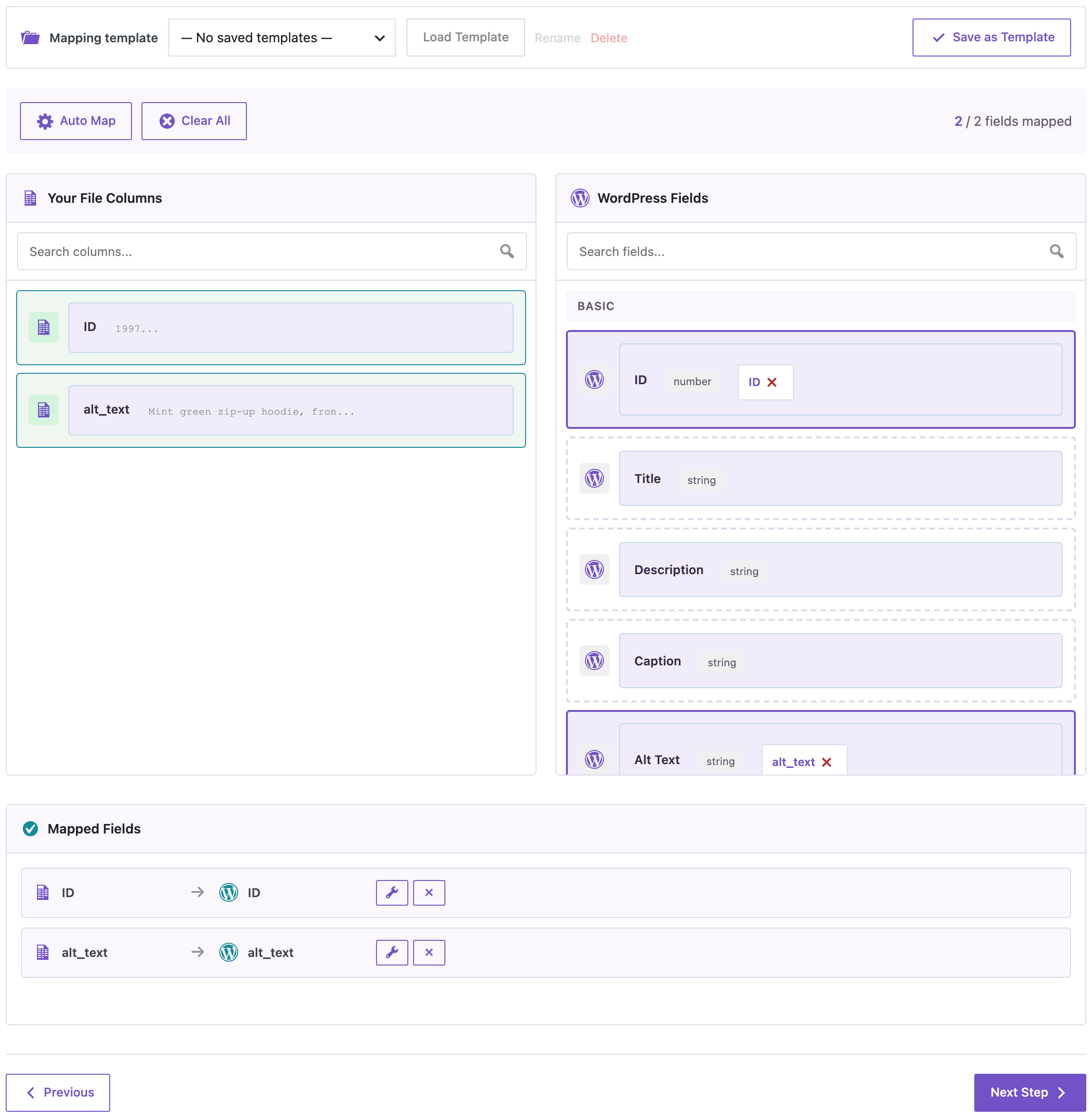
On the options step, set Check for Existing Items by Field to ID, If Match Found to Update and If No Match Found to Skip. The import updated all 6 images in 3 seconds, with 0 created:

Each image had its new alt text, and the file, title and the product it belongs to stayed the same. WordPress uses the alt text when it shows the image, so the product images now have it in their alt attribute.
Before you import
The import changes the Media Library. Check the ID column, and back up the site before you update hundreds of images. Alt text set inside a post’s Image block is stored in the post, not in the Media Library, so this import doesn’t change images that already appear in old posts with their own alt text.
With an AI agent
An AI agent connected through the WordPress MCP Adapter (see connecting Claude Code to WordPress) can check the result:
Show the alt text of the hoodie images.In our run, the agent called rsl-ie/export-preview for media with the fields ID, file name and alt text and the search term hoodie. It returned the six images with their new alt text, from “Mint green zip-up hoodie, front view” to “Coral red pullover hoodie, front view”.
FAQ
How do I find images without alt text?
Export Media with the filter Alt Text Is Empty. The counter shows how many there are before you export.
Will the import change the image files?
No. With only ID and alt_text in the file, the file, title and attachment stayed as they were in our test.
Does this change alt text inside existing posts?
No. Images placed in posts keep the alt text saved in the post. The import changes the alt text in the Media Library, which is used when the image is added or shown from there, such as product images.
Related Guides
- How to Export WordPress Media Library Files to CSV or Excel
- Export the Media Library with File Sizes to Find Large Images
- Find Unattached Media in WordPress and Check If It Is Really Unused
- Bulk Change Post Status in WordPress with a Spreadsheet
Get the free plugin on WordPress.org.

Comments 0
Have a question or a tip to share? Leave it below.