
The Media Library fills up with files nobody remembers uploading, and the Unattached filter in WordPress looks like the list of files you can delete. It isn’t: a file is “unattached” when it wasn’t uploaded from a post’s editor, and that says nothing about whether the site uses it. With Import Export by RockStarLab you export the unattached files to a spreadsheet, then check them against featured images and post content before you delete anything. On a coffee roastery’s site, 18 of 109 files were unattached, and 11 of those 18 turned out to be in use.
Free: Media, Blog Posts and Pages exports with these filters and columns. PRO: the same check for products and custom post types.
Short Answer
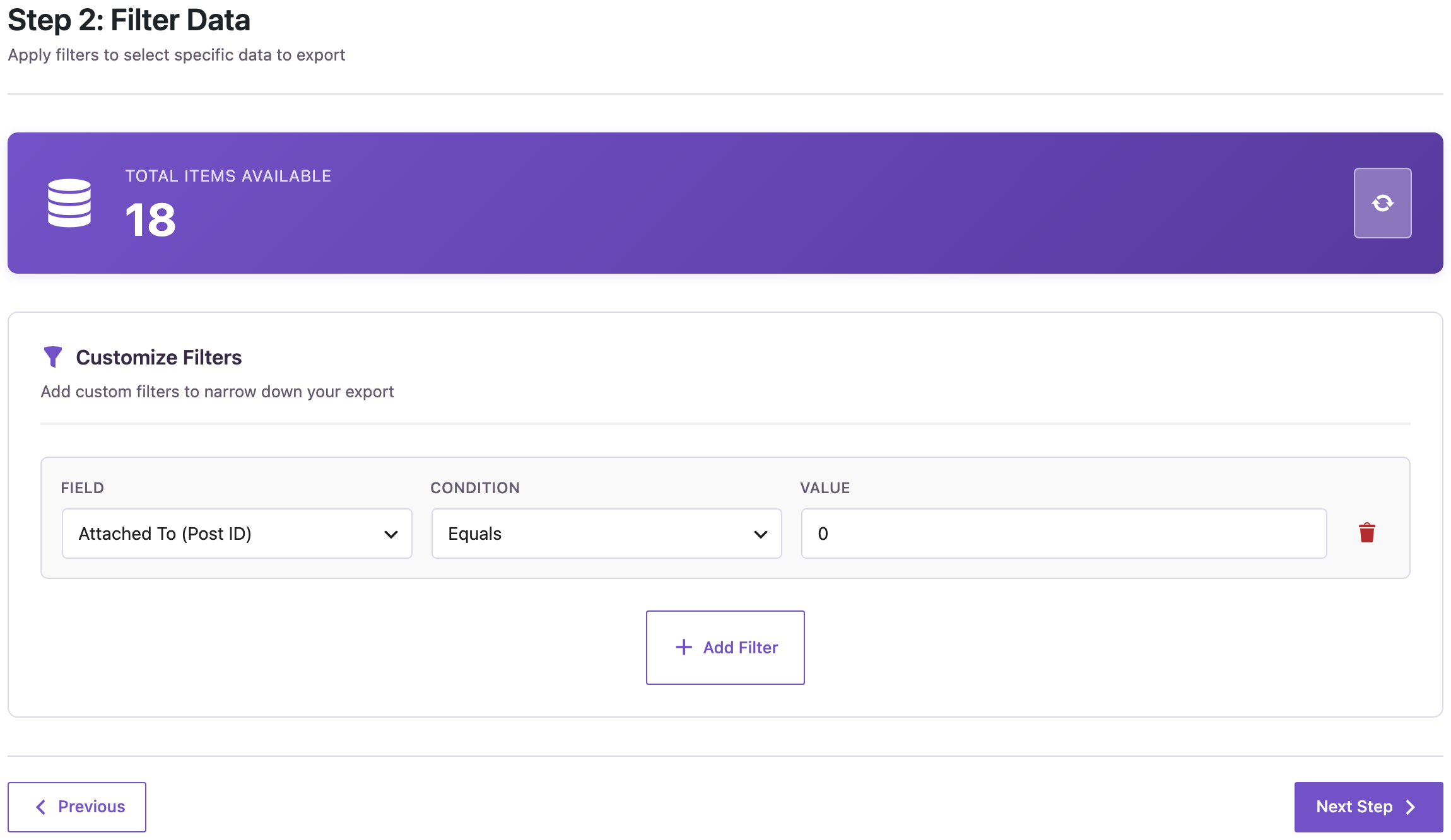
- Export Media with the filter Attached To (Post ID) equals
0. - Export posts and pages with Featured Image ID and look up each unattached ID there.
- Search post content for the file names that are left (Content contains the file name), and check your theme’s logo and WooCommerce’s placeholder image.
What “attached” means
When you upload an image in a post’s editor, WordPress records that post as the image’s parent. That link is all “attached” means. Files uploaded in Media → Add New, files from the Customizer, and images whose post was deleted have no parent. The same file can still be the featured image of a post, sit in the content of a page, or be the site logo.
Export the unattached files
In Export, choose Media, add the filter Attached To (Post ID) Equals 0:
On the next step, add ID, File Name, MIME Type, File Size (bytes), Upload Date and File URL. File Size lets you sort the biggest files to the top; File URL opens each one from the spreadsheet.
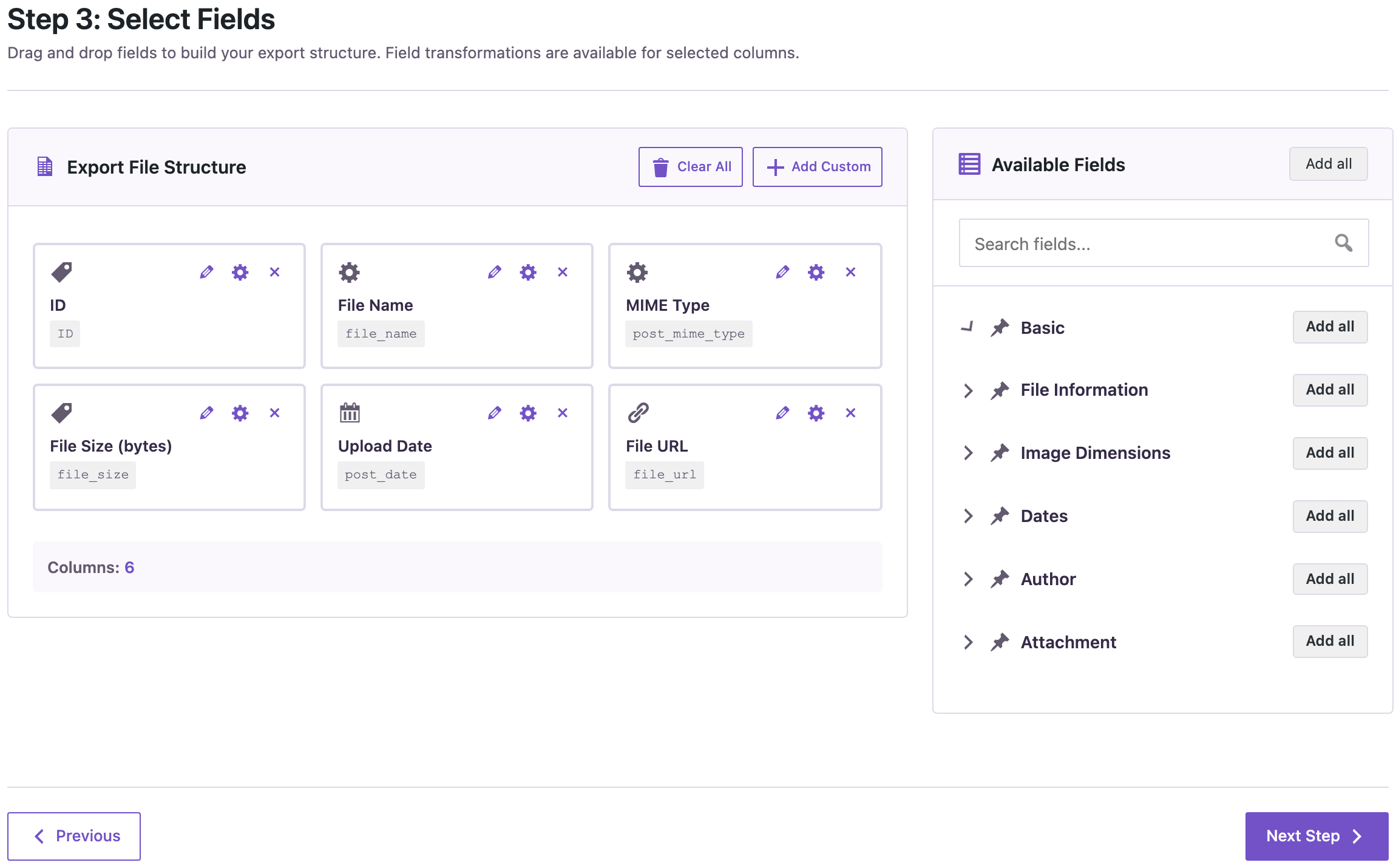
Our export, without the URL column:
ID,file_name,post_mime_type,file_size,post_date
1931,acfx-e.jpg,image/jpeg,3272,2026-11-05 10:42:23
1930,acfx-d.jpg,image/jpeg,3193,2026-11-05 10:42:23
1929,acfx-c.jpg,image/jpeg,3180,2026-11-05 10:42:23
1862,farm-visit.jpg,image/jpeg,30702,2026-11-05 10:15:02
1860,kenya-nyeri.jpg,image/jpeg,34052,2026-11-05 10:15:02
1859,colombia-huila.jpg,image/jpeg,32776,2026-11-05 10:15:02
1858,ethiopia-yirgacheffe.jpg,image/jpeg,32594,2026-11-05 10:15:02
1856,cupping-session.jpg,image/jpeg,36933,2026-11-05 10:15:01
1855,team-photo.jpg,image/jpeg,0,2026-11-05 10:15:01
1853,roasting-machine.jpg,image/jpeg,35628,2026-11-05 10:15:01
1852,roastery-front.jpg,image/jpeg,32691,2026-11-05 10:15:01
1846,woocommerce-placeholder.webp,image/webp,9892,2026-11-02 10:46:14
1839,logo-dark-sticky.svg,image/svg+xml,2930,2022-05-20 07:01:08
1690,2014-slider-mobile-behavior-2.mov,video/quicktime,29881426,2013-12-04 11:08:29
1686,dsc20040724_152504_532-2.jpg,image/jpeg,205266,2013-09-18 14:37:05
635,logo-dark.svg,image/svg+xml,2930,2022-05-19 12:21:50
634,logo-light.svg,image/svg+xml,2927,2022-05-19 12:21:36
602,logo-light-mobile.svg,image/svg+xml,2920,2022-05-19 11:42:15
Check featured images
Export Blog Posts with the columns ID, Title and Featured Image ID, and the same for Pages. In the spreadsheet with the media list, add a column that looks each media ID up in the Featured Image ID column, for example =COUNTIF(Posts!C:C, A2) in Excel or Google Sheets. Anything above 0 is in use.
In our case four unattached images are featured images of blog posts: roastery-front.jpg, team-photo.jpg, ethiopia-yirgacheffe.jpg and farm-visit.jpg.
Check post content
An image inserted into a post from the Media Library keeps its old parent, or none. To find it, export Blog Posts (and Pages) with the filter Content Contains and the file name, for example kenya-nyeri.jpg. The count on the filter step tells you right away whether any post uses it. See finding posts that link to a domain for more on content filters.
On our site, the file names of eight unattached coffee photos appear in post content, including the four featured images, and the old dsc20040724_152504_532-2.jpg appears in three posts.
Check settings
Some files are used by settings, not posts. Two on our list:
- logo-dark.svg is the site logo (Appearance → Customize → Site Identity). The other logo variants may be used by the theme’s header settings, such as a sticky or mobile logo.
- woocommerce-placeholder.webp is the image WooCommerce shows for products without one (WooCommerce → Settings → Products).
Page builders, sliders and custom fields can also point to files by ID. If your site uses them, check those too.
What is left
After the three checks, our list was down to seven files: three small test images (acfx-c, acfx-d, acfx-e), three logo variants, and a 29.9 MB video from 2013 that no post links to. That video is the one worth deleting; the logo variants stay until the theme settings are checked.
Before you delete
Deleting a file from the Media Library removes it from the server too, and there is no undo. Back up the site first, or at least keep the exported list with File URLs and a copy of the uploads folder.
With an AI agent
An AI agent connected through the WordPress MCP Adapter (see connecting Claude Code to WordPress) can run the content check for each file name:
Which posts contain kenya-nyeri.jpg in their content?In our run, the agent called rsl-ie/export-preview for Blog Posts with the filter post_content contains kenya-nyeri.jpg. It returned one post: “Five Single-Origin Coffees to Try This Winter”.
FAQ
Is “Unattached” in the Media Library the same as unused?
No. It only means no post is recorded as the file’s parent. Featured images, images in post content, logos and plugin settings can all use unattached files.
Can I export only images, not videos and PDFs?
Yes, add a filter on MIME Type, for example contains image/.
Can I attach these files to the right posts?
The export shows which post uses each file; attaching them is a separate step in Media → Library (list view, “Attach”).
Does the export delete anything?
No. An export only reads data; deleting is up to you, in the Media Library.
Related Guides
- Export the Media Library with File Sizes to Find Large Images
- Export Image Alt Text and Find Images Without It
- Featured Images Missing After WordPress Import: Causes and Fixes
Get the free plugin on WordPress.org.

Comments 0
Have a question or a tip to share? Leave it below.