
Moving your newsletter to Mailchimp, MailerLite or another email tool starts with a list of the people who signed up on your WordPress site. The Users screen in WordPress has no export button, and copying addresses by hand from a list of hundreds is slow and easy to get wrong. With Import Export by RockStarLab you export exactly the subscribers who agreed to receive emails, with their names, as a CSV file your email tool can import. The example is a coffee roastery’s site, where 5 of 18 user accounts opted in.
PRO: exporting users needs Import Export PRO. Free: exporting posts, pages, comments and media.
Short Answer
- Go to Export, choose Users.
- Add the filters Role equals
subscriberand Custom Field (Meta) with your consent field (herenewsletter_optinequalsyes). - Choose the columns Email, First Name and Last Name, rename them to the names your email tool expects, and export as CSV.
Who should be on the list
A WordPress site usually has more user accounts than newsletter readers: administrators, authors, shop customers, and subscribers who signed up for comments or downloads. Our site has 18 accounts: 10 with the Subscriber role and the rest administrators, authors and WooCommerce customers.
Many sign-up forms and membership plugins save the visitor’s answer to “Send me the newsletter” as a custom field (user meta) on the account. Ours is called newsletter_optin and holds yes or no; three subscribers have no or no answer at all. Your field may have another name: open a user’s profile with a database tool, or ask the developer of your form plugin, to find it.
Filter the users
In Export, choose Users and click Next Step. Add two filters: Role equals subscriber, and Custom Field (Meta) with the field name newsletter_optin, condition Equals and value yes. Both filters must match, so the count drops to the people who opted in:
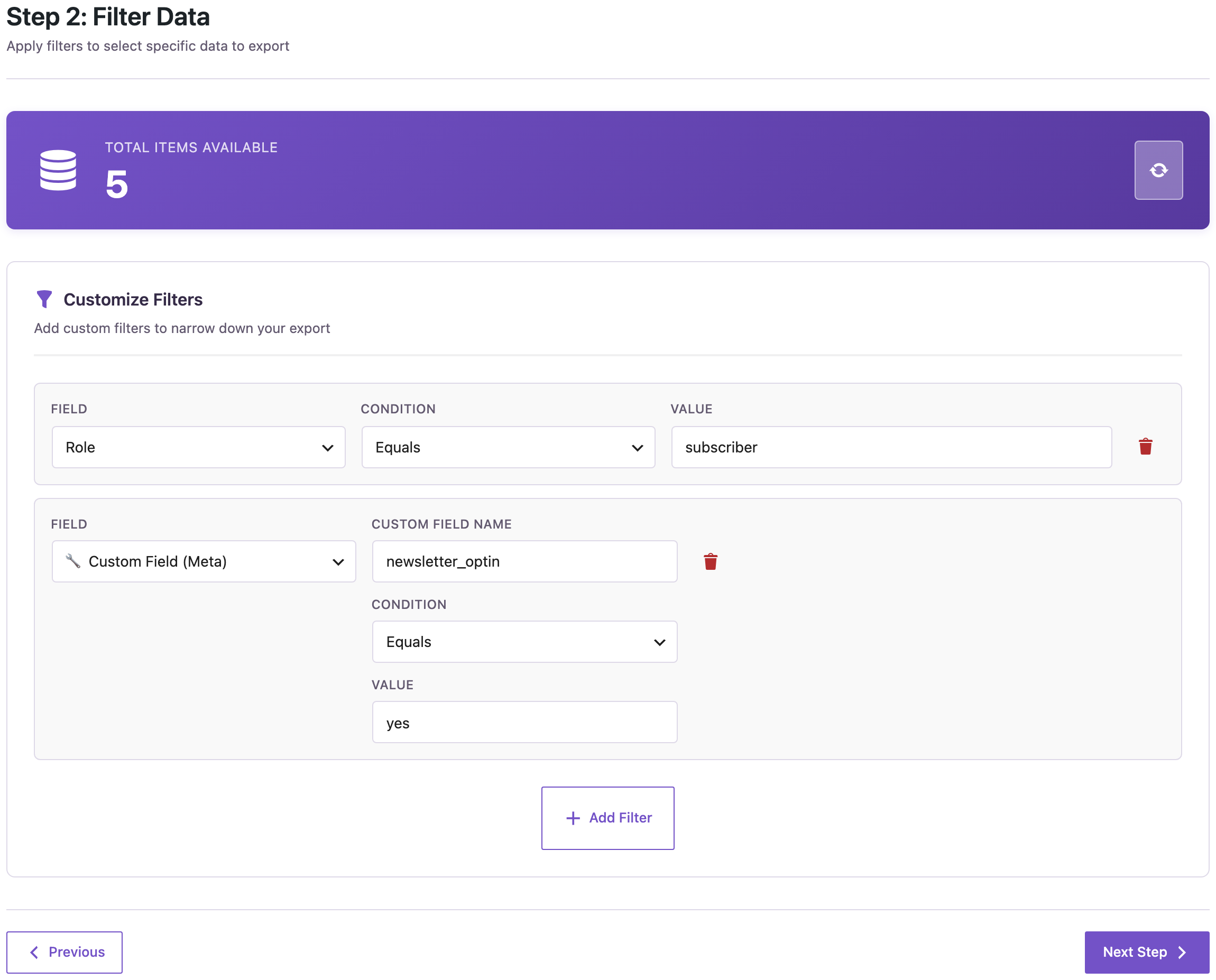
Users with no and users with no answer are left out. To include other roles, such as WooCommerce customers who opted in at checkout, remove the Role filter and keep the consent filter.
Choose and rename the columns
Clear the default columns and add Email, First Name, Last Name and, if you want to keep the sign-up date, Registration Date. The pencil icon on each column renames it in the file. Many email tools suggest column matches by name, so headers such as Email Address and First Name save you mapping work on the other side:

On the next step choose CSV, give the file a name and start the export. Our file:
"Email Address","First Name","Last Name",Registered
lena@example.com,Lena,Hoffmann,"2026-09-01 09:00:00"
sanne@example.com,Sanne,"de Vries","2026-09-07 09:00:00"
jonas@example.com,Jonas,Becker,"2026-09-10 09:00:00"
daan@example.com,Daan,Bakker,"2026-09-16 09:00:00"
felix@example.com,Felix,Wagner,"2026-09-22 09:00:00"
Five subscribers; a last name with a space (de Vries) is quoted, as CSV requires. Upload this file in your email tool’s contact import.
GDPR basics
If you send emails to people in the EU or the UK, the GDPR applies: you need a lawful basis for marketing emails, which for most newsletters is the person’s consent, and you should be able to show when and how they gave it. Exporting only the accounts with a recorded opt-in, as above, keeps people who never agreed off the list. A few practical habits:
- Export only the columns the email tool needs. Leave out usernames, roles and anything else personal.
- Treat the CSV as personal data: don’t email it around, and delete it once the import is done. The plugin’s own copy can be removed from the export files list (see where export files are stored).
- When someone unsubscribes in the email tool, update their consent on the site too, so the next export doesn’t add them back.
This is general information, not legal advice; check the rules that apply to your business.
Before you change user data
An export only reads data. If you later import users back, for example to update the consent field after a clean-up, back up the site first.
With an AI agent
An AI agent connected through the WordPress MCP Adapter (see connecting Claude Code to WordPress) can check the size of the list before you export:
How many subscribers agreed to the newsletter (newsletter_optin = yes)?In our run, the agent called rsl-ie-pro/export-count for Users with the role subscriber and a meta query on newsletter_optin equal to yes. It answered 5; the same call without the meta query returned 10, all subscribers.
FAQ
Can I export only the email addresses?
Yes, keep only the Email column. The file then has one address per line under the header.
Can I export WooCommerce customers instead?
Yes, filter by the role customer instead of subscriber, or use the WooCommerce Customers export.
What if my site has no consent field?
Then the site has no record of who agreed to the newsletter. Export only the people you know opted in, for example from your form plugin’s entries, and ask the others to subscribe again.
Can I export Excel instead of CSV?
Yes, choose XLSX on the format step. Most email tools import CSV, so CSV is the safer choice for this job.
Related Guides
- How to Export and Import WordPress Users with ACF Custom Fields
- Where Export Files Are Stored, How to Download Them Again and Clean Up
- How to Sync WordPress Users Between Sites with ACF Fields
Get the free plugin on WordPress.org.

Comments 0
Have a question or a tip to share? Leave it below.