
Setting a featured image means opening the post, clicking Set featured image, finding the photo and saving. For four posts that’s fine; for a whole archive after a redesign, or for posts imported without images, it’s an afternoon. With Import Export by RockStarLab, a CSV file with the post ID and an image URL sets them all at once. In the example, four posts on a coffee roastery’s blog get new featured images from the Media Library.
Free: everything in this guide works for posts and pages. PRO: the same for custom post types and WooCommerce products.
Short Answer
- Make a CSV with the columns
IDandfeatured_image_url: one row per post, with the URL of the image. - In Import, choose Posts, upload the file and click Auto Map.
- Set Check for Existing Items by Field to ID, If Match Found to Update and If No Match Found to Skip, and start the import.
Find the posts and their IDs
Export the posts you want to change with ID and Title, and Featured Image URL to see what they have now. To list only posts without a featured image, add the filter Custom Field (Meta) _thumbnail_id Is Empty; WordPress stores the featured image’s ID in that field. See exporting posts with their featured image URL for the export.
Add the image URLs
For images already in the Media Library, copy the File URL from the attachment details (Media → Library → click the image). Our file, with a title column added only to keep track:
ID,post_title,featured_image_url
1854,Our New Roastery Opens in March,https://www.example-roastery.com/wp-content/uploads/2026/11/roastery-front.jpg
1857,Meet the Team Behind the Beans,https://www.example-roastery.com/wp-content/uploads/2026/11/team-photo.jpg
1861,Five Single-Origin Coffees to Try This Winter,https://www.example-roastery.com/wp-content/uploads/2026/11/colombia-huila.jpg
1863,How We Source Green Coffee,https://www.example-roastery.com/wp-content/uploads/2026/11/cupping-session.jpg
The URL can point to the full-size file; you don’t need a particular size such as 300×200.
Import by ID
In Import, choose Posts, upload the CSV and click Auto Map. ID, post_title and featured_image_url are mapped:

To change only the image, you can remove the post_title mapping with the × button; we left it because the titles in the file were the same as on the site. On the options step, update by ID and skip rows without a match:
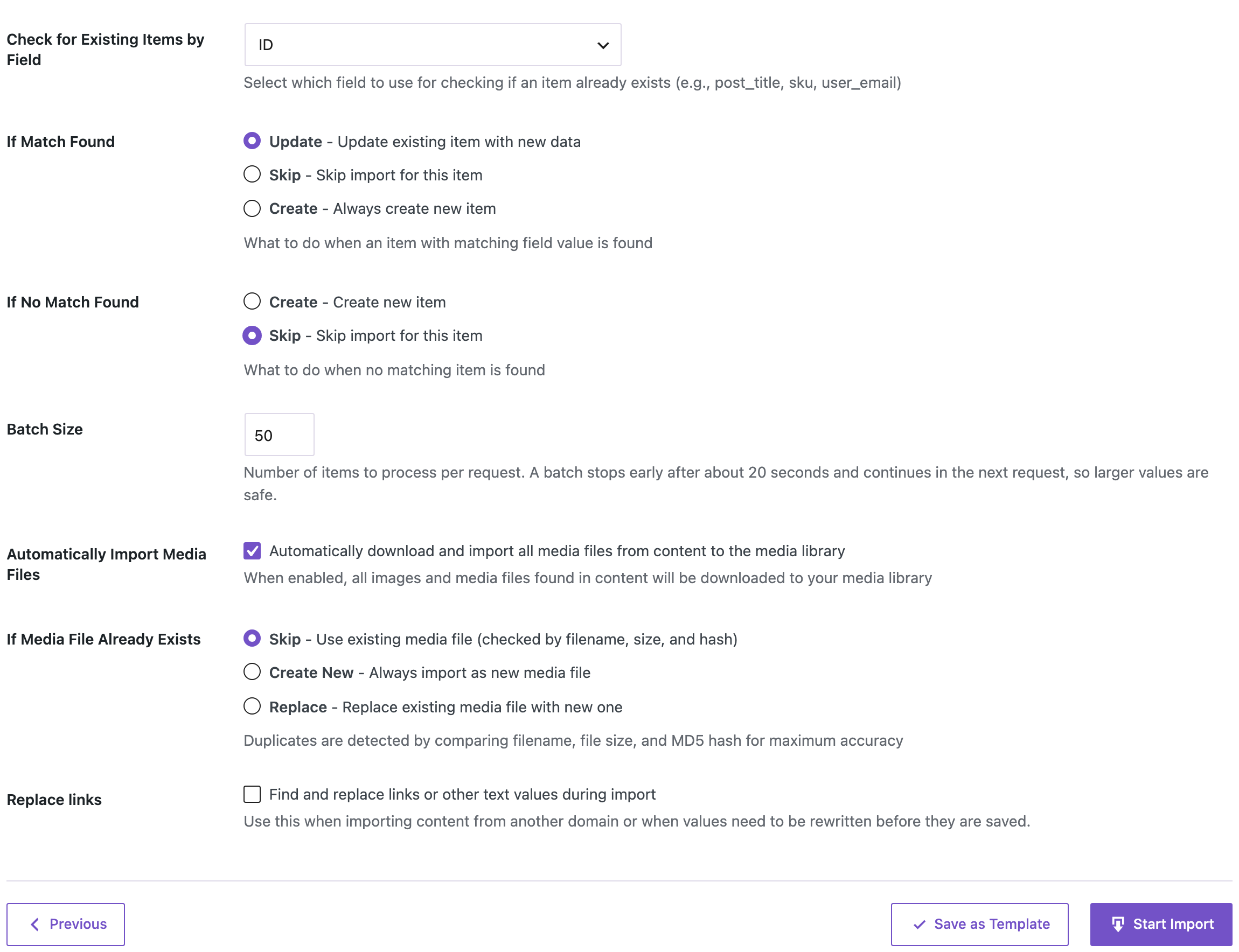
With If Media File Already Exists set to Skip, the import uses the image that is already in the Media Library instead of adding a copy.

All four posts got their new featured image, including “Five Single-Origin Coffees to Try This Winter”, which switched to a different photo. The Media Library still had the same number of files after the import: no duplicates.
Before you import
An import by ID changes the posts in the file and nothing else. Check the IDs once more, try one row first, and back up the site before importing hundreds of rows.
With an AI agent
An AI agent connected through the WordPress MCP Adapter (see connecting Claude Code to WordPress) can check the result:
Show the featured image of every post published in October 2026.In our run after the import, the agent called rsl-ie/export-preview with two Date filters for October and the fields ID, Title and Featured Image URL. It returned the four posts with the new images: roastery-front.jpg, team-photo.jpg, colombia-huila.jpg and cupping-session.jpg.
FAQ
Can I use images that aren’t in the Media Library yet?
Yes, with a public URL and Automatically Import Media Files turned on, the image is downloaded during the import. For many new images, upload them first; see importing images from URLs.
Does this change anything else in the posts?
The import writes the columns you map. Remove the title mapping if you don’t want titles touched.
How do I find posts that still have no featured image?
Export posts with the filter Custom Field (Meta) _thumbnail_id Is Empty. In our run, after removing one image again, that export returned just that one post.
Can I set images for pages or products?
Pages, yes, the same way with Pages. Products and custom post types need PRO.
Related Guides
- Export WordPress Posts with Featured Image URL and Categories to Excel
- Featured Images Missing After WordPress Import: Causes and Fixes
- Bulk Import Images from URLs into the WordPress Media Library
- Find WooCommerce Products Without Images or Descriptions
Get the free plugin on WordPress.org.

Comments 0
Have a question or a tip to share? Leave it below.