
You push an updated post from staging to live, open the live page, and still see the old version. Is the push broken, or is it the cache? With Import Export by RockStarLab, a push saves the post on live the same way as a save in the editor, so a page cache plugin that clears a post on save clears it after a push too. We tested this with WP Super Cache and show how to check your own site in a minute.
Free: Content Sync of posts and pages is in the free plugin. The test below used Import Export by RockStarLab 2.1.59 and WP Super Cache 3.1.5 on the live site.
Short Answer
With WP Super Cache, you don’t need to do anything after a push. In our test, the cached page was refreshed after a changed title, a new post and a changed featured image. If you still see old content, check where it comes from: the page cache on the server, a CDN in front of the site, or your own browser.
Our setup
On the live site, WP Super Cache runs with the recommended settings: Caching On, simple caching and Cache Rebuild.
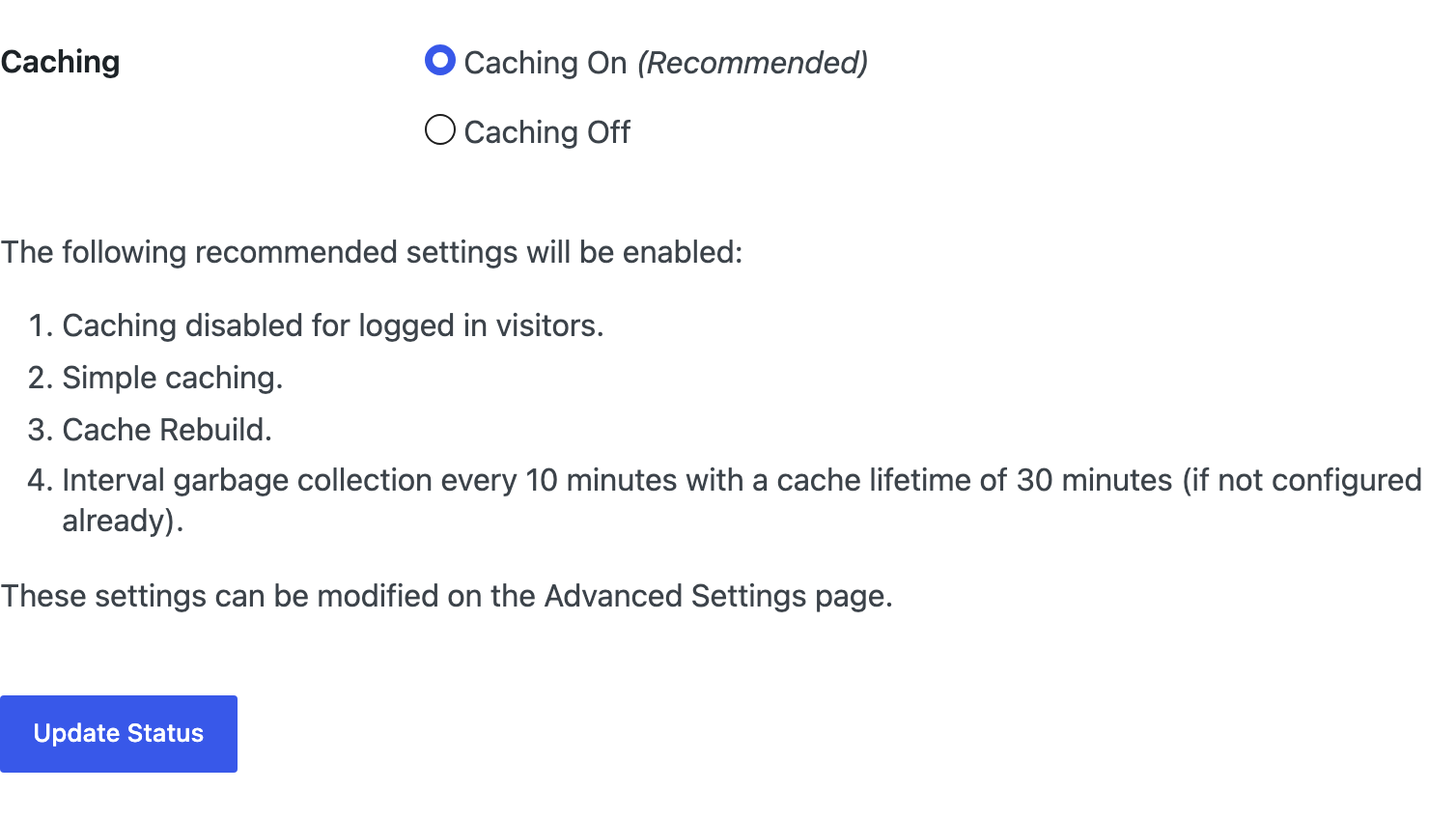
WP Super Cache adds a line at the end of each cached page, “Cached page generated by WP-Super-Cache on” with the date and time. We used that line to see when a page was cached.
What happened after each push
We opened the live page as a visitor, so it was cached. Then we changed the post on staging and pushed it:
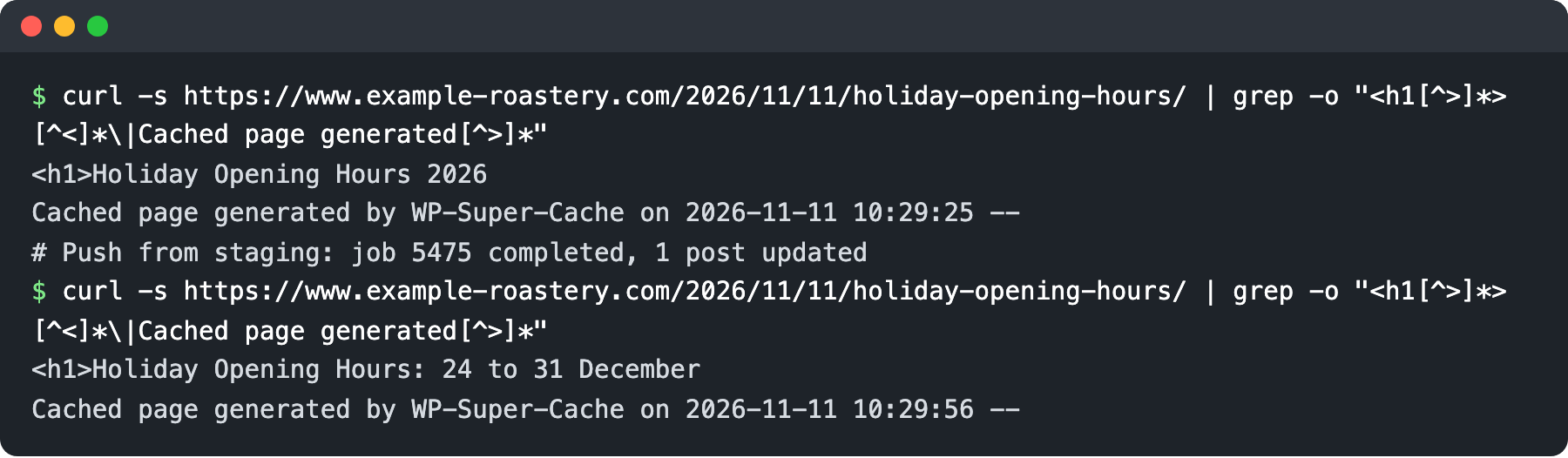
The first request shows the old title and a page cached at 10:29:25. After the push, the next request shows the new title and a page cached at 10:29:56, so the old cached page was deleted and built again. The same happened in the other tests:
| What we pushed | Live page after the push |
|---|---|
| A changed text in an existing post | New text, page cached again |
| A new post | Listed on the home page, home page cached again |
| A changed post title | New title on the post and in the category archive |
| Only a new featured image | New image on the post page |
Check your own site
- Open the live page in a private window, where you are not logged in. Most cache plugins do not cache pages for logged-in users, so you see the live data when you are logged in.
- Look at the page source. Some cache plugins add a comment with the time the page was cached, as WP Super Cache does.
- Push the post, reload the page in the private window and compare the time. A newer time means the cache was refreshed.
- If the time didn’t change, clear the cache once. In WP Super Cache, use Delete Cache in the admin bar or Delete Cached Pages in its settings. Then look at your cache plugin’s settings for clearing a post when it is updated.
Other caches
- A CDN or proxy in front of the site keeps its own copy of the page. If the page source shows the new cache time but the page still looks old, clear the page in the CDN.
- Your browser may show a copy it saved. Reload without the browser cache, or check in a private window.
- Not the cache: if the page on live is old even when you are logged in, the post was not updated. Check the push in Jobs Log.
As before any push, back up the live site, or ask your AI agent to start the backup.
With an AI agent
An AI agent connected to the live site through the WordPress MCP Adapter (see connecting Claude Code to WordPress) reads the post from the database, not from the cache:
What is the title and last modified time of the post holiday-opening-hours on live?In our run, the agent called rsl-ie/export-preview with a slug filter and returned the title “Holiday Opening Hours: 24 to 31 December”, modified at 10:29:40. If the cached page is older than that time and still shows the old title, the cache was not refreshed.
FAQ
Do I have to clear the cache after every push?
Not with WP Super Cache in our test. A push saves the post like the editor, and the plugin refreshed the page.
Why do I see the new page when I’m logged in, but visitors don’t?
Cache plugins usually skip logged-in users. Visitors get the cached page until it is refreshed or cleared.
Does the plugin clear my CDN?
No. A CDN keeps its own copy of the page; clear it in the CDN.
Related Guides
- How Content Sync Works: API Keys, Push and Pull
- Images and Links Broke After Pushing Staging to Live: Causes and Fixes
- Reading the Jobs Log After a Sync: Created, Updated and Failed Posts
Get the free plugin on WordPress.org.

Comments 0
Have a question or a tip to share? Leave it below.