
A product gets a new color, a recall, or a care tip worth sharing, and you want to reach everyone who bought it. WooCommerce shows you orders, not buyers of one product. With Import Export by RockStarLab PRO, you export the orders that contain the product, with one row per buyer and only that product’s line, ready for your email tool.
PRO: the WooCommerce Orders export. Use PRO 2.1.17 or newer: it finds the product in orders with several items.
What you get
- One row for each order that contains the product, with the order number, date and status.
- The customer’s first name, last name and email.
- Only the line of that product and its quantity, even when the order has other items.
Step 1: Filter the orders by product
Open Import Export → Export, choose WooCommerce Orders and click Next Step. Click Add Filter and set Item Name, Equals, the product name. We also left out cancelled orders with a second filter: Status, Not Equals, cancelled.
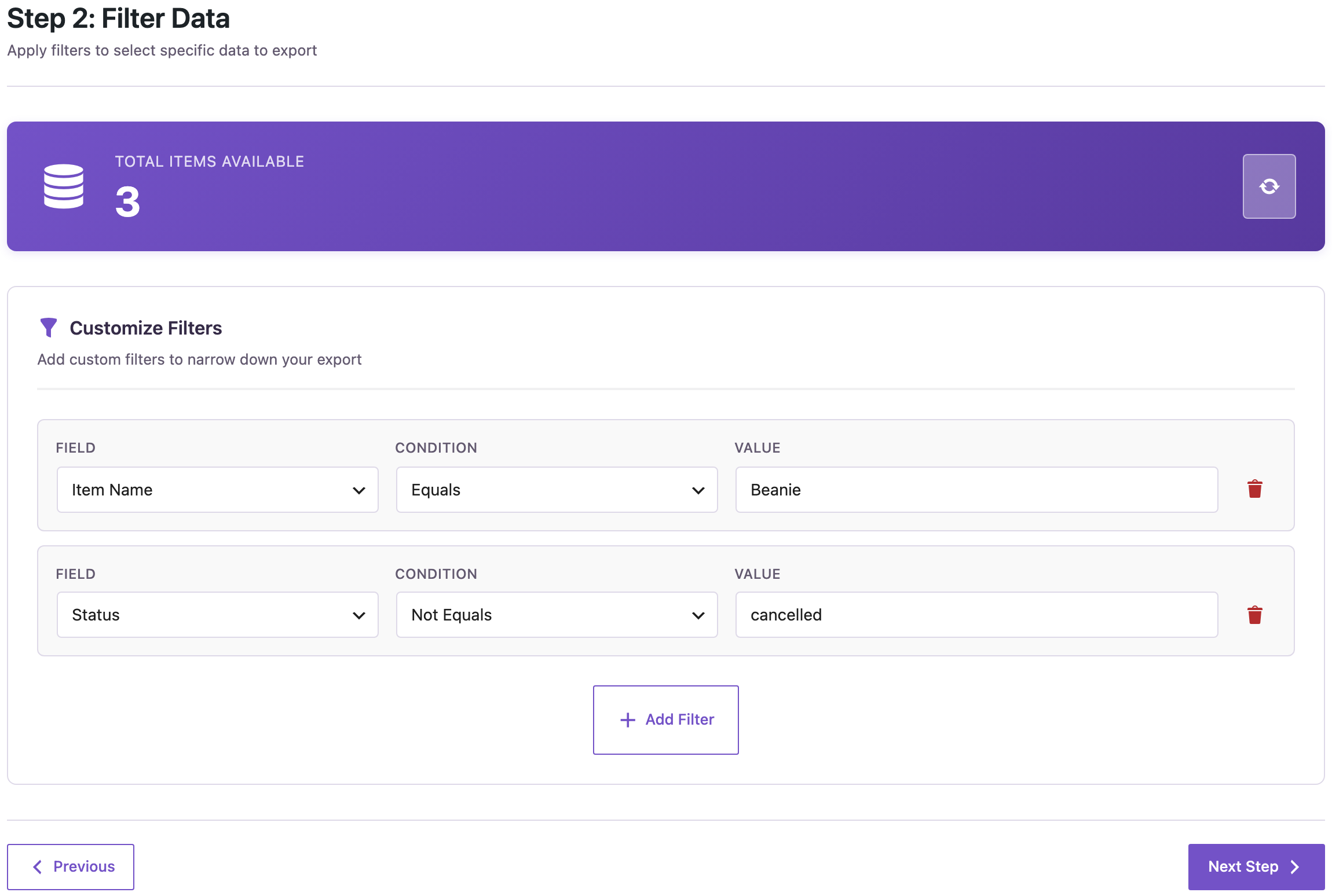
Our store has 8 orders. The filter found the 3 orders with the Beanie that were not cancelled. Two of them have other products too.
Equals matches the exact name, so “Beanie” doesn’t match “Beanie with Logo”. Use Contains to include similar names, or Item Product ID to match one product by its ID.
Step 2: Choose the columns
In Select Fields, add Order Number, Order Date, Status, First Name, Last Name, Email, Item Name and Item Quantity.
Step 3: One row per order item
In the last step, choose Excel or CSV and tick One row per order item:

With an item filter, only the matching items get a row. Without this option, the Item columns list every item of the order in one cell.
The result
Click Start Export and download the file. Our export has 3 buyers, each with the Beanie line only:

Order 2007 also has a T-Shirt and a Cap, and order 2005 has a Beanie with Logo, but those lines are not in the file.
Tips
- Repeat buyers. A customer who bought the product twice has two rows. In Excel, use Data → Remove Duplicates on the Email column for a list of people.
- A date range. Add a filter on Order Date to reach only recent buyers.
- Variable products. Use Item Product ID with the ID of the parent product to find the buyers of every variation.
- Consent. Use the list for service messages such as a recall, and for marketing only to customers who agreed to receive it.
- Every order line. For all products of all orders, see exporting orders with one row per item.
The export doesn’t change your orders. If you later import changes back, back up the store first, or ask your AI agent to start the backup.
With an AI agent
An AI agent connected to the store through the WordPress MCP Adapter (see connecting Claude Code to WordPress) can build the same list:
List the customers who bought the Beanie, without cancelled orders, with their emails.In our run, the agent called rsl-ie-pro/export-preview for WooCommerce orders with the Item Name and Status filters and one row per item. It returned Liam Novak (3 beanies), Sofia Rossi and Emma Brooks with their emails.
FAQ
Does it find the product in orders with several items?
Yes, from PRO 2.1.17. An order matches when one of its items matches the filter.
Can I export customers of several products at once?
Yes. Use Item Name, In, and the names separated by commas, for example Beanie, Cap. With one row per item, each matching product gets its own row.
Are guest orders included?
Yes. The name and email come from the billing details of each order, so guests are in the list too.
Does the export change my orders?
No. It only reads them.
Related Guides
- Export WooCommerce Orders with One Row per Order Item
- Export Your Top WooCommerce Customers by Total Spent
- Export WooCommerce Orders to CSV or Excel: Complete Guide
Get the free plugin on WordPress.org.

Comments 0
Have a question or a tip to share? Leave it below.