
Your best customers are worth a thank-you email, a loyalty discount or an early look at a new product. WooCommerce knows how much each customer has spent, but there is no screen that lists them by spend with their contact details. With Import Export by RockStarLab PRO you can export WooCommerce customers with their total spent and number of orders, filtered to those above an amount, into Excel. The example is a coffee shop.
PRO: WooCommerce Customers export. Free: the export wizard for posts, pages, media and comments.
Short Answer
- In Export, choose WooCommerce Customers and add the filter Total Spent Greater Than your amount.
- Pick the columns you need: name, email, city, Order Count, Total Spent and Last Order ID.
- Export to Excel and sort by Total Spent. The amounts are numbers, so sorting and sums work.
1. Filter by total spent
Go to Export, choose WooCommerce Customers and click Next Step. Add the filter Total Spent, Greater Than, 50. Out of eight customer accounts in our test shop, 3 had spent more than 50:
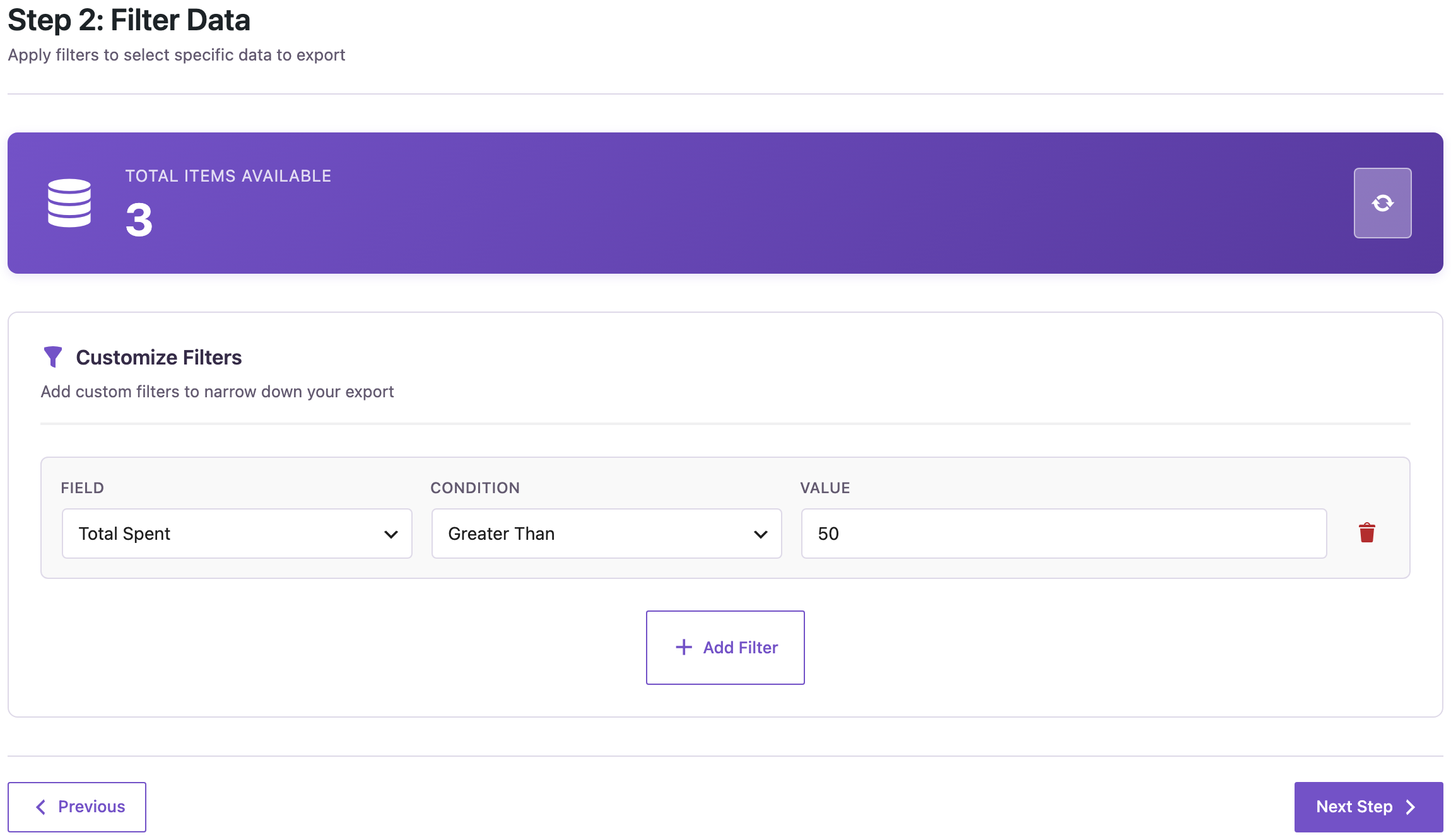
Total Spent is the figure WooCommerce keeps for each customer account. It counts paid orders: in our shop, a customer whose only order was on hold and one whose order was cancelled both had 0.00 and were left out by the filter.
2. Choose and rename the columns
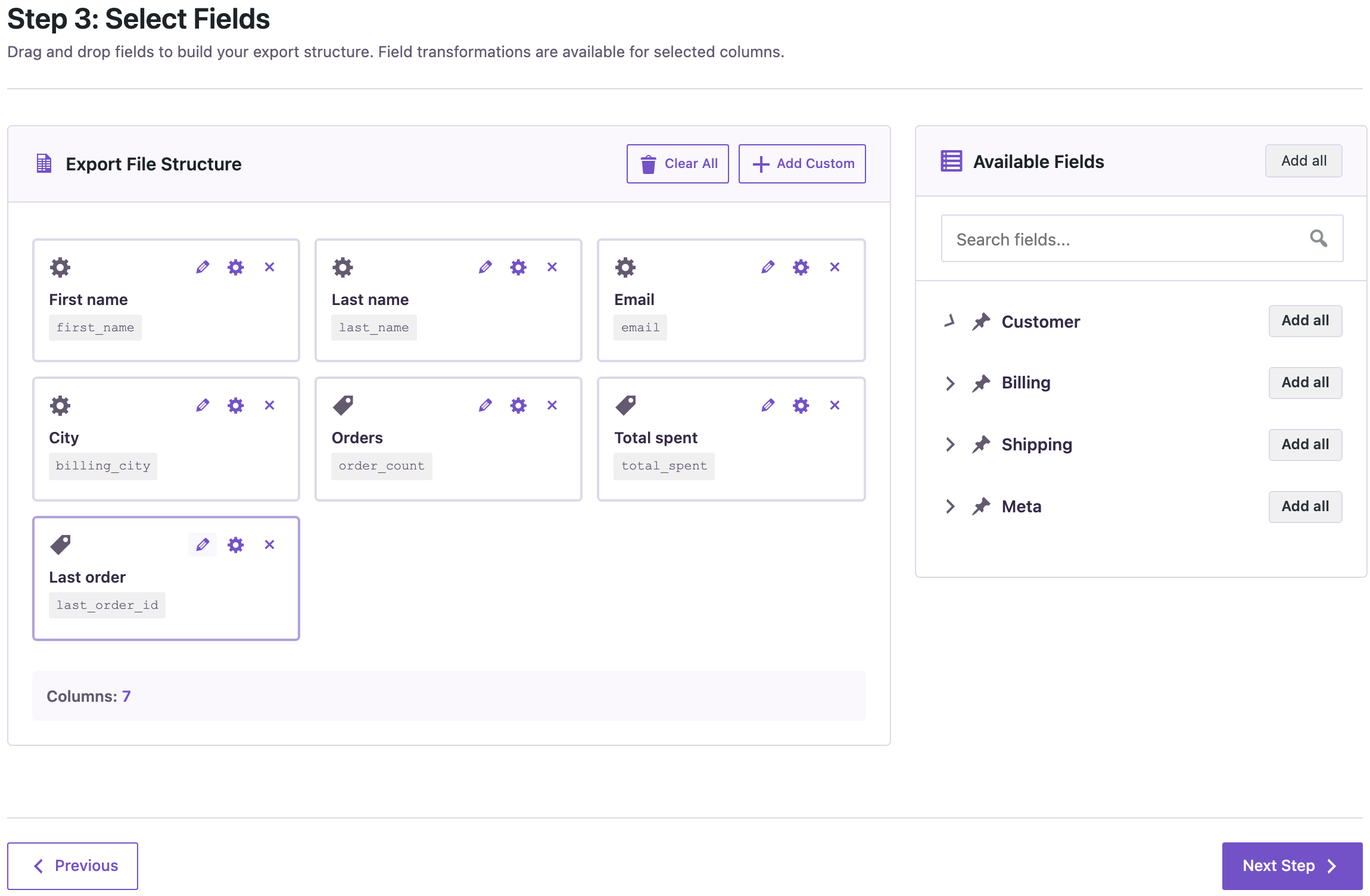
On the field step we added First Name, Last Name, Email, Billing City, Order Count, Total Spent and Last Order ID, and renamed them with the pencil icon to short headers like “Orders” and “Total spent”:
3. Export to Excel and sort
Choose XLSX on the format step and export. In the file, Orders, Total spent and Last order were numbers, and Total spent was shown with two decimals. We sorted by Total spent, largest first, and added a SUM below:

Anna Kovacs from Budapest came first with 236.00 over 2 orders, then Fatima Rahman with 106.00 and Ben Turner with 54.00; together 396.00. The Last order column gives the order number to open in WooCommerce if you want to see what they bought.
Before you export
An export doesn’t change anything in the shop. The file has names and email addresses, so keep it private, and only email customers who agreed to hear from you. For email campaigns, see exporting newsletter subscribers.
With an AI agent
An AI agent connected through the WordPress MCP Adapter (see connecting Claude Code to WordPress) can find your top customers:
Who are our customers with the highest total spent?In our run, the agent called rsl-ie-pro/export-preview with the export type woo_customer and the fields email, first name, last name, order count, total spent, last order ID and billing city. It returned eight customer accounts, and the agent ranked them: Anna Kovacs 236.00 (2 orders), Fatima Rahman 106.00, Ben Turner 54.00, Dmitri Volkov 34.00, and the rest at 0.00.
FAQ
Where does Total Spent come from?
From WooCommerce’s own figure for each customer account. In our test, orders on hold and cancelled orders were not included.
Can I filter by number of orders instead?
Yes. Order Count is a filter field too; use Greater Than to find repeat customers.
Are amounts numbers in Excel?
Yes. In the XLSX file Total spent was a number with two decimals, so SUM and sorting work.
Can I see what each customer bought?
Use the Last order number, or export orders filtered by the customer’s email; see exporting orders by date range.
Related Guides
- Export Newsletter Subscribers from WordPress to CSV
- Export WooCommerce Orders by Date Range for VAT and Tax Reports
- Export WooCommerce Orders with Checkout Fields: Delivery Date, Gift Message and More
- How to Import WooCommerce Customers from CSV
Get the free plugin on WordPress.org.

Comments 0
Have a question or a tip to share? Leave it below.