
Sites in one WordPress Multisite network share users and plugins, but each site keeps its own posts, pages and media. To copy a post from one site of the network to another, WordPress has no button for it. Import Export by RockStarLab does it with Content Sync: connect two sites of the network, select posts and push them, and later push the same posts again to update the copies. The example network has two sites, the Roastery Shop and the Cafe Blog, and posts move between them.
Free: Content Sync for posts and pages, import and export on every site of the network, and the AI agent abilities. Products, users, menus and other content types need PRO.
Short Answer
- Network-activate the plugin in Network Admin → Plugins, or activate it on the sites that need it.
- On the site that receives the content, open Import Export → Content Sync, click Show Details under This Site Configuration and copy the API key.
- On the site that sends it, click Add New Site, enter the other site’s full address, including its path (for example
https://coffee.example.com/cafe/), and paste the key. - In Posts, select the posts, choose the Sync Content bulk action and click Push to Site.
- Check the map (create new or update an existing post) and click Confirm & Sync.
How the plugin works in a network
We tested on a subdirectory network with three sites: the main site, /roastery/ and /cafe/. With the plugin network-activated:
- Each site has its own jobs, schedules, triggers, settings and Content Sync key. A site administrator sees only their site’s jobs and files.
- Imported media goes to that site’s folder (
uploads/sites/2/for the Roastery). File types are limited by the network’s upload settings. - Any administrator of a site can use the plugin on that site. A site administrator in a network may not publish unfiltered HTML, so content they import or sync is filtered the same way as in the editor: scripts and event handlers are removed, normal formatting is kept. A network administrator’s imports keep the file exactly.
- Uninstalling the plugin removes its tables and settings from every site of the network.
Step 1: Copy the key of the receiving site
On the Cafe Blog, open Import Export → Content Sync and click Show Details. The key lets another site send content to this one, so treat it like a password.

The key belongs to the administrator who opened it first. Content that arrives with it is saved with that administrator’s permissions.
Step 2: Connect the sending site
On the Roastery Shop, open Content Sync, click Add New Site and enter the Cafe Blog’s address with its path, then the key:

The plugin checks the connection before saving it. The Cafe Blog appears under Connected Sites:

To send content the other way too, repeat the steps with the Roastery’s key on the Cafe Blog.
Step 3: Push posts
We selected two Roastery posts, “Winter opening hours” (new) and “Holiday blend is back” (the Cafe Blog already had a copy from an earlier push), and chose Sync Content:

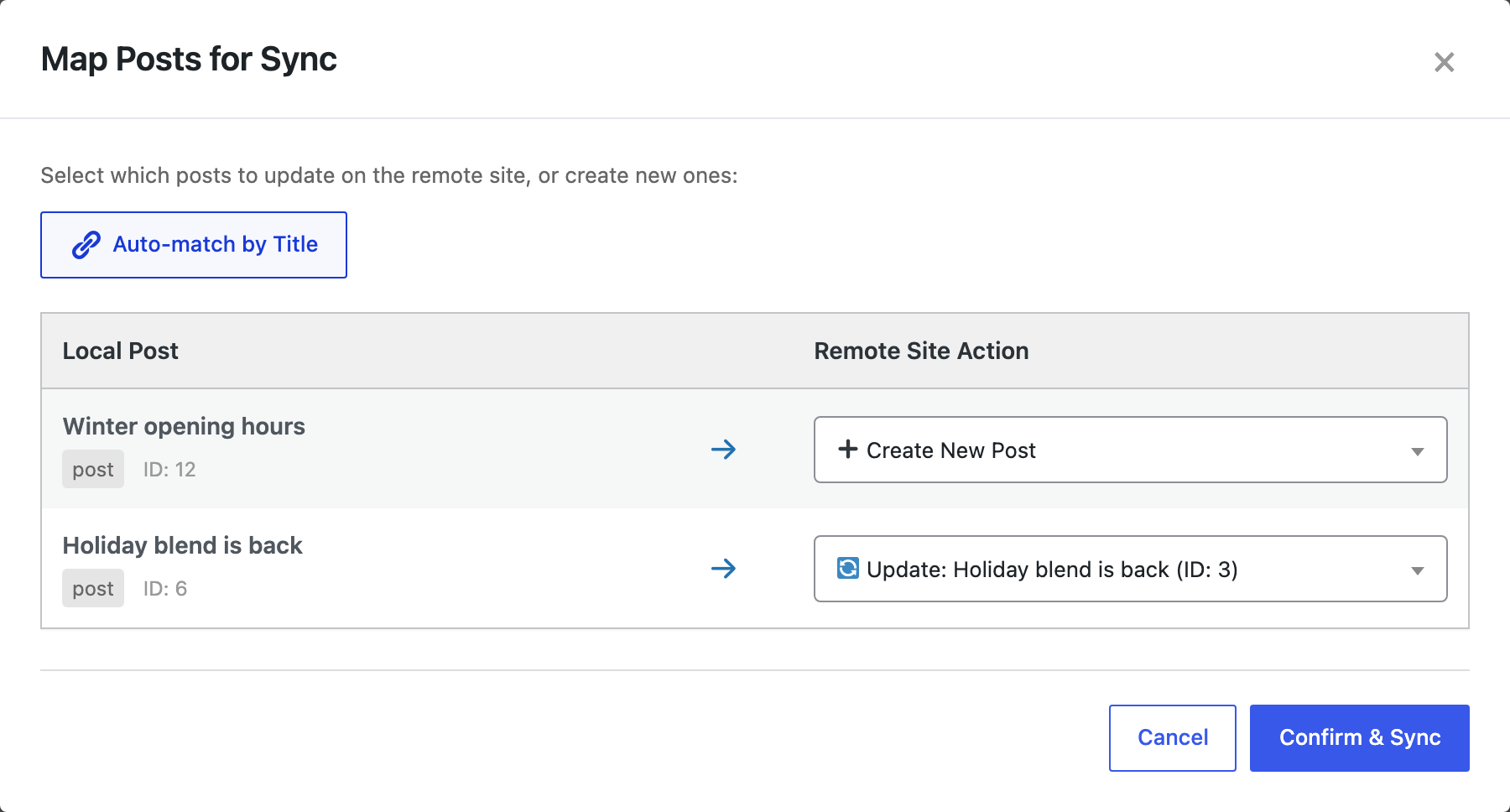
After Push to Site, the map shows what will happen on the Cafe Blog. Auto-match by Title found the existing copy of “Holiday blend is back”, so that post will be updated, while “Winter opening hours” will be created:
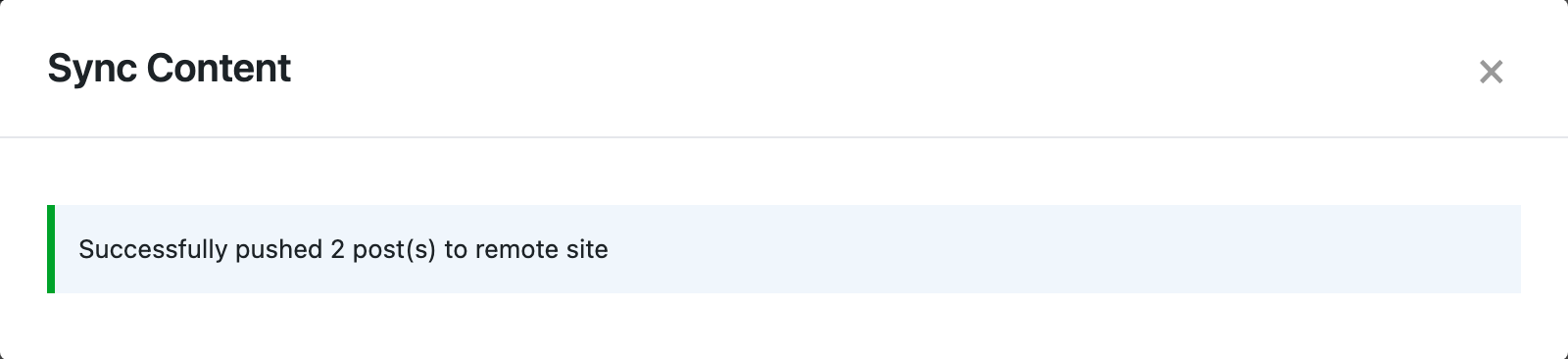
Confirm & Sync copied both posts:
The Cafe Blog now has both posts, with the updated text of the holiday blend post:

Users are shared in a network. When the author is also a user of the receiving site, the copy keeps the same author: posts written by the account roastery, which belongs to both sites, kept that author on the Cafe Blog. Otherwise the administrator who owns the key becomes the author of new copies.
Import and export on one site of the network
The import and export wizards work on each site as on a single site, with that site’s content. From WP-CLI, add the site’s address:
wp --url=https://coffee.example.com/roastery/ rsl-ie export --type=post --fields=ID,post_title --output=roastery-posts.csv --user=adminIn our run, this exported only the Roastery’s posts.
With an AI agent
An AI agent connects to one site of the network: the MCP server is started for that site (for WP-CLI, wp mcp-adapter serve --url=https://coffee.example.com/roastery/), and AI agent access must be turned on in that site’s Plugin Options. See connecting Claude Code to WordPress.
Push "Winter opening hours" to the Cafe Blog again and update the copy that is there.In our run, the agent was signed in as the Roastery’s site administrator, not a network administrator. rsl-ie/connection-list returned the Cafe Blog connection, and rsl-ie/sync-push with the post and its existing copy in post_mapping answered “Successfully pushed 1 post(s)”, with 1 updated and 0 created. The Cafe Blog post showed the new closing time for December 24.
Before you sync
Sync changes posts on the receiving site, and an update replaces the content of the matched post. Back up the network first, and check the map before you confirm, so posts are not updated by mistake.
FAQ
Does the plugin work on WordPress Multisite?
Yes. Network-activate it or activate it per site. Each site keeps its own jobs, settings and files.
Can I copy posts from one site of a network to another?
Yes, with Content Sync: connect the two sites with the receiving site’s key and push the posts. Pushing again updates the copies.
Which address do I use for a site in a subdirectory network?
The site’s full address with its path, for example https://coffee.example.com/cafe/.
Can site administrators use the plugin?
Yes, on their own site. Their imports and syncs are filtered like content they write in the editor.
Are users copied?
Users are shared by the whole network, so there is nothing to copy. A post keeps its author when that user also belongs to the receiving site. Copying users between separate sites needs PRO.
Related Guides
- How Content Sync Works: API Keys, Push, Pull and What Gets Copied
- Content Sync vs Export/Import: Which One for Which Job
- Syncing Featured Images and Media Between Sites
- Content Sync Connection Test Failed: Fix 401, 403 and Blocked REST API Errors
Get the free plugin on WordPress.org.

Comments 0
Have a question or a tip to share? Leave it below.