
Before you move products to a new WooCommerce store, the store needs the same global attributes: Size, Color, or for a coffee roaster, Roast Level and Grind, with all their terms. Recreating them by hand under Products → Attributes means typing every term again and getting the slugs and order exactly right, or the product import won’t match them. With Import Export by RockStarLab PRO, you export the attributes with their terms to a file and import it on the new store. In the example, two attributes move from a roastery’s old shop to a new one.
PRO: attribute export and import are part of PRO. Free: posts, pages and media.
Short Answer
- On the old store, go to Export, choose Attributes, and add the filter Attribute Name In with the slugs, for example
roast,grind. - Add all fields, including All Terms (Array), and export as JSON.
- On the new store, go to Import, choose Attributes, upload the file, click Auto Map and start the import.
Export the attributes
Each attribute is one row. The filter Attribute Name uses the slug you see under Products → Attributes; In takes several slugs separated by commas:
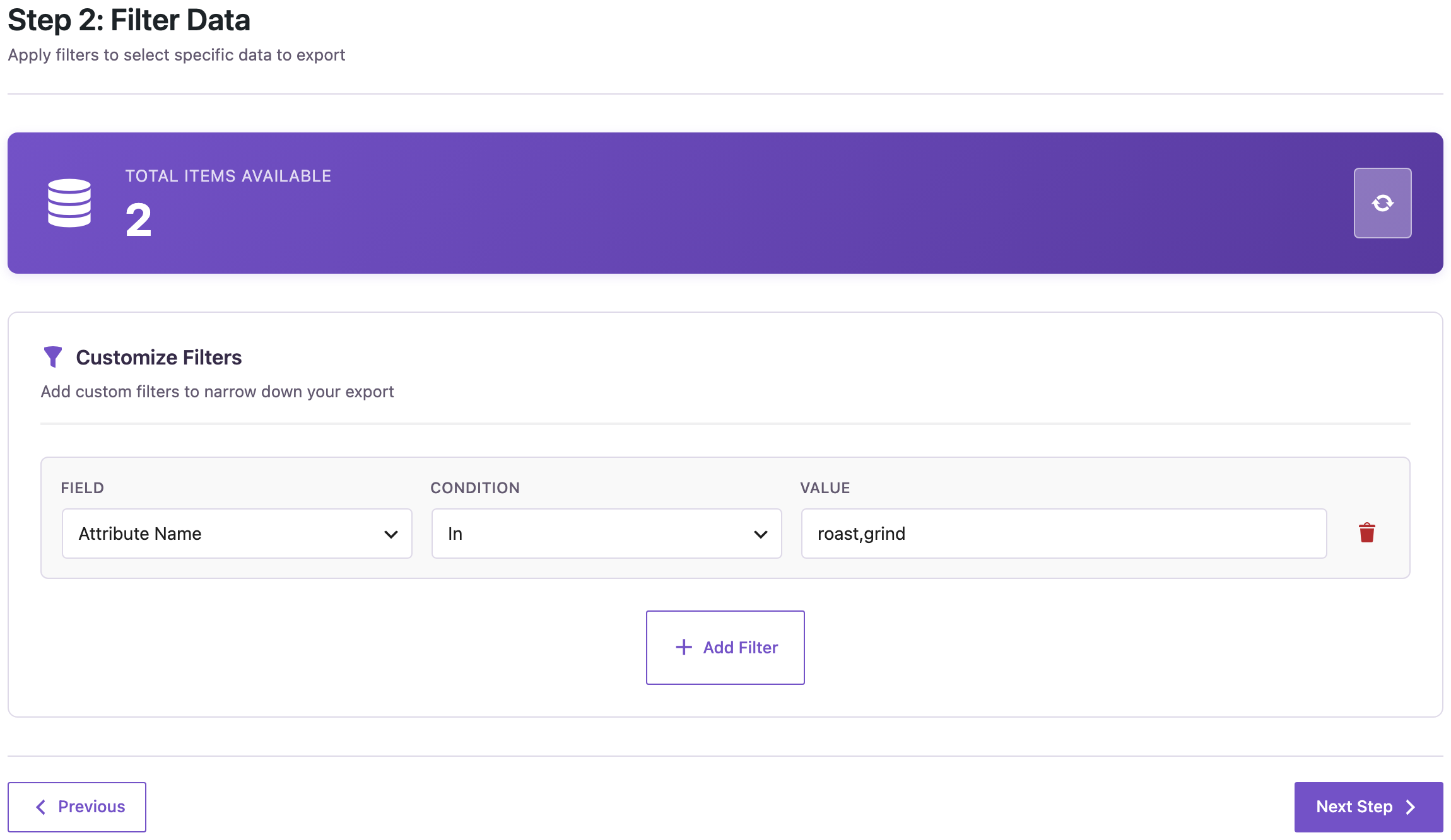
Our old shop had four attributes. We copied the two coffee ones:
- Roast Level (
roast): Light, Medium, Dark. - Grind (
grind): Whole Bean, Espresso, Filter, French Press, with a description on Espresso.
We added all fields: Attribute Name, Attribute Label, Attribute Type, Default Sort Order, Enable Archives, Terms Count and All Terms (Array), and chose JSON. Part of the file:
[
  {
    "attribute_name": "grind",
    "attribute_label": "Grind",
    "attribute_type": "select",
    "attribute_orderby": "menu_order",
    "attribute_public": "0",
    "term_count": "4",
    "attribute_terms": [
      {
        "term_id": 234,
        "name": "Whole Bean",
        "slug": "whole-bean",
        "description": "",
        "meta": {
          "order": "0"
        }
      },
      {
        "term_id": 235,
        "name": "Espresso",
        "slug": "espresso",
        "description": "Fine, for espresso machines and moka pots.",
        "meta": {
          "order": "1"
        }
      },
      …
    ]
  }
]
Each term keeps its name, slug, description and its position in the custom order.
Import on the new store
In Import, choose Attributes, upload the JSON file and click Auto Map; all seven columns are mapped. We started the import with the default options: 2 attributes created.
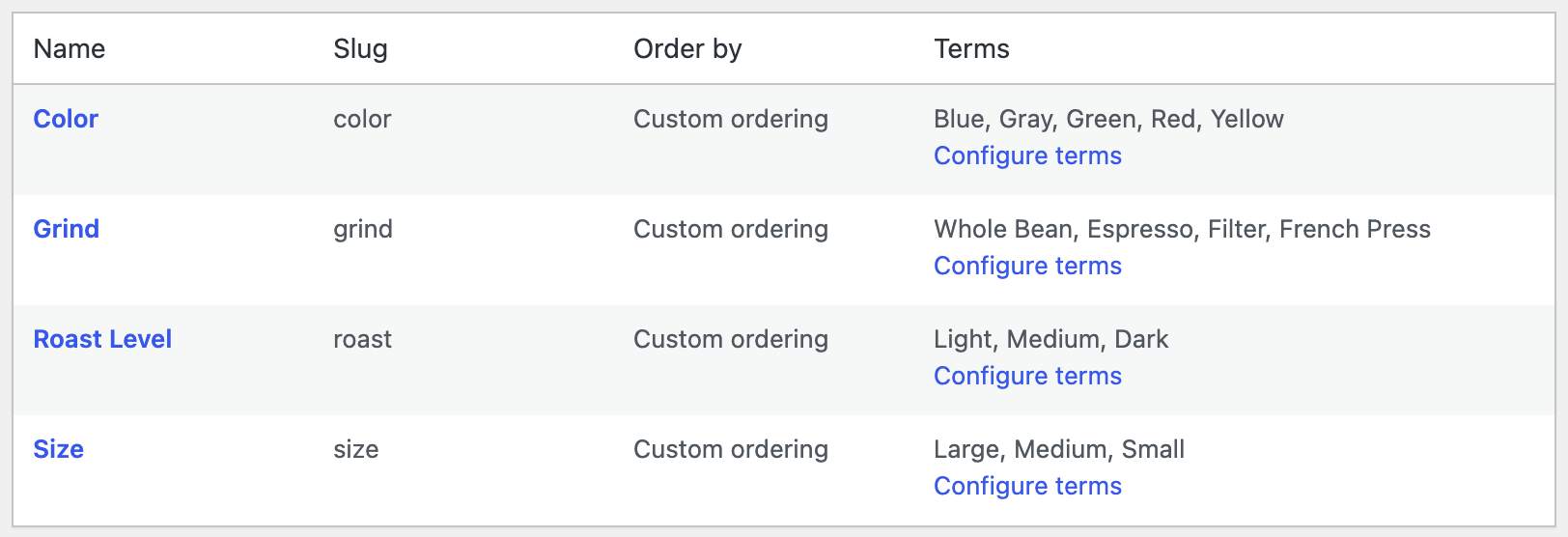
- Grind and Roast Level have the same labels, slugs and type as on the old store.
- The terms are in the same custom order: Whole Bean, Espresso, Filter, French Press.
- The description of Espresso came along.
- The new store’s own attributes, Color and Size, weren’t touched.
We ran the same import a second time: both attributes were updated, not created again, and every attribute still had the same number of terms. So you can import the file again after adding terms on the old store.
Then move the products
With the attributes in place, product imports can assign them by slug. For variable products, see importing variable products; for the categories, see exporting and importing product categories.
Before you import
An attribute import adds attributes and terms to the store. Back up the site first, and keep the exported file as a record of the attributes.
With an AI agent
An AI agent connected through the WordPress MCP Adapter (see connecting Claude Code to WordPress) can check the result on the new store:
Do the attributes roast and grind exist here, and how many terms do they have?In our run on the new store, the agent called rsl-ie-pro/export-preview for attributes with the filter Attribute Name In roast,grind. It returned Grind with 4 terms and Roast Level with 3, the same as on the old store.
FAQ
Can I export all attributes at once?
Yes. Leave out the filter; each attribute becomes one row.
Are product-specific (custom) attributes included?
No. This exports global attributes from Products → Attributes. Attributes typed into a single product are stored with that product.
What happens if the attribute already exists on the new store?
In our test, importing the same file again updated the two attributes instead of creating copies, and no terms were duplicated.
Can I use CSV instead of JSON?
Yes, but the terms column is JSON either way, so a JSON file is easier to read. To build attributes from a simple list of term names instead, see importing attributes and terms from CSV.
Related Guides
- How to Import Global WooCommerce Attributes and Terms from CSV
- How to Export and Import WooCommerce Product Categories with Images and Hierarchy
- Export WooCommerce Product Variations with SKU, Price and Stock
- How to Import WooCommerce Variable Products from CSV
Get the free plugin on WordPress.org.

Comments 0
Have a question or a tip to share? Leave it below.