
Contact Form 7 sends each message by email and keeps nothing on the site. To have the messages in WordPress, most sites add Flamingo, the free companion plugin from the same author, which saves every submission as an inbound message. Import Export by RockStarLab exports those messages to CSV or Excel, one column per form field, with filters for dates, spam and the text of any field. Our example: a coffee roastery’s contact form messages, exported for the support team.
Free: exporting Contact Form 7 messages saved by Flamingo, all filters and formats, and the AI agent abilities. You need Contact Form 7 and Flamingo installed and active.
Short Answer
- Install and activate Flamingo if you haven’t. It saves messages sent after it is active; earlier messages exist only in your mailbox.
- Go to Import Export → Export and choose Form Entries.
- In step 2, pick your Contact Form 7 form and add filters if you need them.
- In step 3, add the fields you want, such as
your-name,your-emailandyour-message. - Choose CSV or Excel in step 4, start the export and download the file.
Where the messages are
Flamingo lists the messages under Flamingo → Inbound Messages, grouped by form in the Channel column (Contact Form 7 / Contact us on our site). Our contact form had received five messages; Flamingo had put one of them in Spam.

Flamingo has its own Export button, which downloads the messages of the current view as a CSV file. The export in this guide is for when you need more: choosing and naming the columns, filtering by the text of a field or by exact dates, Excel or JSON files, a weekly schedule, or an AI agent doing the work.
Step 1: Choose Form Entries and the form
Open Import Export → Export and choose Form Entries. In step 2, the form list shows each Contact Form 7 form that Flamingo has saved messages for, with the number of messages that are not spam or in the trash. We picked Contact us (4).
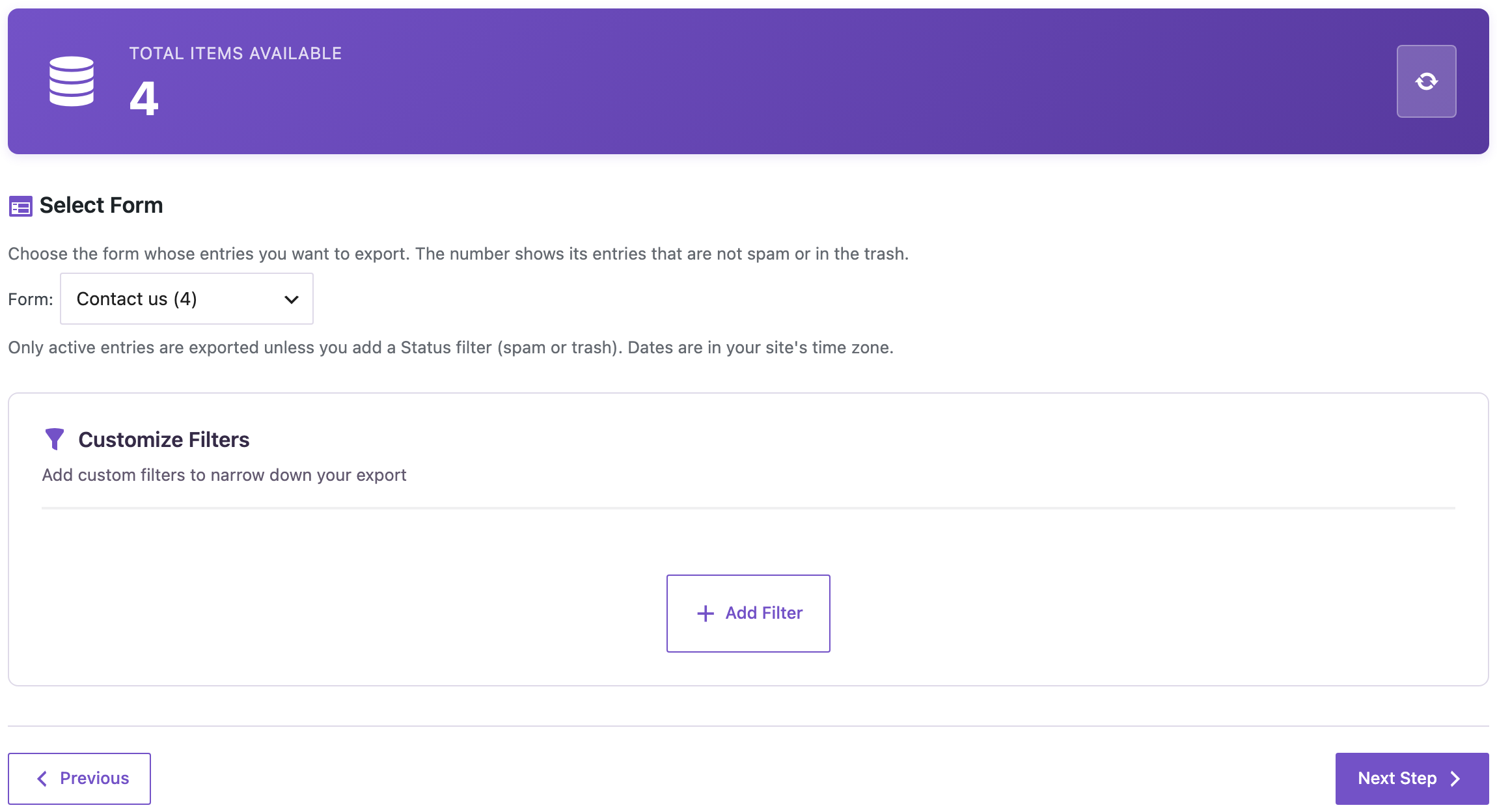
Useful filters for contact messages:
- Date with Greater or Equal to get the messages since a day, for example since your last export.
- your-message or your-subject with Contains to find messages about one topic, such as “order” or “subscription”.
- Status with the value
spamto review what was marked as spam.
Step 2: Choose the columns
Contact Form 7 doesn’t store field labels, so the columns are named after the field names in your form, such as your-name and your-message. Flamingo also stores a Subject, From name and From email for every message, built from the form’s mail settings. We took the date, the four form fields and the page URL:
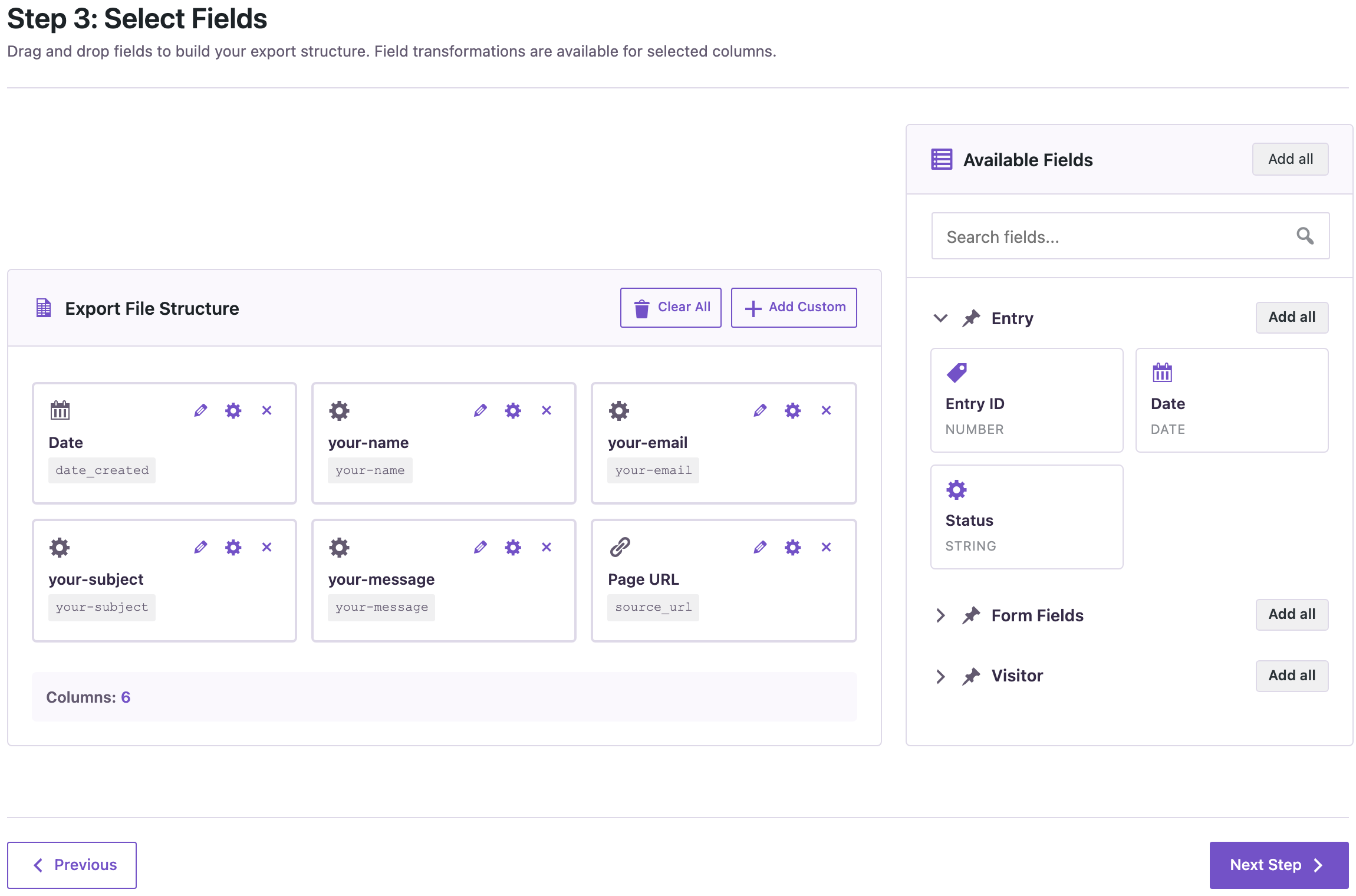
Click the pencil on a column to give it a friendlier name in the file, for example Name instead of your-name. The Page URL shows which page the form was sent from, which helps when the same form is on several pages.
Step 3: Export and download
Choose CSV or Excel, name the file and click Start Export.
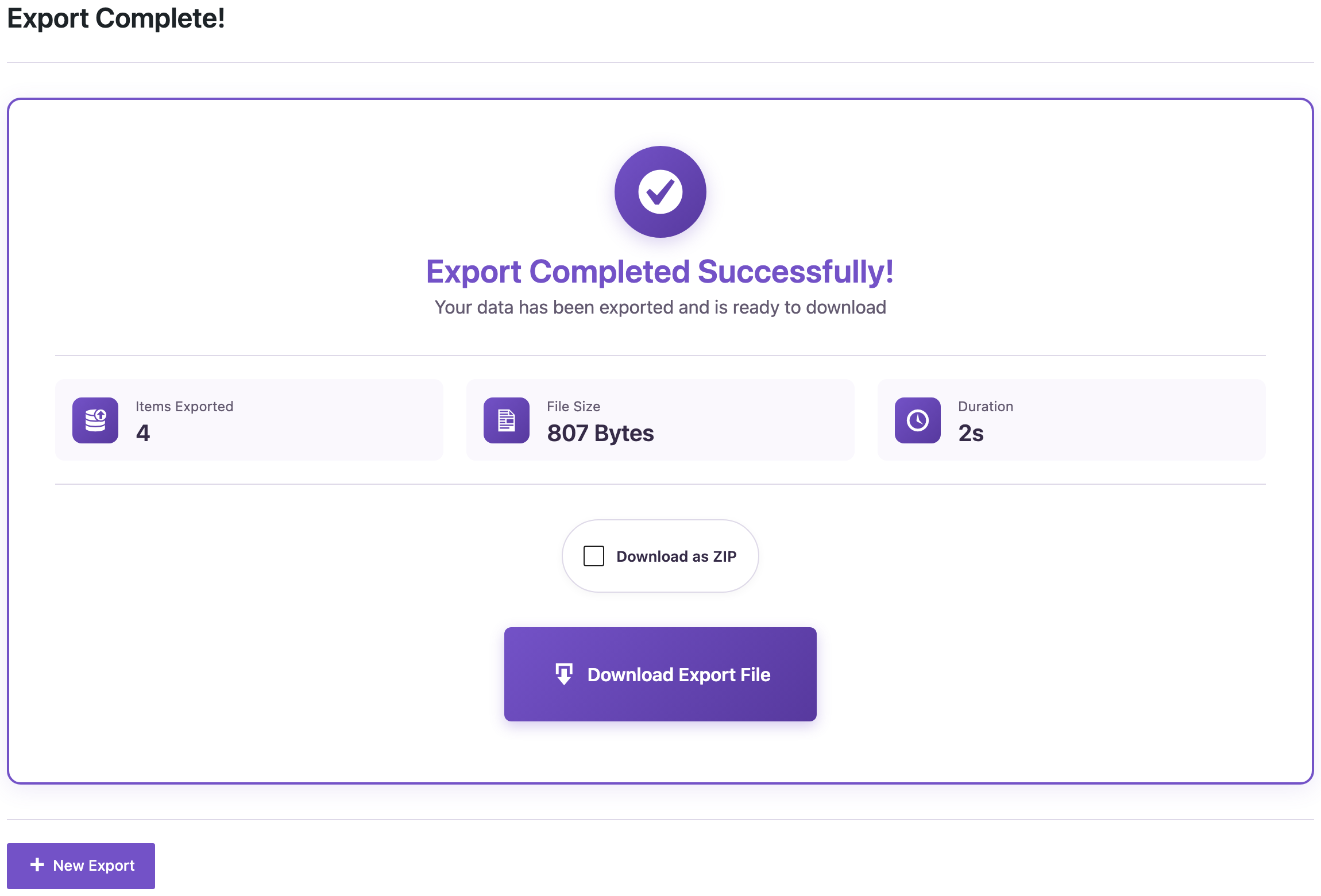
The four messages in the file:
Date,your-name,your-email,your-subject,your-message,"Page URL"
"2026-10-05 10:12:00","Olga Petrova",olga.petrova@example.com,"Order 1043 arrived late","The beans came two days after the delivery date. Can you check the courier?",https://www.example-roastery.com/contact-roastery/
"2026-10-18 18:31:00","Tom Baker",tom.baker@example.com,"Grind size for a moka pot","Which grind should I choose for a 3-cup moka pot?",https://www.example-roastery.com/contact-roastery/
"2026-11-02 08:47:00","Ines Silva",ines.silva@example.com,"Gift cards","Do you sell gift cards? We need 40 for a team gift in December.",https://www.example-roastery.com/contact-roastery/
"2026-11-06 12:05:00","Ravi Kumar",ravi.kumar@example.com,"Subscription pause","Can I pause my subscription for January while I travel?",https://www.example-roastery.com/contact-roastery/
The spam message was not included. Dates are in your site’s time zone, the same as in Flamingo. In CSV files, text that starts with =, +, - or @ gets an apostrophe in front, so a spreadsheet won’t run a formula someone typed into your form.
Several forms
Each form is exported separately, because forms have different fields. If you have a contact form and a booking form, run one export for each, or schedule both in Jobs Log → Schedules so they run every week. A finished export can also be repeated from another system with a webhook trigger.
Personal data
Contact messages hold names, email addresses and whatever people wrote to you. Export only the columns the recipient needs, leave out IP address and browser unless they are needed, and delete files you no longer use. Only administrators can run the export.
With an AI agent
An AI agent connected through the WordPress MCP Adapter (see connecting Claude Code to WordPress) can read the messages for you:
Show me the contact form messages since November 1, and tell me how many are in spam.In our run, the agent read the columns of the form with rsl-ie/form-entry-fields (source flamingo, the form’s channel ID 584 from rsl-ie/form-entry-forms) and called rsl-ie/export-preview with the filter date_created greater or equal 2026-11-01. It returned the two messages from Ines Silva about gift cards and Ravi Kumar about pausing his subscription. rsl-ie/export-count with the status spam answered 1. For a file, the same request goes to rsl-ie/export-start.
Before you export
An export only reads messages, but the file contains your visitors’ data, so keep it somewhere safe. If you plan to delete old messages in Flamingo afterwards, back up the site first.
FAQ
Can I export Contact Form 7 messages without Flamingo?
No. Contact Form 7 only sends the messages by email and doesn’t save them in WordPress. Flamingo saves them; messages sent before it was active can’t be exported.
Why are the columns called your-name and your-email?
Those are the field names in the form. Contact Form 7 doesn’t store labels, so the export uses the names. Rename the columns with the pencil in step 3.
Are spam messages exported?
Only if you ask for them with a Status filter set to spam.
Can I export only messages about one topic?
Yes. Filter your-message or your-subject with Contains and a word such as “order”.
Does this work for Contact Form 7 forms without Flamingo data?
A form appears in the list once Flamingo has saved at least one message for it.
Related Guides
- Export Gravity Forms Entries to CSV or Excel in WordPress
- Trigger WordPress Imports and Exports with Webhooks and Events
- How to Schedule Recurring WordPress Exports to CSV
- CSV Opens in One Column in Excel
Get the free plugin on WordPress.org.

Comments 0
Have a question or a tip to share? Leave it below.