
In this tutorial, you will learn how to sync Elementor pages between two WordPress websites using the Blocksy theme and the
Content Sync feature in Import Export by RockStarLab.
Unlike a traditional import and export workflow, Content Sync does not require creating a CSV file, downloading it, and uploading it to another site.
Instead, you can connect two WordPress websites and push or pull selected pages in just a few clicks.
Why Sync Elementor Pages Instead of Importing and Exporting?
Elementor pages often contain much more than simple WordPress content. They may include layout metadata, widget settings, background images, icons, forms, maps, pricing tables, and other structured data.
Export and import works well when you need a portable file-based migration. But if you regularly move content between a staging site and a production site,
syncing pages directly can be much faster.
Content Sync is useful when you want to copy new pages, update existing pages, move approved client changes from staging to production, or pull content back from another connected website.
Example Setup: Two WordPress Websites with Blocksy
In this lesson, both websites use the Blocksy theme. Blocksy is a lightweight, flexible WordPress theme that works well with Elementor and includes starter templates for quickly building modern websites.
The first website already has five Elementor pages. The second website starts with no pages. The goal is to move pages from the first site to the second site using Content Sync.
Connecting Two WordPress Websites
To sync content, both websites need to be connected through the Content Sync screen.
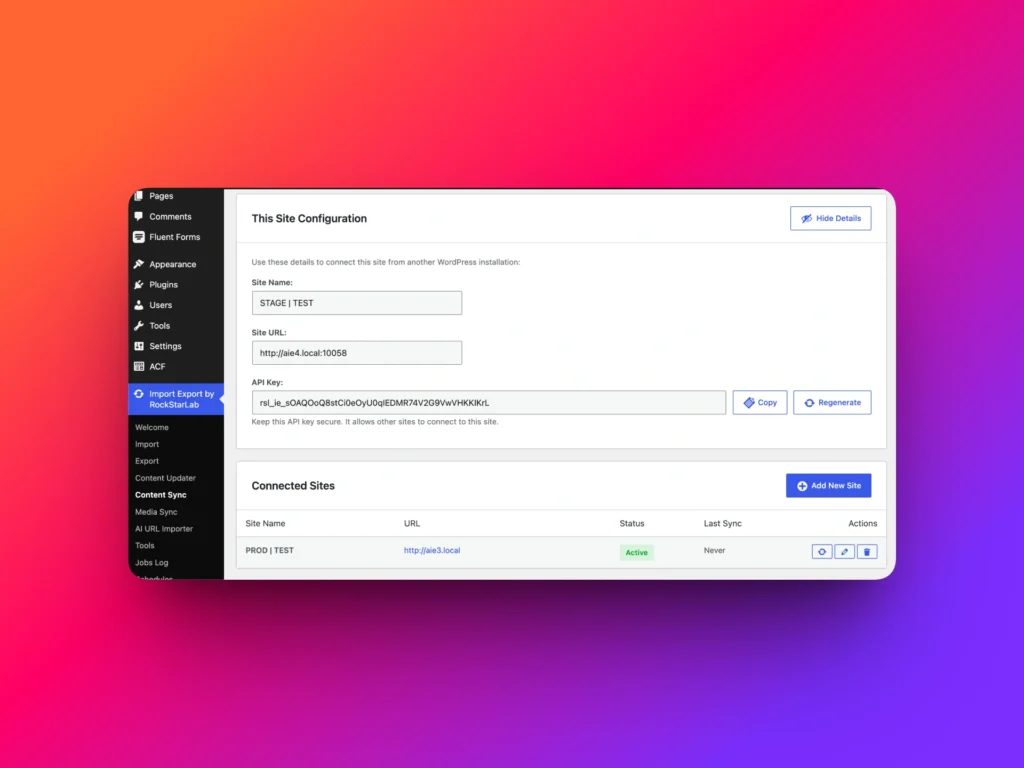
Open Import Export by RockStarLab → Content Sync on both websites.
Each website has a This Site Configuration section with connection details, including the site name, site URL, and a secret API key.
On the first website, click Add New Site in the Connected Sites section, then copy the site name, site URL, and API key from the second website.
Save the connection.
Then repeat the same process in the opposite direction: add the first website as a connected site on the second website.
Once both connections are saved, the two websites can send and receive content securely using their API keys.
Pushing Selected Elementor Pages to Another Site
After the websites are connected, go to the Pages section on the first website.
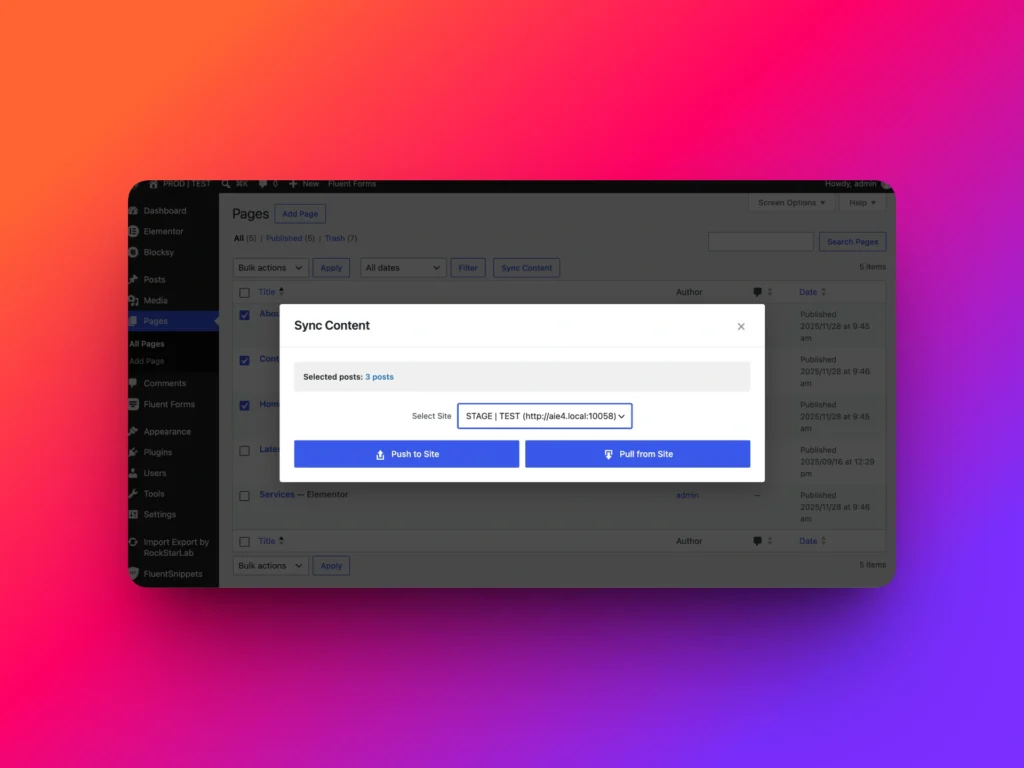
Select the pages you want to transfer using the checkboxes, then click Sync Content.
In the dialog, choose the remote website and click Push to Site.
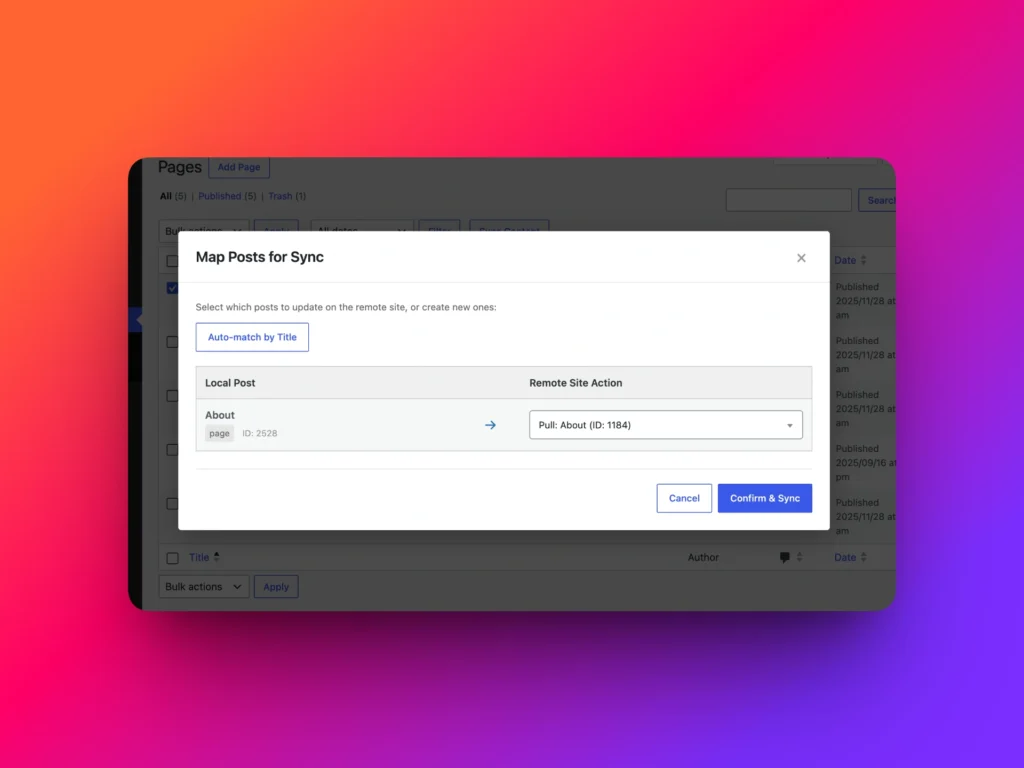
The mapping screen lets you choose what should happen on the remote website. If the pages do not exist yet, choose Create New Post.
Click Confirm and Sync, and the plugin will copy the selected Elementor pages to the remote site.
Pulling Remote Pages into the Current Website
You can also work in the opposite direction.
On the second website, click Sync Content without selecting any pages. Then choose the first website from the dialog.
The Browse Remote Posts window shows pages available on the connected remote website.
Select the page you want to copy, then click Pull Selected Posts. The plugin will fetch the selected page from the remote site and create it on the current website.
This is useful when you know the content exists on another connected site and want to bring it into the current website without leaving the dashboard.
Updating an Existing Elementor Page
Content Sync is not only for creating new pages. It can also update an existing page with content from another site.
For example, imagine you edit the About page on the first website using Elementor and add a small content change.
The About page already exists on the second website, but it still has the old version of the content.
On the second website, select the local About page, click Sync Content, choose the first website, and click Pull from Site.
In the mapping dialog, connect the local About page to the remote About page. This tells the plugin to take the content from the remote page and update the local page with that content.
After confirming the sync, the second website receives the updated Elementor content.
Media Files Are Copied Automatically
When syncing Elementor pages, the plugin also copies the media files used by those pages. This includes images, icons, and other assets referenced inside the Elementor content.
After syncing pages, open the Media Library on the destination website to verify that the required files were added.
This avoids the need to manually download and upload media files when moving Elementor pages between sites.
Staging to Production Workflow
One of the best uses for Content Sync is a staging-to-production workflow.
You can build or edit Elementor pages on a staging website, show the changes to your client, and after approval, sync only the selected pages to the production website.
This is much more targeted than copying the entire database. It helps you move only the content that changed, without overwriting unrelated production data.
| Workflow | Best For | Requires Export File? |
|---|---|---|
| Export and import | Portable migration, offline review, CSV-based workflows | Yes |
| Push to site | Sending selected pages from the current site to another connected site | No |
| Pull from site | Fetching pages or updates from a connected remote site | No |
| Update existing page | Replacing an existing page’s content with the version from another site | No |
Content Sync Is Available in the Free Version
The Content Sync feature is available in the free version of Import Export by RockStarLab.
That means you can connect WordPress websites and sync selected pages without buying the PRO version first.
For users who manage client websites, staging environments, or repeated content migrations, this can save a lot of time compared with manual copy and paste.
FAQ
Can I sync Elementor pages between two WordPress websites?
Yes. Import Export by RockStarLab can sync Elementor pages between connected WordPress websites using the Content Sync feature.
Do I need to create an export file to sync Elementor pages?
No. Content Sync lets you push or pull pages between connected websites without creating a CSV export file.
Will Elementor images be copied during sync?
Yes. Media files used by Elementor pages, such as images and icons, can be copied automatically to the destination website.
Can I update an existing page instead of creating a new one?
Yes. During sync, you can map a local page to a remote page and update the existing page with content from the connected website.
Is Content Sync available in the free version?
Yes. Content Sync is available in the free version of Import Export by RockStarLab.