
Import Export by RockStarLab 1.1.12 is now available. This release includes several stability improvements, but the main highlight is a new PRO workflow: Export Selected Media.
If you work with large WordPress Media Libraries, you do not always need to export every file. Sometimes you only need a small group of images, PDFs, videos, or documents for a migration, client handoff, SEO review, or content update. Version 1.1.12 makes that workflow much faster.
New PRO Feature: Export Selected Media
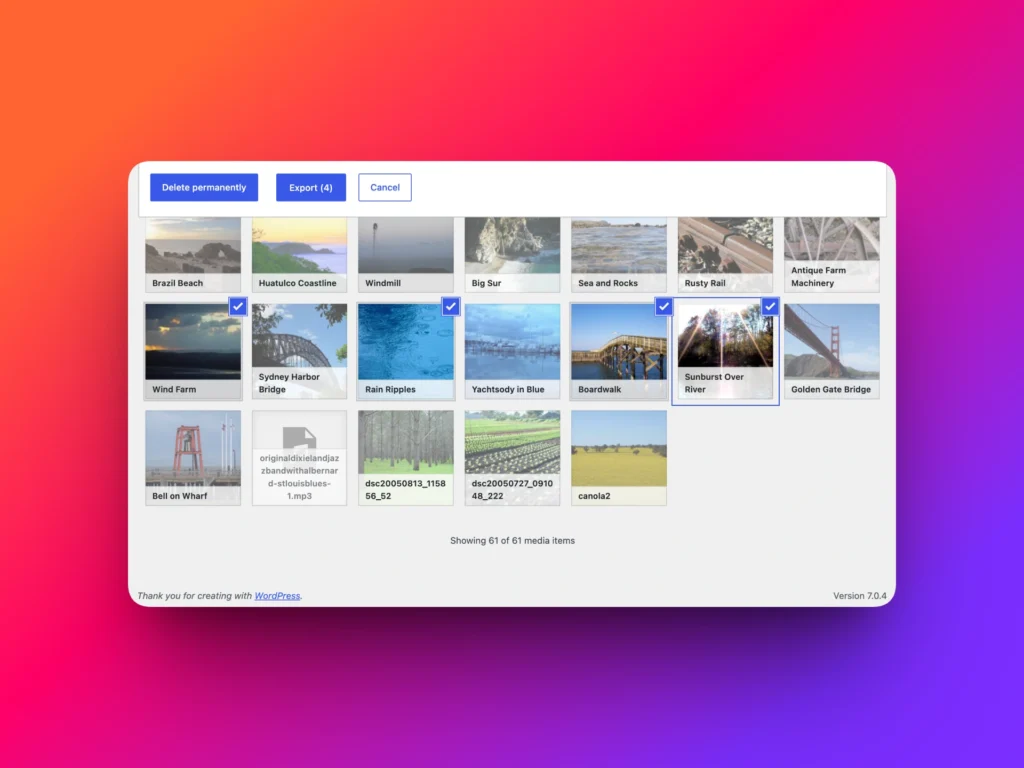
The new Export Selected Media feature lets you choose specific files directly from the WordPress Media Library and export only those selected items.
This is available in the PRO version of Import Export by RockStarLab.
Instead of exporting the full Media Library and filtering the file afterward, you can now start from the exact files you need. This is especially useful when your website contains hundreds or thousands of media attachments.
Why This Is Useful
Media export is often part of a bigger WordPress workflow. You may be preparing files for another website, sending selected assets to a client, auditing a group of images, or moving only part of a Media Library.
Export Selected Media helps you avoid unnecessary data cleanup after export.
For example, you can use it when you need to:
- Export only images used in a specific project or page update.
- Move selected media files from staging to production.
- Prepare a focused media file list for SEO or image optimization.
- Export only PDFs or documents that belong to a client deliverable.
- Create a smaller migration file instead of exporting the entire Media Library.
- Review selected media metadata in CSV or Excel.
A Better Workflow for Large Media Libraries
Large Media Libraries can become difficult to manage over time. A full export is still useful when you need a complete backup, audit, or migration file. But for day-to-day work, selected export is often more practical.
With Export Selected Media, you can select the files you need and export only those records. This keeps the export smaller, easier to review, and easier to import into another website later.
Export Formats
Selected media exports follow the same flexible export approach used throughout Import Export by RockStarLab.
You can prepare media data for spreadsheet workflows, migration workflows, or structured review depending on the format you choose.
| Format | Best For |
|---|---|
| CSV | Google Sheets, Excel, audits, migrations, and simple data exchange |
| XLSX | Native Microsoft Excel workflows and client-friendly spreadsheets |
| JSON | Developer workflows, APIs, and structured integrations |
| XML | Structured data exchange and compatibility workflows |
| ODS | LibreOffice and OpenDocument spreadsheet workflows |
What Media Data Can Be Exported?
When exporting media files, you can include useful attachment data such as media ID, title, file URL, file type, MIME type, file size, dimensions, upload date, and other media metadata.
This makes the export useful not only for migration, but also for reporting and audits.
| Media Field | Why It Helps |
|---|---|
| File URL | Useful for migration, review, and external processing |
| Title | Helps identify files in a spreadsheet |
| File type / MIME type | Helps separate images, videos, PDFs, and documents |
| Width and height | Useful for image SEO and optimization audits |
| File size | Helps find large files that may need compression |
| Upload date | Useful for cleanup, reporting, and migration planning |
Full Media Export Is Still Available
Version 1.1.12 does not replace the existing full Media Library export workflow. You can still export all media files when you need a complete file list or a full migration source.
The new selected export workflow simply gives you more control. Use full export when you need everything. Use selected export when you only need specific files.
Other Improvements in 1.1.12
This release also includes a set of bug fixes and stability improvements across import/export workflows. We focused on making the plugin smoother and more reliable during real WordPress data operations.
These improvements are part of our ongoing work to make Import Export by RockStarLab more dependable for everyday WordPress migrations, media workflows, content updates, and structured data management.
Who Should Use Export Selected Media?
Export Selected Media is especially useful for WordPress professionals who regularly manage media-heavy websites.
- Agencies can export only assets related to a specific client task.
- Developers can move selected media between staging and production.
- SEO teams can audit selected images without exporting the full library.
- Content managers can prepare focused media lists for review.
- Site owners can migrate only the files they actually need.
Get the Update
You can update Import Export by RockStarLab from your WordPress admin dashboard.
If you are using the free version, you can download it from WordPress.org:
Download Import Export by RockStarLab
Export Selected Media is available in the PRO version. If you have not tried PRO yet, you can activate it for your first month and test the advanced workflows on your own website.
Learn more about the WordPress import export plugin
FAQ
What is new in Import Export by RockStarLab 1.1.12?
The main new feature is Export Selected Media, which lets PRO users export only selected files from the WordPress Media Library. The release also includes bug fixes and stability improvements.
Is Export Selected Media available in the free version?
No. Export Selected Media is available in the PRO version of Import Export by RockStarLab.
Can I still export the full WordPress Media Library?
Yes. Full Media Library export is still available. The new selected export workflow gives you an additional option when you only need specific files.
Which formats can I use for media export?
Import Export by RockStarLab supports export formats such as CSV, XLSX, JSON, XML, and ODS, depending on the workflow you need.
Can selected media exports be used for migration?
Yes. Selected media exports can help you prepare a smaller, focused media migration file for another WordPress website.