---
title: "Import HTML Content into WordPress Without Breaking Formatting"
url: "https://wpimportexport.com/import-html-content-wordpress/"
description: "Import HTML articles into WordPress from CSV or Excel and keep tables, images, embeds and block markup, with images downloaded to the Media Library."
type: post
published: 2026-11-13T05:00:00+00:00
modified: 2026-11-14T10:44:12+00:00
categories: ["Import Guides", "Tutorials"]
tags: ["CSV import", "Import Export by RockStarLab"]
docs_topics: ["Import guides"]
---
# Import HTML Content into WordPress Without Breaking Formatting
When you move articles from another CMS, a static site or a content export, the body text usually arrives as HTML: headings, tables, images, embedded videos, sometimes block markup from another WordPress site. The worry is that the import will flatten it, strip the table or leave the images pointing at the old server. With [Import Export by RockStarLab](https://wordpress.org/plugins/import-export-by-rockstarlab/) the HTML goes into the post as it is, and the images in it are downloaded to your Media Library. Two articles for a coffee roastery’s blog go through the import below, and we check what came through.
**Free:** everything in this guide works in the free plugin.
## Short Answer
1. Put the HTML of each post in one cell of a CSV or Excel file. In CSV, the cell must be in double quotes, and quotes inside the HTML doubled.
2. Go to **Import Export by RockStarLab → Import**, choose **Posts** and map the HTML column to **Content**.
3. Keep **Automatically Import Media Files** on, so images in the HTML are downloaded and their links updated.
4. Run the import as an administrator.
## The file
The first article is plain HTML with a heading, a table with a class and inline style, an image on the old site, a YouTube embed and a small script. The second is block markup copied from another WordPress site. Both bodies span several lines. In CSV that’s fine as long as the cell is quoted; spreadsheet programs and most export tools do this for you:
```
Title,Content,Status
How Our Coffee Is Processed,"Washed, natural and honey
Processing decides much of what you taste. …
…
![]()
",publish
Brewing Ratios Cheat Sheet,"
Ratios we use
…",publish
```
If you build the file in Excel or Google Sheets, paste the HTML into the cell and save as CSV or XLSX; you don’t need to escape anything by hand. Excel cells hold up to 32,767 characters, so very long articles are safer in a CSV made by a script or in JSON.
## Map and import
**Auto Map** matched Title, Content and Status. On the options step, **Automatically Import Media Files** is on by default. Both posts were imported in 2 seconds.
## What came through
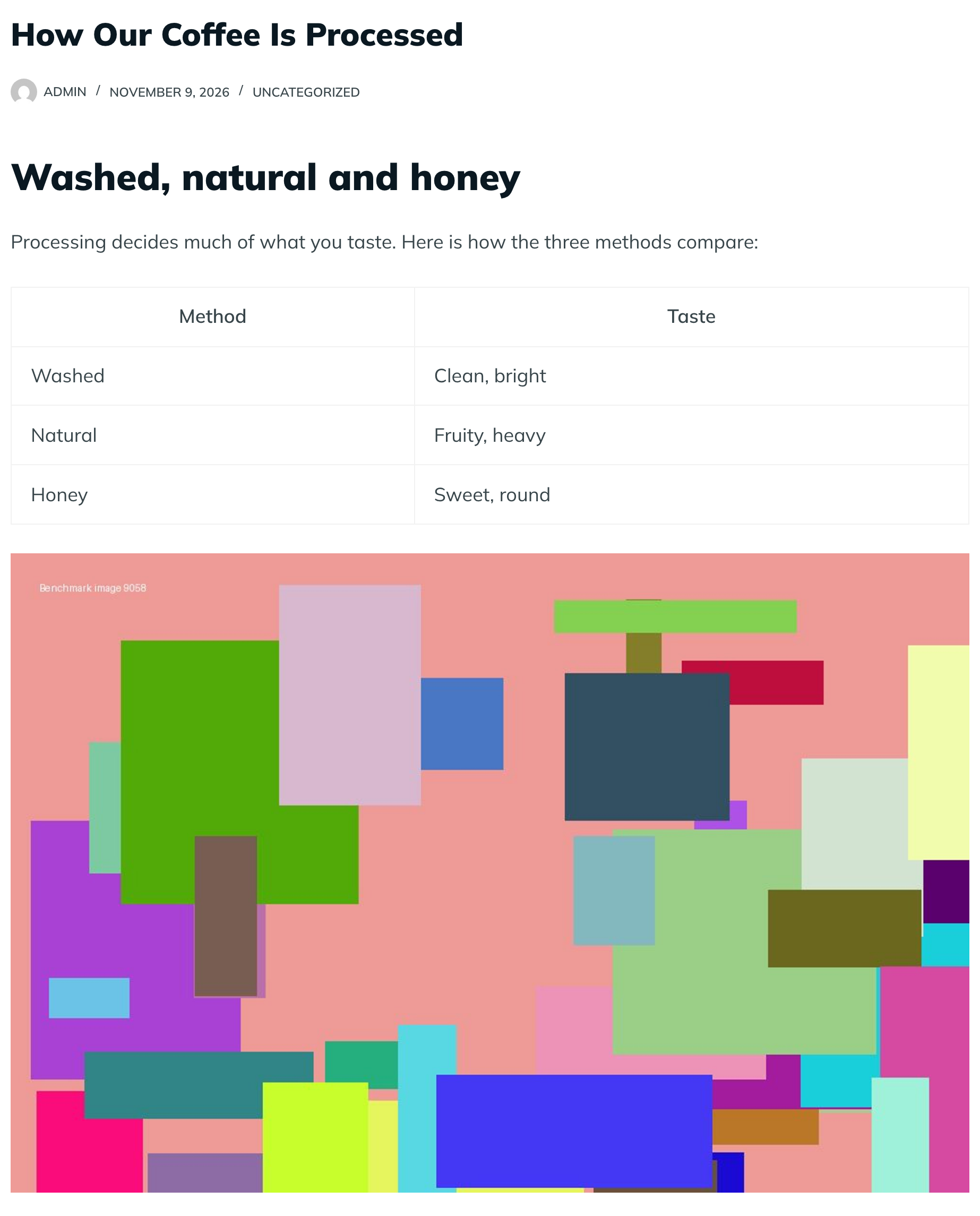
_The heading, table and image came through as in the file._
- **Headings, paragraphs and the table** are exactly as in the file, including the table’s class and inline style.
- **The image** was downloaded to the Media Library, attached to the post, and its `src` now points to the new site. The alt text, width and height stayed.
- **The YouTube iframe** was kept in the content.
- **The script** was kept too, because the import ran as an administrator who is allowed to publish unfiltered HTML.
The block markup became real blocks. The editor shows a Heading and a List block, not a single Classic block:
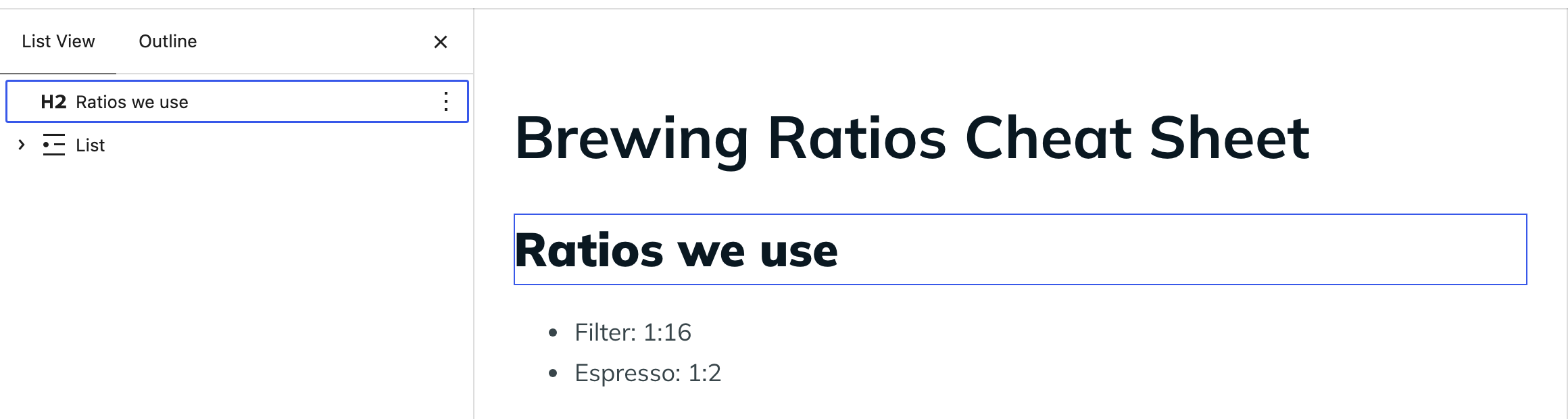
_Block markup in the file becomes real blocks._
Plain HTML without block comments opens in the editor as a Classic block. It displays correctly; if you want blocks, open it and choose **Convert to blocks**.
## Who may import scripts and iframes
WordPress lets only some users save unfiltered HTML. On a single site that’s Administrators and Editors; on a Multisite network, only Super Admins. When someone else runs the import, the content is filtered the same way as in the editor: scripts and other tags WordPress doesn’t allow for that user are removed. If an embed disappears, check who ran the import.
## Common formatting problems and fixes
- **Text cut off or columns shifted.** A quote inside the HTML wasn’t doubled, so the CSV ended the cell early. Re-save the file from a spreadsheet, or export it as XLSX or JSON instead.
- **Accented letters look wrong.** The file isn’t UTF-8. See [fixing broken characters in CSV files](https://wpimportexport.com/csv-utf-8-bom-excel-broken-characters/).
- **Images still load from the old site.** Automatically Import Media Files was off, or the old site blocks downloads. Turn the option on and import again with Update by Title.
- **Links point to the old domain.** Use **Replace links** on the options step to rewrite `old-domain.com` to your new domain during the import.
## Before you import
Imported HTML goes straight onto your pages, including any script it contains. Check content from unknown sources, [back up the site](https://wpimportexport.com/how-to-create-a-wordpress-website-backup-and-restore-it/) and import a couple of rows first.
## With an AI agent
An AI agent connected through the WordPress MCP Adapter (see [connecting Claude Code to WordPress](https://wpimportexport.com/connect-claude-code-to-wordpress-mcp/)) can check that nothing was stripped:
```
Show me the saved HTML of the post "How Our Coffee Is Processed".
```
In our run, the agent called `rsl-ie/export-preview` for posts with the title and content fields. It returned the content with the table, the image on the new site’s URL, the iframe and the script, the same as in the file.
## FAQ
### Does the import convert HTML to blocks?
No. Block markup stays blocks; plain HTML opens as a Classic block, which you can convert in the editor.
### Are images inside the content imported?
Yes, with Automatically Import Media Files on. The links in the HTML are updated to the new files.
### Why was my script or iframe removed?
The user who ran the import isn’t allowed to publish unfiltered HTML. Run it as an Administrator, or a Super Admin on Multisite.
### Can I import HTML from Excel?
Yes. Paste the HTML into a cell and save as XLSX or CSV. Very long articles may exceed Excel’s cell limit.
### Can I import Elementor or page builder content?
Page builders keep their layout in custom fields, not only in the HTML. Export and import those fields together with the content.
## Related Guides
- [How to Import WordPress Posts from CSV or Excel](https://wpimportexport.com/import-wordpress-blog-posts-from-csv-excel/)
- [Featured Images Missing After WordPress Import: Causes and Fixes](https://wpimportexport.com/wordpress-import-featured-images-missing/)
- [CSV Broken Characters in Excel: UTF-8 and BOM](https://wpimportexport.com/csv-utf-8-bom-excel-broken-characters/)
- [Bulk Update WordPress Posts from CSV Without Duplicates](https://wpimportexport.com/how-to-bulk-update-existing-wordpress-posts-without-creating-duplicates/)
Get the free plugin on [WordPress.org](https://wordpress.org/plugins/import-export-by-rockstarlab/).