---
title: "ACF Relationship Fields Break After Import? How to Fix the IDs"
url: "https://wpimportexport.com/acf-relationship-fields-break-after-import/"
description: "Why ACF relationship, post object, taxonomy and user fields point to the wrong content after import, and how to move or repair them with the right IDs."
type: post
published: 2026-11-05T09:27:18+00:00
modified: 2026-11-14T10:40:48+00:00
categories: ["ACF", "Import Guides"]
tags: ["ACF import", "ACF import WordPress", "ACF PRO import", "ACF Repeater sync", "import ACF fields", "Import Export by RockStarLab"]
docs_topics: ["Import guides"]
---
# ACF Relationship Fields Break After Import? How to Fix the IDs
You move posts to a new WordPress site, open one of them, and the ACF fields are wrong. “Related posts” lists a page that has nothing to do with the article, “Expert” shows the wrong person, and the topic checkboxes are empty. Some posts look fine and others do not, so the problem often goes unnoticed until a visitor clicks a wrong link.
The cause is almost always the same: ACF relationship fields store **IDs**, and IDs are different on every site. Below: what breaks and why, how to move the fields so they keep pointing to the right content, and how to repair posts that were already imported with broken fields. Every step was tested on two local WordPress sites with ACF PRO 6.8 and [Import Export by RockStarLab](https://wordpress.org/plugins/import-export-by-rockstarlab/) 2.1.14 (free).
## Short Answer
Export the posts with a tool that writes relationship values as slugs, user logins and term names instead of IDs. Then import that file with a tool that looks those values up on the new site and saves the new IDs.
In Import Export by RockStarLab:
1. On the old site, go to **Export** and add the **ACF Fields** group to the file.
2. On the new site, go to **Import** and click **Auto Map**.
3. To repair posts that are already on the new site, set **Check for Existing Items by Field** to **Slug** and choose **Update**.
Relationship, post object, page link, taxonomy and user fields are then rebuilt with the right IDs, including the ones inside repeaters.
## Why ACF Relationship Fields Break
ACF does not save the related post itself, only its ID. When the same content is created on another site, WordPress gives it new IDs, but the saved field values still hold the old ones.
| ACF field type | What is saved in the database | What happens on another site |
| --- | --- | --- |
| Relationship | A list of post IDs, e.g. `a:2:{i:0;s:4:"1011";i:1;s:4:"1012";}` | Each ID points to whatever has that ID on the new site, or to nothing |
| Post Object | One post ID (or a list) | Same as above |
| Page Link | A page ID | Same as above |
| Taxonomy | Term IDs | Can point to a tag or a term of another taxonomy |
| User | A user ID | Shows a different person if the users were created in another order |
| Image, File, Gallery | Attachment IDs | Shows another image or an empty field |
| Repeater, Group, Flexible Content | The sub-field values, each stored separately | Every relationship sub-field inside them has the same problem |
The built-in WordPress exporter and the WordPress Importer copy these values unchanged. Most CSV importers do the same when they write ACF fields as plain custom fields.
## What We Saw After Moving Six Posts with the WordPress Importer
The test site is a small coffee blog with six posts. Each post has a field group called “Related content” with these fields:
- **Related posts** (relationship)
- **Read next** (post object)
- **Landing page** (page link)
- **Topics** (taxonomy, categories)
- **Expert** (user)
- **Reading path**: a repeater whose rows each hold a title and a post object
We exported the posts and pages with **Tools > Export** and imported them on a second site with the WordPress Importer. The users already existed there with the same logins, as they usually do when you set up the new site first. Then we compared every field with the original:
| Field | Correct after the WordPress Importer |
| --- | --- |
| Related posts | 4 of 6 posts |
| Read next | 5 of 6 |
| Landing page | 6 of 6 |
| Topics | 0 of 6 (the IDs now belonged to tags) |
| Expert | 0 of 6 (the two authors were swapped) |
| Reading path | 4 of 6 |
Some fields survived because the WordPress Importer tries to keep each post’s original ID, and it can do that when the ID is still free on the new site. Where the ID was already taken, the post got a new one, and every field that pointed to it now points to the wrong item. That is why the damage looks random. Posts that come out right in a test with a few posts can still break on a real site with thousands of existing IDs.
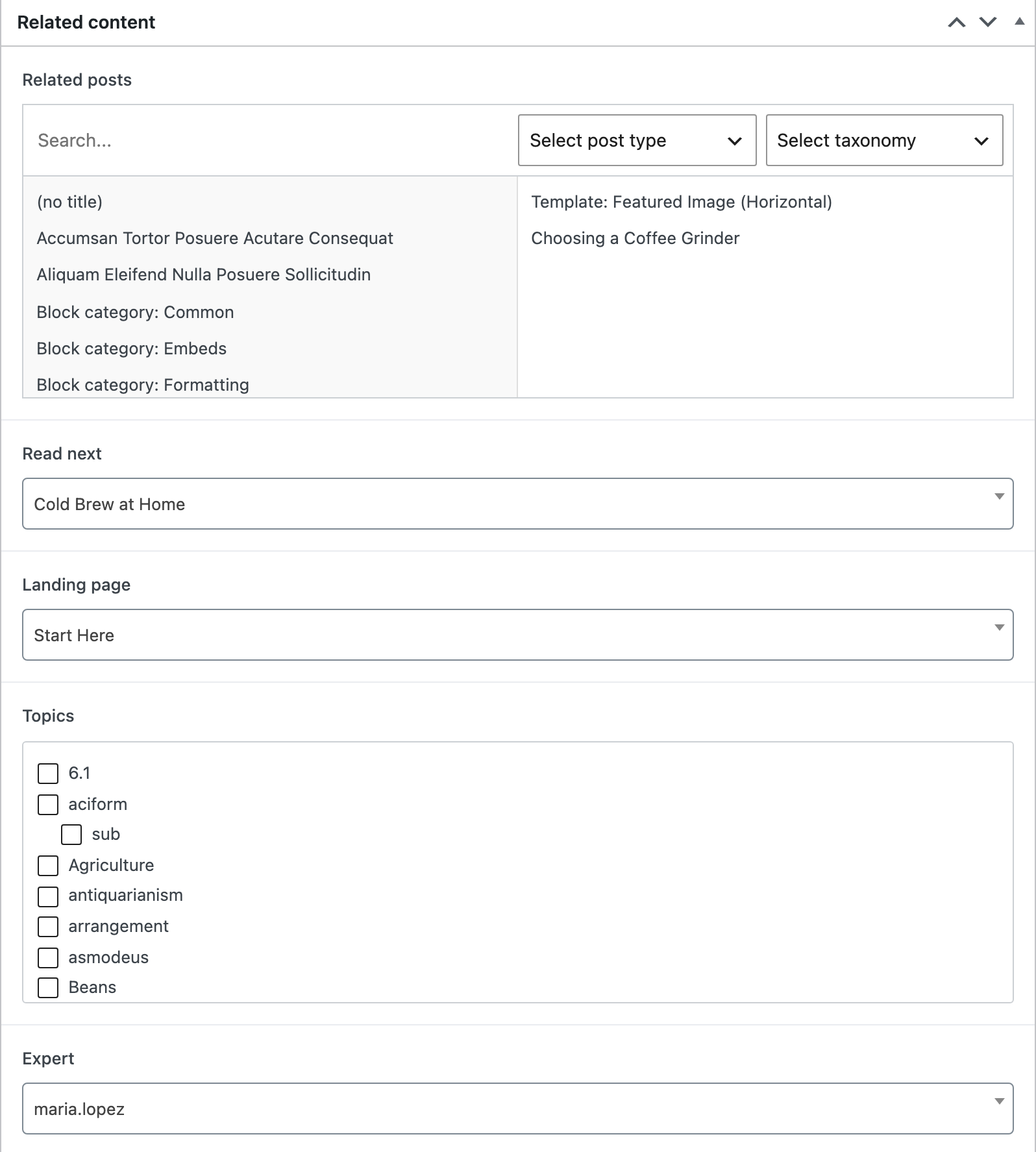
_After the WordPress Importer: "Related posts" lists an unrelated template page, no topic is checked and the expert is the wrong person._
## How to Move ACF Relationship Fields Correctly
### Step 1: Export the Posts with Their ACF Fields
On the old site, open **Import Export by RockStarLab > Export** and choose **Blog Posts** (or Pages, or your custom post type). Skip the filters if you want all posts. On the **Select Fields** step, click **Add all** next to **Standard** and next to **ACF Fields**. Add **Author** and **Taxonomies** as well if you want to keep the post authors and categories. Then choose **CSV** and start the export.
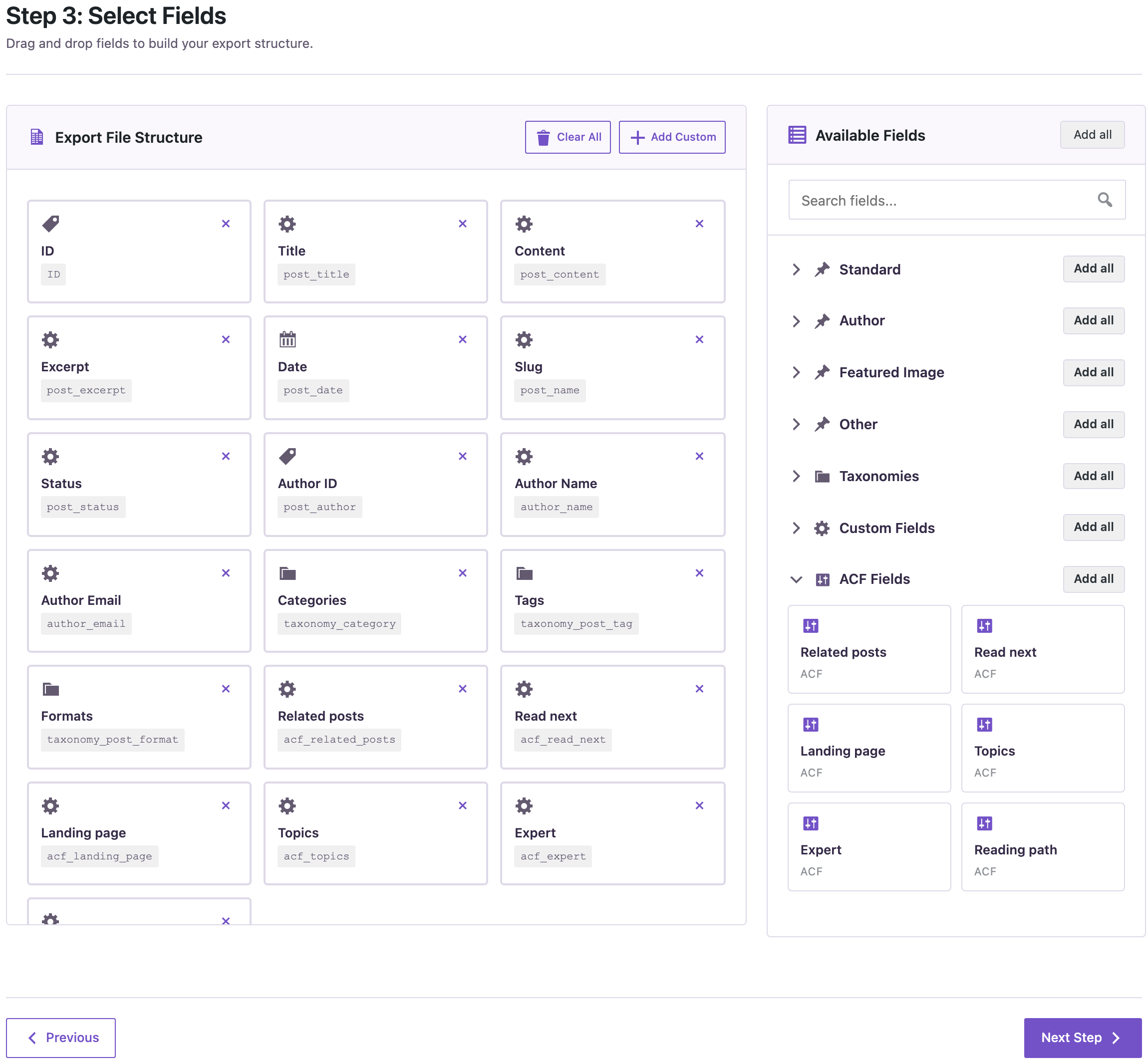
_Step 1: add the Standard and ACF Fields groups (plus Author and Taxonomies if needed) to the export._
The slug (`post_name`) column is important: the import uses it to find the related posts. In the exported file, the relationship fields no longer contain IDs. This is the “Related posts”, “Read next”, “Expert” and “Reading path” data of one post:
```
acf_related_posts: {"acf_type":"relation","values":["pour-over-coffee-guide","french-press-basics"]}
acf_read_next: {"acf_type":"relation","values":["choosing-a-coffee-grinder"],"single":true}
acf_expert: {"acf_type":"user","values":["maria.lopez"],"single":true}
acf_reading_path: [{"step_title":"Start with","step_post":{"acf_type":"relation","values":["cold-brew-at-home"],"single":true}}, ...]
```
Posts and pages are saved by slug, users by login and taxonomy terms by name and slug. Image, file and gallery fields are saved as file URLs, as described in [exporting posts with ACF PRO fields](https://wpimportexport.com/how-to-export-wordpress-posts-pages-custom-post-types-with-acf-pro-fields/).
### Step 2: Prepare the New Site
- **The ACF field group must exist.** Recreate it, sync it from acf-json, or move it with ACF’s own Tools > Export/Import. The field names must match.
- **Pages that the posts point to must exist** before the posts are imported, with the same slugs. Import the pages first if you are moving them too.
- **Users must exist** with the same login or email. The plugin matches them by login, so their IDs do not need to match.
- **Posts that point to each other can be in the same file, in any order.** If a post links to one further down, the plugin fills in that link after the last row is imported.
### Step 3: Import the File on the New Site
Before you import, make a backup of the new site. With UpdraftPlus, click **Backup Now**. An AI agent working through the WordPress Abilities API can start one with `rsl-ie/updraftplus-backup-start` and check it with `rsl-ie/updraftplus-backup-status`. The full steps are in [How to Create a WordPress Website Backup and Restore It](https://wpimportexport.com/how-to-create-a-wordpress-website-backup-and-restore-it/).
1. Go to **Import Export by RockStarLab > Import**, choose the same content type and upload the CSV.
2. On the **Field Mapping** step, click **Auto Map**. The `acf_` columns are matched to the ACF fields of the same name.
3. On **Import Options**, keep **Create** for new posts and start the import.
In our test all six posts were created, and all six fields, including the repeater rows, pointed to the same posts, pages, categories and people as on the old site. On the new site the two authors had swapped user IDs. The plugin still set the right person, because it looks users up by login.
## How to Repair Posts That Are Already Broken
If the posts are already on the new site with wrong fields, you do not need to delete them. Export the posts from the old site as in Step 1, then import the file on the new site in update mode. The slug identifies each post, and the import rewrites its fields with the right IDs:
1. Upload the CSV and click **Auto Map**.
2. On **Import Options**, set **Check for Existing Items by Field** to **Slug**.
3. Set **If Match Found** to **Update**, and **If No Match Found** to **Create** (or **Skip** if you only want to fix existing posts).
4. Start the import.

_Repairing existing posts: match by Slug and update._
On the broken site from the test above, this updated all six posts in about a second. No duplicates were created, and every field matched the old site again.
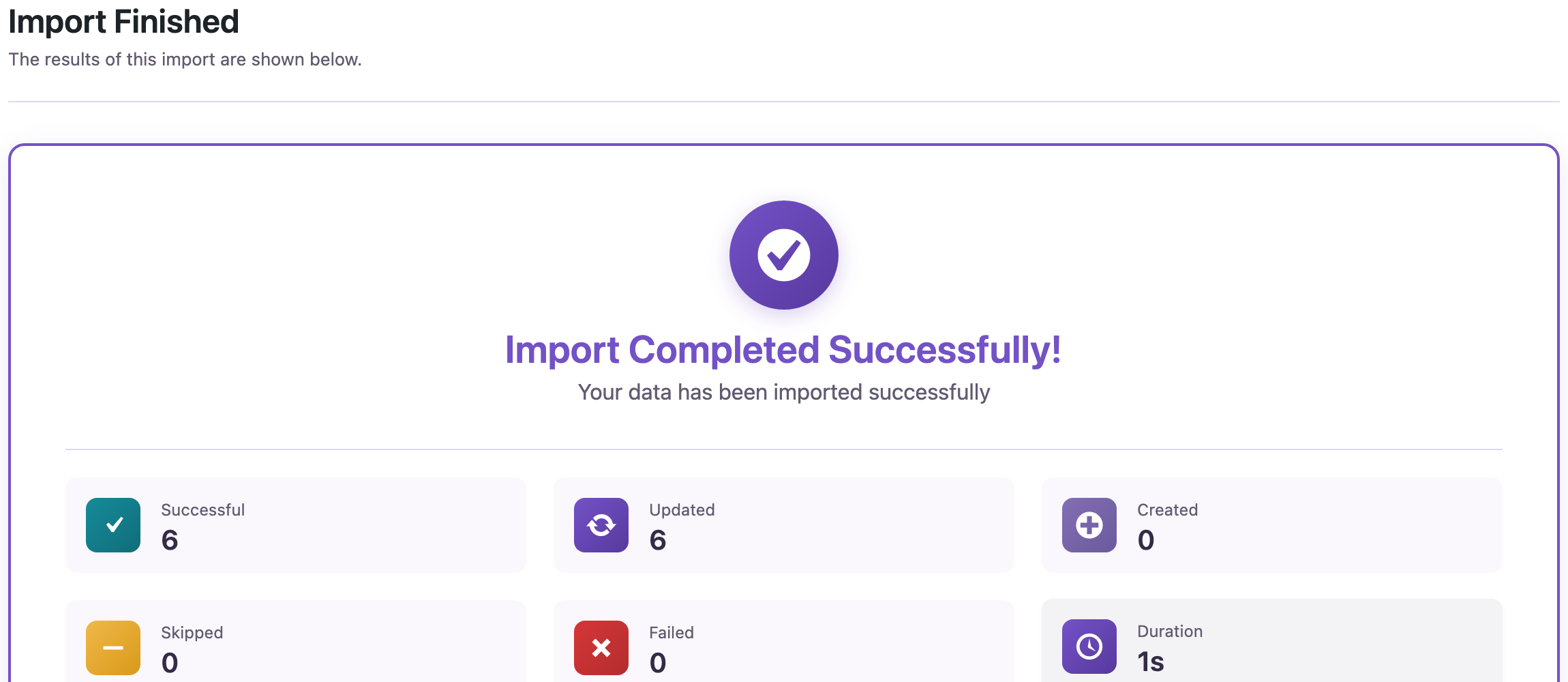
_All six broken posts were updated in place, with no duplicates._
\

_The same post before and after the repair: the related posts and the expert are correct again._
To update only the ACF fields and leave everything else alone, remove the other columns on the mapping step with the × button and keep only `post_name` and the `acf_` columns. Use Slug for matching rather than Title. Titles can repeat, and slugs cannot within a post type.
If the old site is gone and you cannot export from it, the IDs alone cannot tell you what the fields used to point to. Then the fields have to be rebuilt from your own records, which is easiest with a spreadsheet as described next.
## Setting Relationship Fields from a Spreadsheet
You do not need an export file to fill relationship fields. A plain CSV or Excel file with readable values works, and the column names only need to match the ACF field names:
```
post_title,post_content,related_posts,read_next,landing_page,topics,expert
AeroPress Recipes,"...
","Pour-Over Coffee Guide, Choosing a Coffee Grinder",Moka Pot Guide,Start Here,"Brewing, Gear",maria.lopez
Moka Pot Guide,"...
","Espresso for Beginners | AeroPress Recipes",AeroPress Recipes,Coffee Equipment,Brewing,tom.becker@example.com
```
- **Relationship, post object and page link:** a post ID, slug, title or URL. Separate several posts with commas, or with `|` when a title contains a comma.
- **Taxonomy:** term names, slugs or IDs.
- **User:** a login, email address or user ID.
- **Forward references are fine.** “AeroPress Recipes” points to “Moka Pot Guide”, which is only created one row later, and the link was still set.

_Spreadsheet columns named after the ACF fields are mapped automatically._
Auto Map matched every column to its ACF field. Both posts were created with the right related posts, landing pages, topics and experts. Only posts of the post types allowed in the field settings are matched, so a title that exists both as a post and as a page goes to the right one.
## Common Mistakes
### The fields are right, but the front end shows nothing
Check that the field group exists on the new site, that its field names match the old site, and that its location rules include the post type. If the group was missing or different during the import, fix it and run the import again in update mode.
### “Expert” or another user field is empty
The user did not exist on the new site when the posts were imported, so there was no one to link. In our test such a field was saved empty. Create the user, or import users first, and run the update import again.
### A page link field is empty
The page was imported after the posts, or its slug changed. Import pages first, then the posts. Or re-run the post import in update mode after the pages exist.
### Search and replace on the database did not help
Replacing the old domain fixes URLs in content, but it cannot fix IDs: the number 1011 contains no domain to replace. Relationship fields need a lookup, not a text replacement.
## FAQ
### Does the WordPress Importer fix ACF relationship IDs?
No. It remaps the post author, the featured image and menu items, but it copies ACF field values unchanged. In our test the fields were correct only where a post happened to keep its old ID.
### Does this work for custom post types and WooCommerce products?
The free version covers posts, pages and comments. Custom post types and WooCommerce products need the Pro add-on, and the same relationship handling applies there.
### What about image and gallery fields?
They have the same ID problem. The export writes them as image URLs, and the import downloads each file once and saves the new attachment IDs. The test is in our [comparison of free CSV import plugins](https://wpimportexport.com/free-wordpress-csv-import-plugins-compared/). To fill these fields from image addresses in a spreadsheet, see [How to Import ACF Image and Gallery Fields from URLs](https://wpimportexport.com/import-acf-image-gallery-fields-from-urls/).
### Can I fix only some posts?
Yes. Filter the export on the old site (for example by category or date), or delete rows from the CSV before importing. Posts that are not in the file are not touched.
## Related Guides
- [How to import posts, pages and custom post types with ACF PRO fields](https://wpimportexport.com/how-to-import-posts-pages-custom-post-types-with-acf-pro-fields/)
- [How to migrate only posts and pages to a new WordPress site](https://wpimportexport.com/how-to-migrate-only-posts-and-pages-to-a-new-wordpress-site/)
- [WordPress Tools > Export limitations: what the built-in exporter doesn’t move](https://wpimportexport.com/wordpress-tools-export-limitations-what-the-built-in-exporter-doesnt-move/)
- [Free WordPress CSV import plugins compared](https://wpimportexport.com/free-wordpress-csv-import-plugins-compared/)
Import Export by RockStarLab is free on [WordPress.org](https://wordpress.org/plugins/import-export-by-rockstarlab/).